
Python is one of the most popular programming languages today, and many people use it for learning, coding, and building projects. If you’re new to Python or just want to install the latest version (3.12.2) on your Windows 10 or Windows 11 computer, the process is easier than you might think. You don’t need any advanced skills—just a few simple steps to download, install, and set it up properly. In this guide, we’ll walk you through the entire installation process in clear, easy language so you can start using Python right away for your coding journey or professional work.
Step 1: Install Python 3.12.2
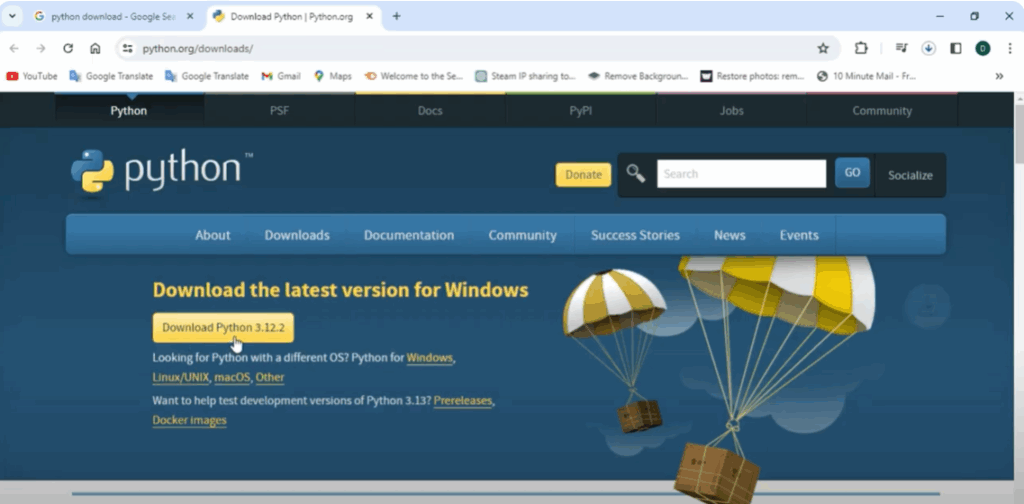
Go to any web browser on your Windows PC. Search Python download in the search bar.
First, open the official website python.org. You can also go directly to Python download by clicking on the link given in the description.
You will see the latest version of Python 3.12.2 available to download. On the screen, you will also see the option to download Python on other operating systems like Linux, Mac, and Unix.
Click on the Download button. The download process will start.
Step 2: Launch Installation Wizard
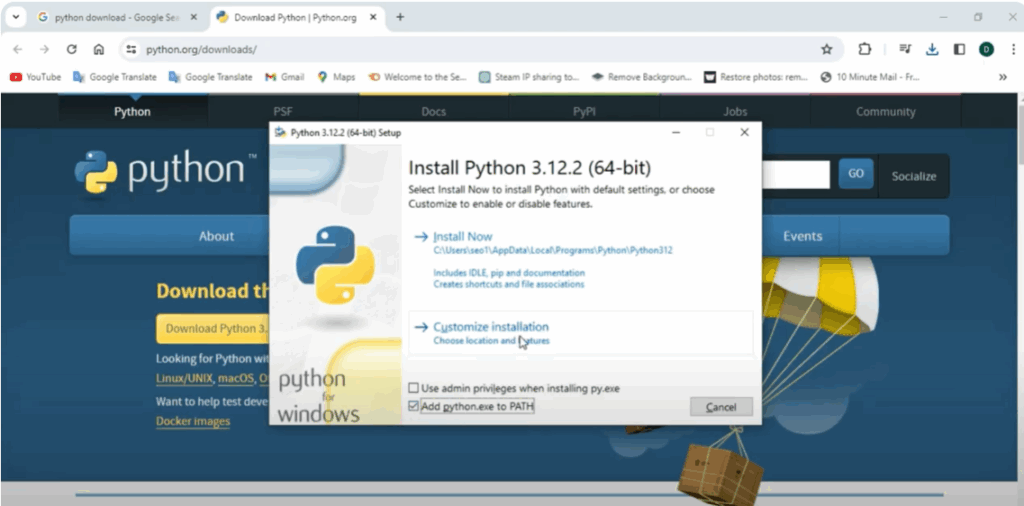
Once downloaded, open it. Here we will launch the Python installation wizard.
- Must check for Python.exe to path.
- Click on Customize Installation.
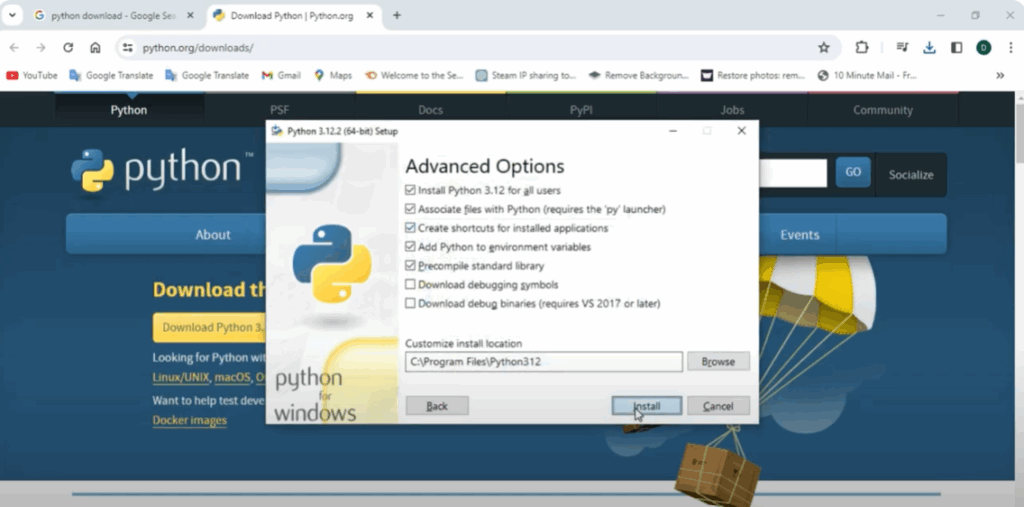
Next, you will see under optional features that you have a lot of checkbox ticks. Keep everything default and also select it for all users. Then click Next.
Here in advanced options, select the first option which is Python 3.12 installed for all users.
You will see a customized location for installation. You can keep it default.
Click on Install.
The Python installation will start. You will have to wait for some time.
After some time, you will see on the screen that the setup was successful. Now click on Close.
Step 3: Verify Python Installation
Now we will verify whether Python is installed on the PC or not.
- Go to the search bar of your Windows PC and search cmd.
- Open it.
- Type
python --versionand press Enter.
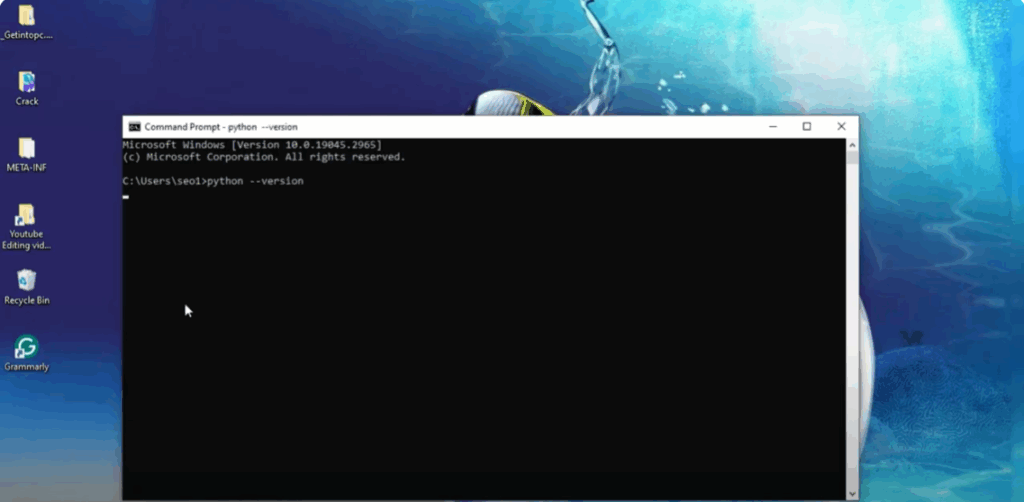
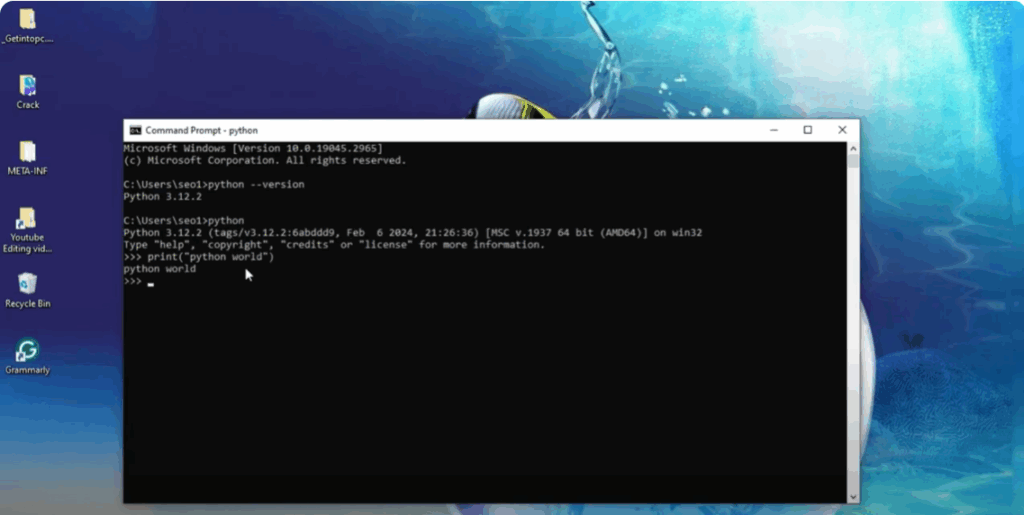
You will see Python 3.12.2 version on the screen.
Now type python and press Enter. You will see something like this on the screen. It means that Python has been successfully installed on your PC.
Now we will type print("Python World") to get the output.
We can see “Python World” printing properly on the screen.
Step 4: Verify with IDLE
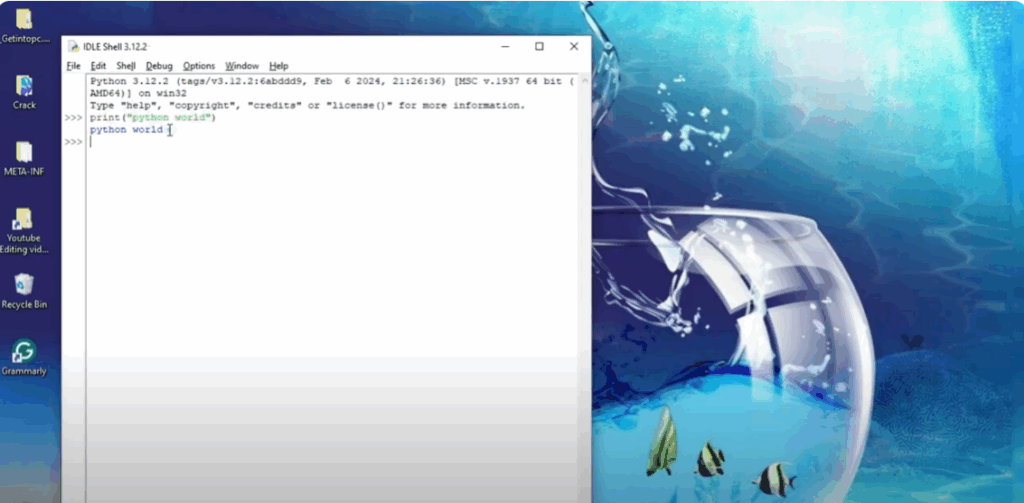
Now go to Windows search bar and search IDLE.
Open it.
Here we will type print("Python World") and click Enter. You will see the Python World output on the screen.
This means that the IDLE shell has also been successfully established.
Conclusion
This means that we have successfully installed the latest version of Python on Windows.






