
Locking your keyboard in Windows 10 can help you avoid accidental key presses while cleaning your laptop, or keep kids from typing unwanted characters. You can lock or unlock the keyboard using keyboard shortcuts like Fn + F6, Fn + F7, or by holding the right Shift key for 8 seconds, depending on your device. If those don’t work, you can also manage keyboard settings in Device Manager, or try special apps made for locking the keyboard easily. In this blog, you’ll learn the simplest ways to lock or unlock your keyboard in Windows 10 so you can keep your PC safe and frustration-free.
How to Lock the Keyboard
- Go to your physical keyboard.
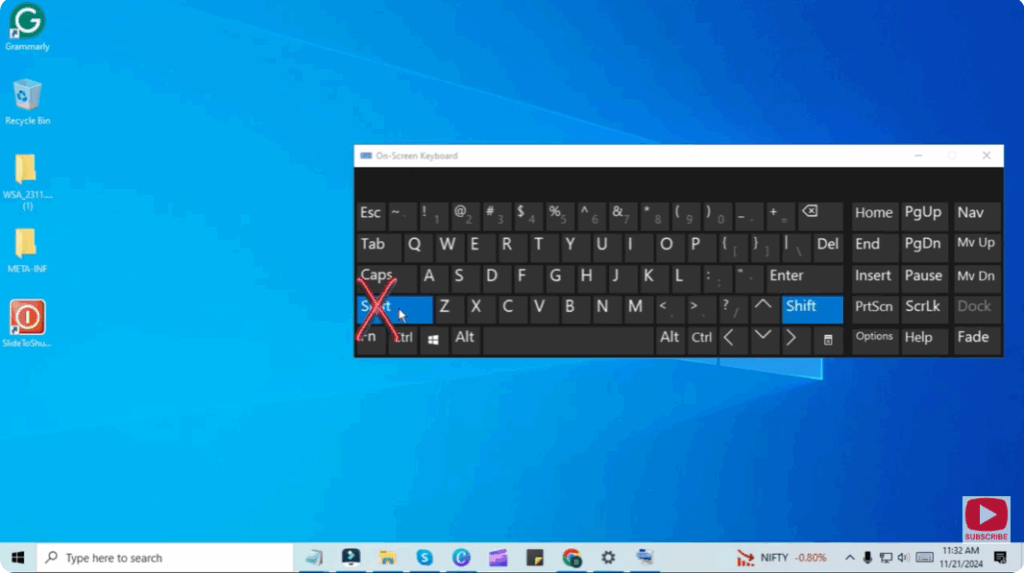
- Press and hold the Right Shift key.
- You need to keep holding the Right Shift key for 8 seconds or more.
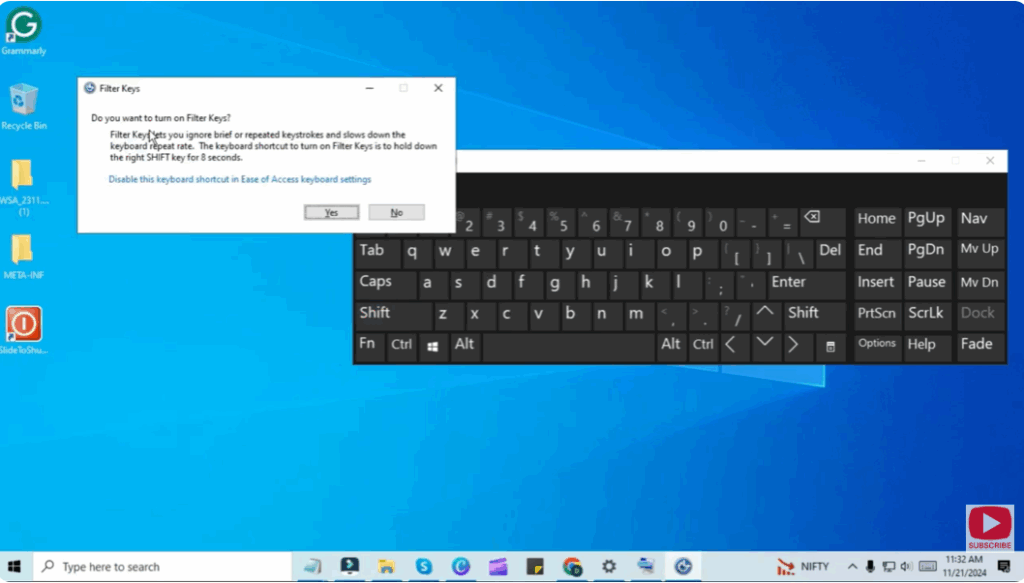
- After holding it, you will hear a long beep.
- A message will pop up on your screen saying: “Disable this keyboard shortcut in Ease of Access keyboard settings.”
- This message confirms that the keyboard lock shortcut is activated.
- Click Yes, and your keyboard will be locked.
Now, if you try typing, nothing will happen. No key presses will be registered. This means your keyboard is now successfully locked.
How to Unlock the Keyboard
- Go back to your keyboard.
- Again, press and hold the Right Shift key for 8 seconds or more.
- You will hear the long beep again.
- Once the beep finishes, go back to Notepad or any typing app.
- You will now be able to type normally again.
This means your keyboard is now unlocked.
Conclusion
You have successfully learned how to lock and unlock your keyboard on Windows 10 using just the Right Shift key trick.






