
Want to use WhatsApp Web on your PC or laptop but don’t want to scan the QR code every time? Good news—there’s a way to stay logged in without needing to scan again and again. In 2025, WhatsApp has made it easier to access your chats on a computer, even without using your phone each time. Whether you’re tired of scanning or your phone isn’t nearby, this blog will show you how to log in to WhatsApp Web without scanning a QR code, using simple steps anyone can follow. Let’s make chatting on your computer quick and hassle-free!
Go to web.whatsapp.com. Open your PC’s Chrome browser to do your WhatsApp Web login and search web.whatsapp.com.
You will see a screen like this. You will see the QR code on the screen.
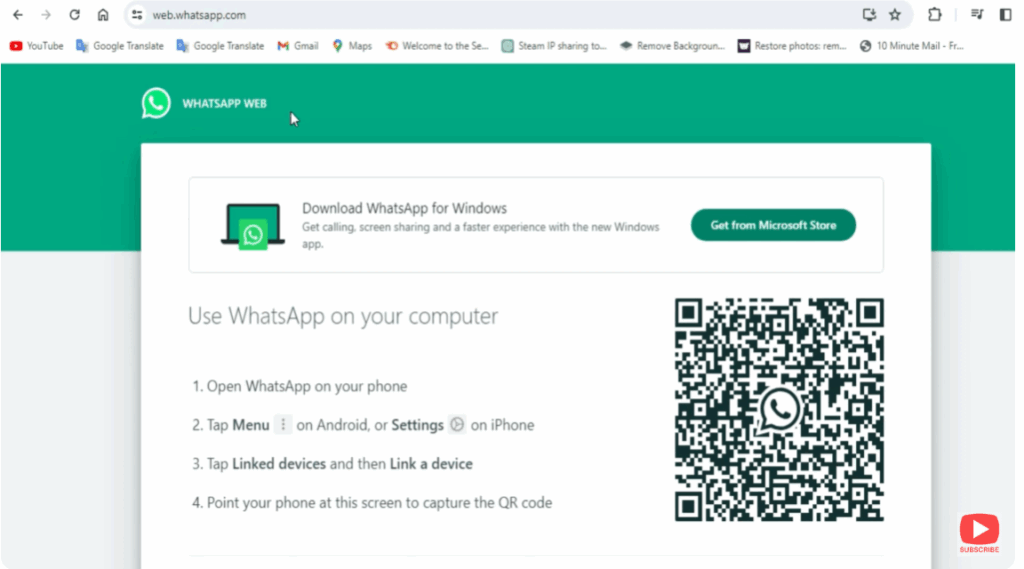
You can log into WhatsApp on the web by scanning the code using your phone’s WhatsApp scanner. I have already made a video on this — you can watch the video by clicking on the “i” button above.
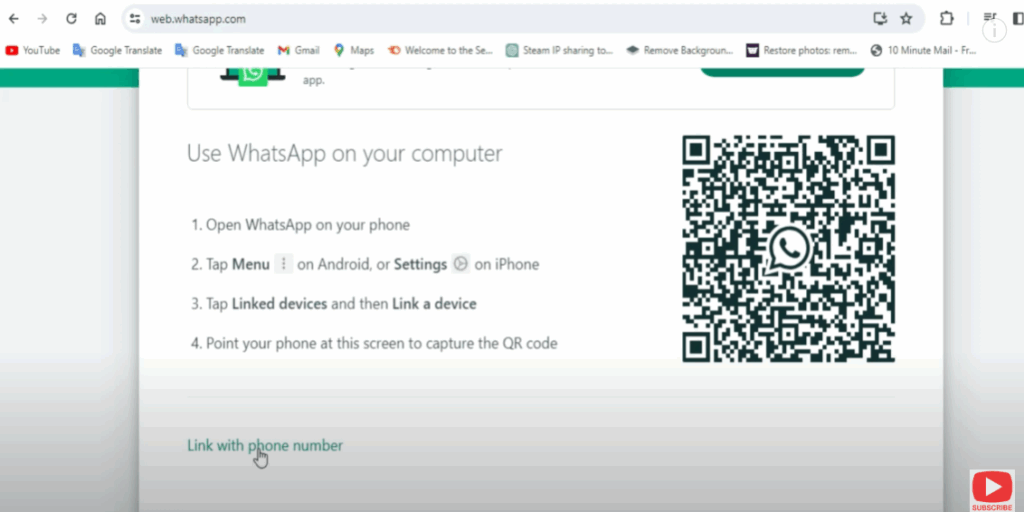
Scroll the screen. You will see the option of link with phone number below. Click on it.
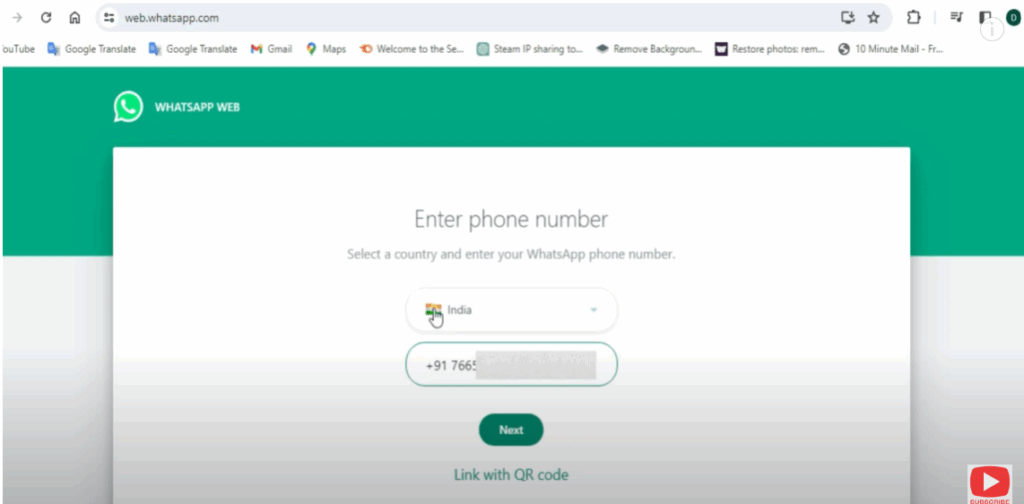
You will be asked to enter a phone number on the screen. You have to enter the same number with which your phone’s WhatsApp login is done. Enter your phone number, then click on Next.
Also, you will have to open WhatsApp on your phone. If you don’t have your phone with you, you can ask someone to turn it on.
Now a code will appear on your screen, which you will have to enter in WhatsApp on your phone. To enter the code in your phone, you have to click on the three-dot button visible at the top of WhatsApp. You will see the option of Link Device — click on it.
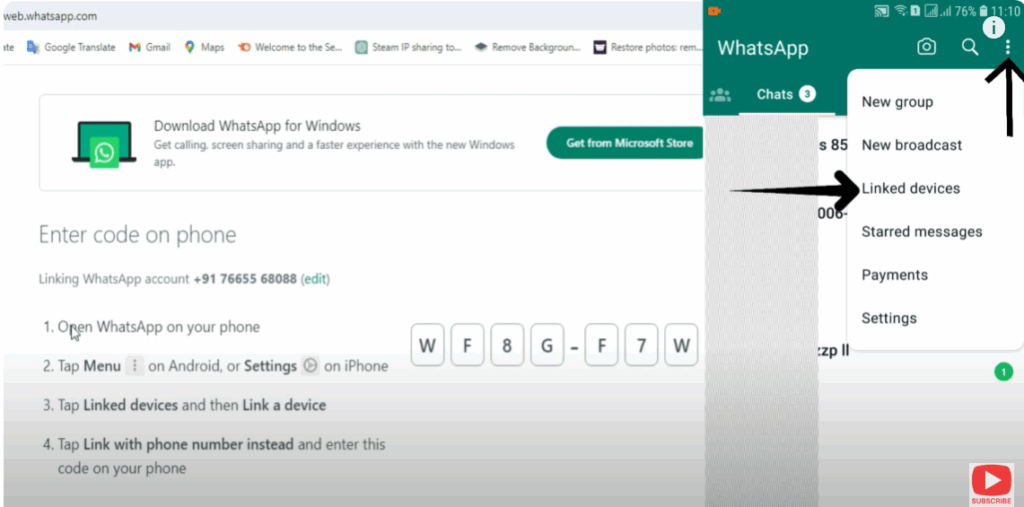
Click the green Link a Device button. You will see the camera screen.
You have to click on Link with phone number at the bottom. Now, you have to enter the code shown on your PC and your phone.
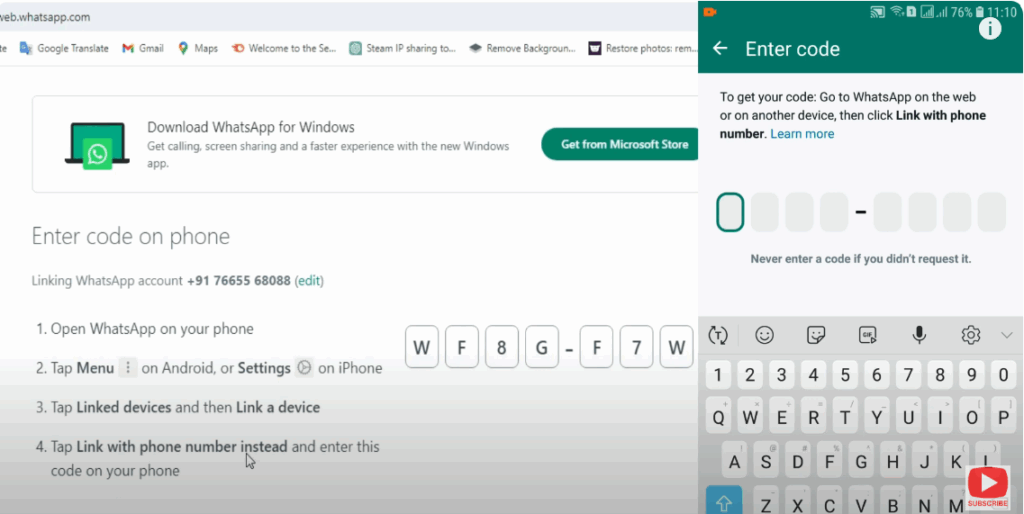
If your phone is not nearby, then you can share your code.
Enter the code and then click on Login. After some time, you will be able to log into WhatsApp on your PC.
Similarly, if your phone is away from you, you can log into the WhatsApp Web of your PC by entering this code.






