

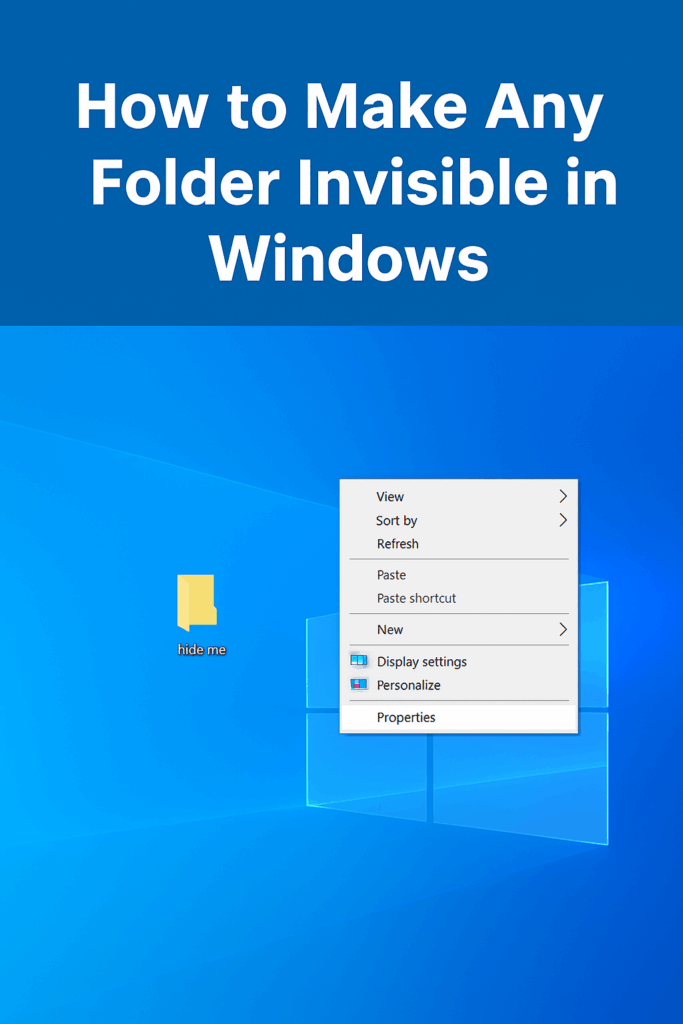
Sometimes you may want to hide a folder on your Windows computer so that no one else can easily see it. This can be useful for keeping personal files private or just for fun as a little trick. The good news is, Windows has a simple way to make any folder invisible without using extra software. In this blog, we’ll show you step by step how to make a folder invisible in Windows using a quick secret method, explained in easy language so anyone can do it.
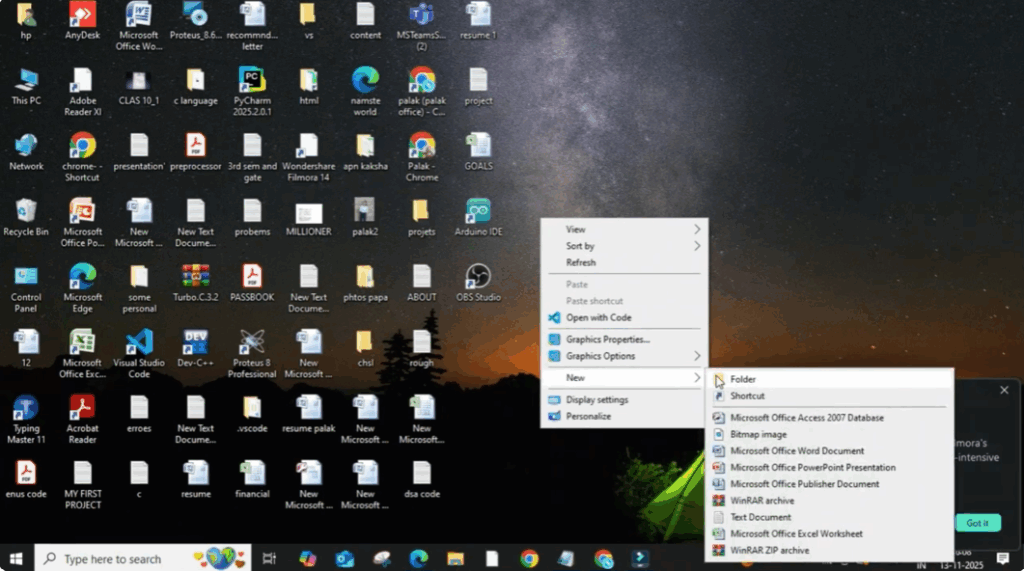
Firstly, we create a folder. Right click on your desktop, then click on new and select folder. Now, rename it to anything. For example, hide me.
Once your folder is ready, right click on it again and select properties. In the properties window, you’ll see an option called hidden. Tick that box. Then click on apply. And finally click okay.
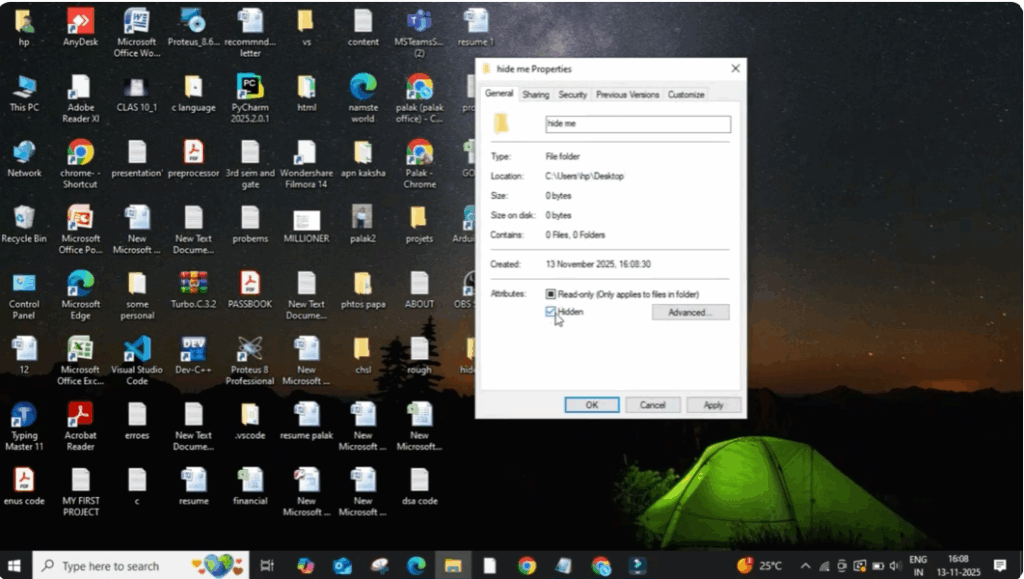
Now look at your desktop. The folder has completely disappeared.
So how do we bring it back? Open file explorer and click on the file option at the top. Now select change folder and search options. In the new window, click on the view tab and then choose the option that says show hidden files, folders, and drives. Click okay and close the window.
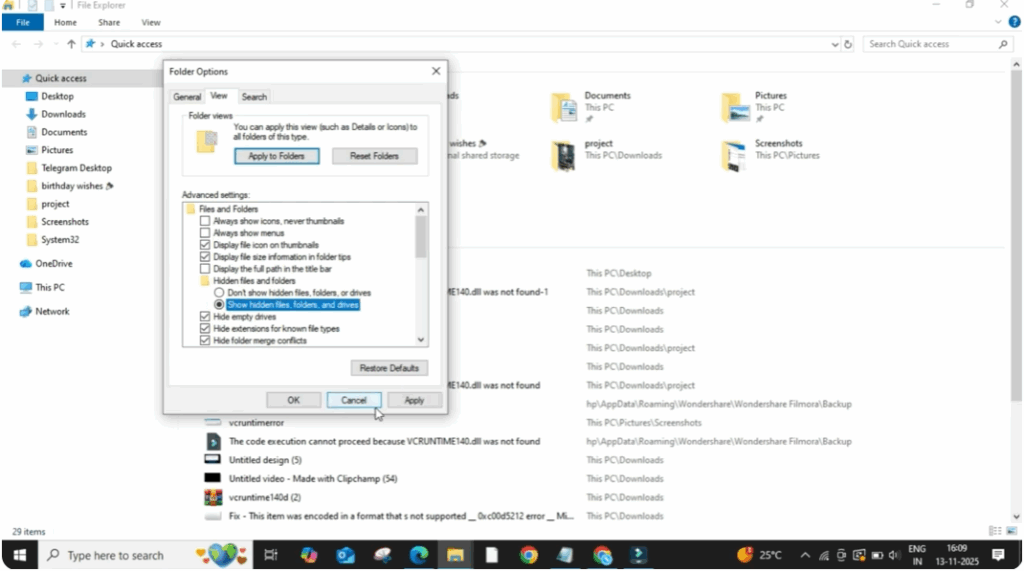
You’ll now see the folder that you hide earlier appear again on your screen. And that’s it. That’s how easily you can hide and unhide folders in Windows without using any software.
🔚 Final Words
Making any folder invisible in Windows is a quick and clever trick to keep your files hidden without using extra software. With this secret method, you can easily protect personal data or simply surprise your friends by showing them how it works. Just remember, the folder isn’t truly locked—it’s only hidden—so don’t rely on it for highly sensitive information. Use this method for convenience and fun, and enjoy the smart way of keeping your files out of sight.






