
Making a presentation in PowerPoint is one of the easiest ways to share your ideas clearly with others. Whether you’re a student preparing for a project, a teacher explaining a lesson, or a professional showing a business plan, PowerPoint helps you organize information with text, pictures, and designs. The good news is, creating a presentation doesn’t require advanced skills—you just need to follow a few simple steps. In this beginner-friendly blog, we’ll explain in easy language how to make a presentation in PowerPoint, so you can impress your audience with neat and effective slides.
Step-by-Step Guide to Making a PowerPoint Presentation
1. Open PowerPoint & Choose a Theme
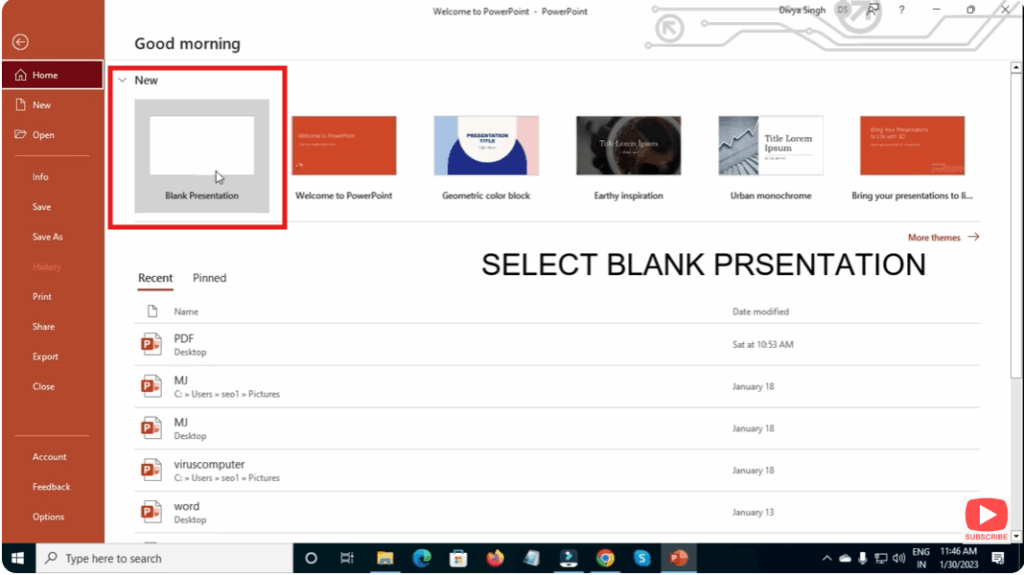
- Launch Microsoft PowerPoint on your computer (or use PowerPoint for Web).
- On the start screen, choose a template / theme that matches your purpose: business, educational, clean, or creative.
- Alternatively, start with a blank presentation if you want more control.
2. Create the Title Slide
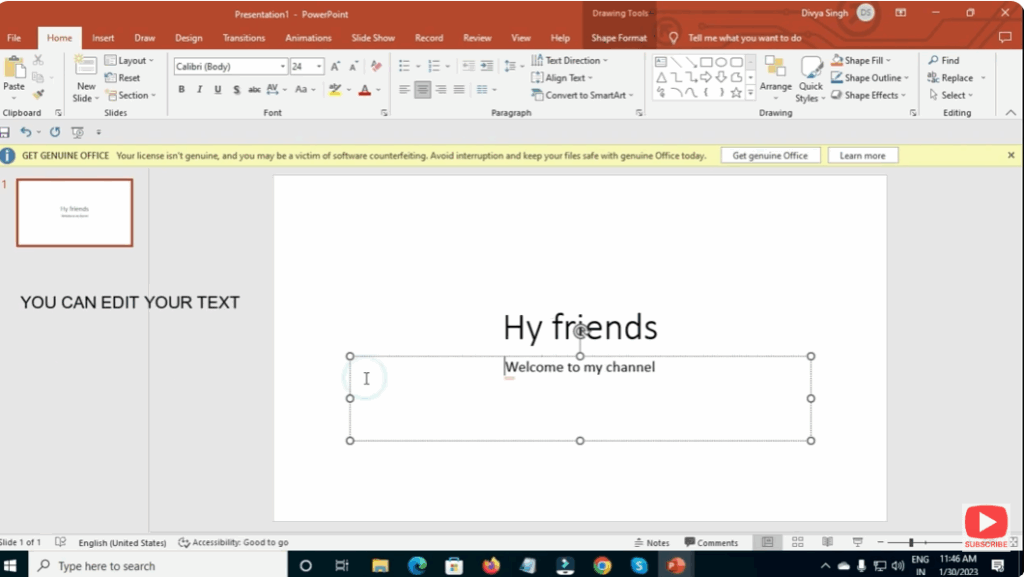
- Click on the first slide (usually a “Title Slide” layout).
- Enter the title of your presentation and a subtitle (your name, date, or organization).
- Use a readable font size and contrasting color to make your title pop.
3. Add New Slides & Content
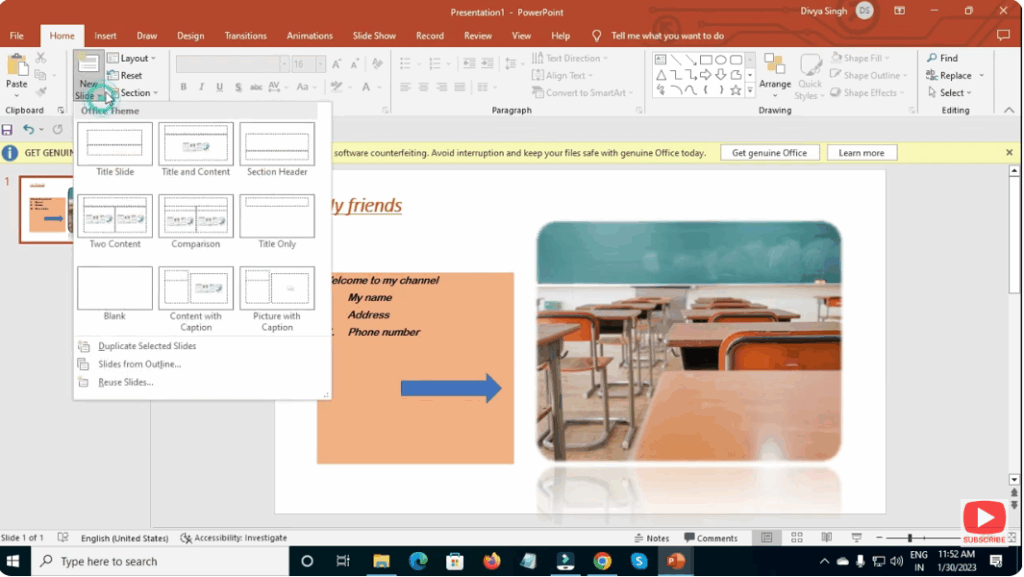
- Use Home → New Slide (or
Ctrl + M) to add slides. - Choose different layouts: title + content, two content, comparison, picture with caption, etc.
- For each slide, add headings and bulleted points — keep text short and digestible.
- Use relevant images or icons: Insert → Pictures / Icons → choose visuals that enhance your message without cluttering.
- Use charts and diagrams: For data-heavy slides, use Insert → Chart or SmartArt → pick a layout (pie chart, flow chart, etc.).
4. Format & Style Your Slides
- Consistency: Use the same fonts, colors, and design style across all slides.
- Slide Master: Go to View → Slide Master to define a global design (header, footer, background) that applies to every slide in your presentation.
- Backgrounds: Use simple, clean backgrounds. Avoid very dark or overly busy ones unless they suit your theme.
- Text alignment: Keep titles and content aligned neatly. Use the alignment and distribution tools to center content.
5. Add Transitions & Animations
- Transitions: Go to Transitions → choose a transition effect (Fade, Wipe, etc.) → apply to one or all slides.
- Animations: Select an object (text, image) → Animations → pick an animation (Appear, Fly In, Zoom, etc.).
- Timing: Use the Duration and Delay options to control when and how fast animations happen.
- Animation Pane: Use it to manage and reorder animations on a slide.
6. Insert Multimedia (Optional)
- Videos: Insert → Video → This Device / Online. Embed short, relevant videos that support your topic.
- Audio: Insert → Audio → choose a sound file (music, voice-over). Use playback options to play automatically or on click.
- Hyperlinks: Link to external resources or websites using Insert → Link → type the URL.
7. Review & Rehearse
- Proofread: Go through every slide to fix typos, check grammar, and ensure clarity.
- Slide Show Mode: Click Slide Show → From Beginning (or press
F5) to preview how your presentation will look. - Rehearse your timing: Use the Rehearse Timings feature (Slide Show → Rehearse Timings) to practice how long you’ll spend on each slide.
- Notes: Use the Notes pane to add speaker notes — helpful for presenting.
8. Final Touches & Export
- Remove unnecessary slides: Delete any slides that feel redundant or out of place.
- Check design consistency: Make sure fonts, sizes, and alignments are uniform.
- Export options:
- Save as a PowerPoint file (.pptx) to edit later.
- Export as a PDF for sharing with others who may not have PowerPoint.
- Export as a video (MP4) if you want to share a recorded slideshow (
File → Export → Create a Video).
- Backup: Save a copy to OneDrive or USB, in case you need it on another device.
Conclusion
Making a presentation in PowerPoint is both an art and a science. By planning your content, choosing a consistent design, adding visual and multimedia elements, and rehearsing carefully, you can create an effective presentation that resonates with your audience. Whether you’re a student, teacher, or professional — mastering PowerPoint will help you communicate more clearly and confidently.






