
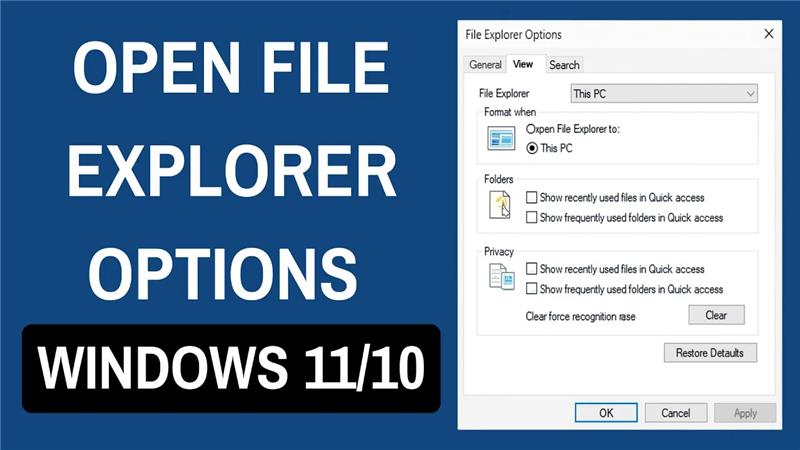
Opening File Explorer Options in Windows 10 or Windows 11 is a simple way to customize how your files and folders look and behave. Many users don’t realize that Windows gives you control over things like showing hidden files, changing how items are displayed, or deciding what happens when you double-click a folder. The good news is, accessing these options only takes a few clicks. In this beginner-friendly blog, we’ll explain in easy language how to open File Explorer Options step by step, so you can make your PC work exactly the way you like.
🛠️ 5 Methods to Open File Explorer Options
Method 1: Use the File Explorer Ribbon / Menu (Windows 10) or “…” Menu (Windows 11)
- Open File Explorer — either click its icon in the taskbar, Start menu, or press Win + E.
- In Windows 10: Click File on the top-left → click “Change folder and search options”.
- In Windows 11: Click the three-dot menu (⋯) on the toolbar → select Options.
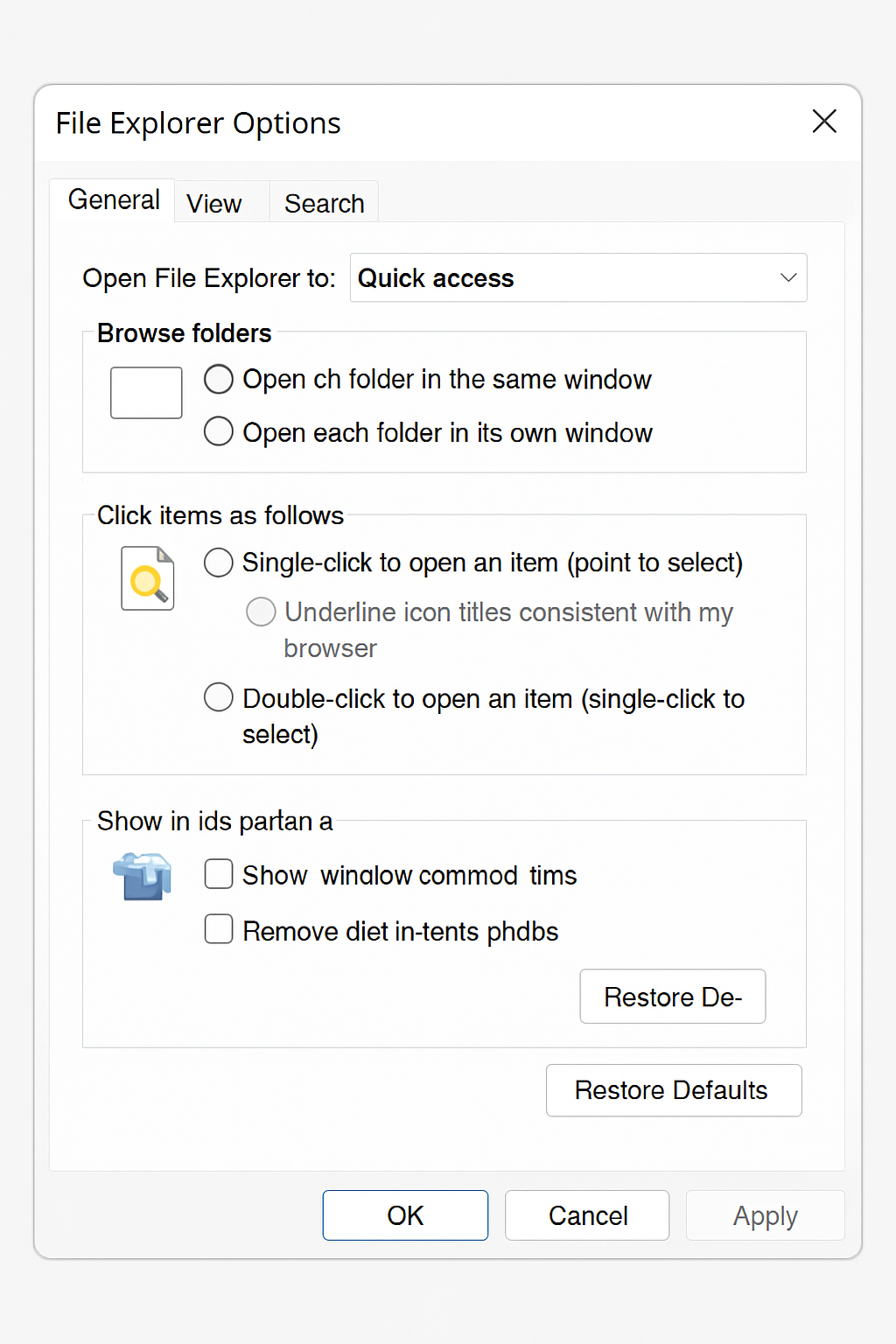
- The Folder Options / File Explorer Options window will open.
Method 2: Use the View Tab / Ribbon (Windows 10)
- Open File Explorer → go to the View tab → look for Options → Change folder and search options.
This is handy if you prefer using the ribbon instead of the File menu.
Method 3: Use Run Command or Control Panel (All Windows Versions)
- Press Win + R to open the Run dialog → type
control foldersand press Enter. This opens Folder Options directly. - Or, open Control Panel → set view to Large icons or Small icons → click File Explorer Options (or “Folder Options” in older Windows versions).
Method 4: Keyboard Shortcut
If you prefer keyboard navigation:
- Open File Explorer (Win + E).
- Press Alt + V, then Y, then O — this opens Folder Options.
This is often the fastest way if you don’t want to touch the mouse.
Method 5: Right-Click Quick Access / Navigation Pane (Windows 10)
- Open File Explorer → in the navigation pane (left side), right-click on Quick Access → click Options. This opens File Explorer Options.
This method works well if you already use Quick Access and want fast access to settings.
Conclusion
Whether you use Windows 10 or 11 — opening File Explorer Options is simple and flexible. Thanks to multiple methods (ribbon/menu, Run command, Control Panel, keyboard shortcuts), you can choose whatever works best. This gives you control over folder views, hidden files, default behavior, and more.






