
Welcome back to my channel Tech Gitter Official. In today’s video, we will learn how to reinstall your audio drivers and troubleshoot sound issues on your Windows 10 computer. If your audio is not working, this step-by-step process will help you fix it easily.
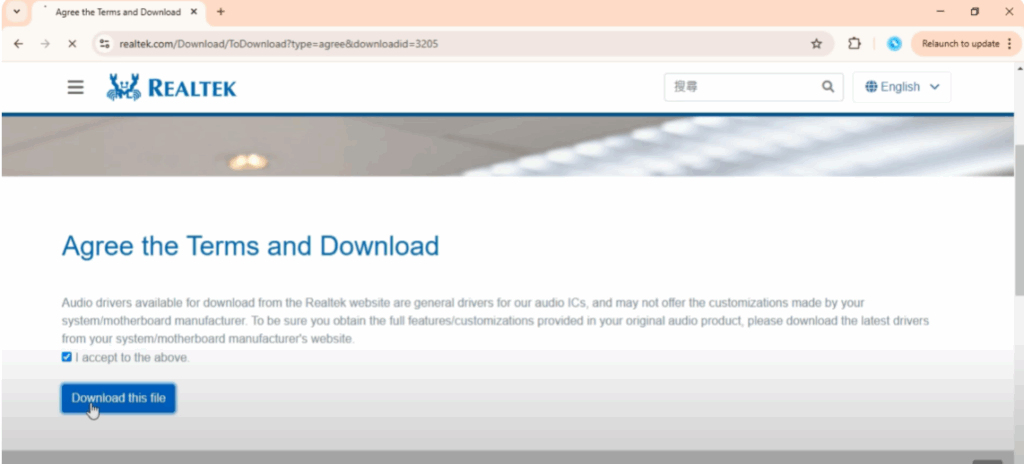
First, we need to reinstall the driver. Open Chrome and in the search bar, type www.realtech.com audio driver download and press enter. Make sure you only click on the official site which is https/www.realtech.com. Once you are on the site, scroll down until you see the direct link for audio drivers. Choose the version according to your PC or laptop specifications. Then check the box to agree with the terms and click on the download button. Complete the capture verification and the download will begin. Wait until the file is fully downloaded.
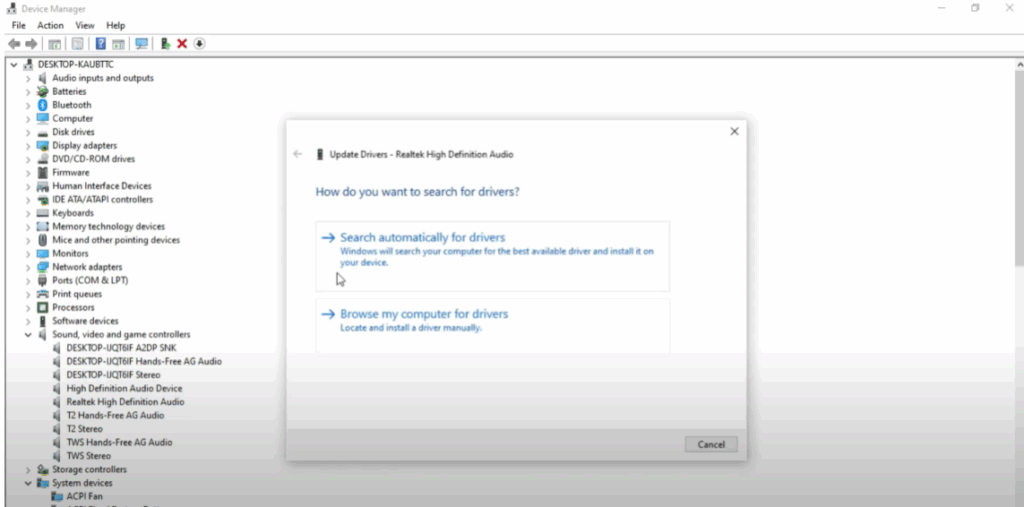
Now let’s move to the next step. Press Windows plus R on your keyboard and type dev.mmsc to open the device manager. Inside device manager, find sound video and game controllers. Click on the arrow to expand the list. Here you should see options like realtech highdefinition audio or highdefinition audio device.
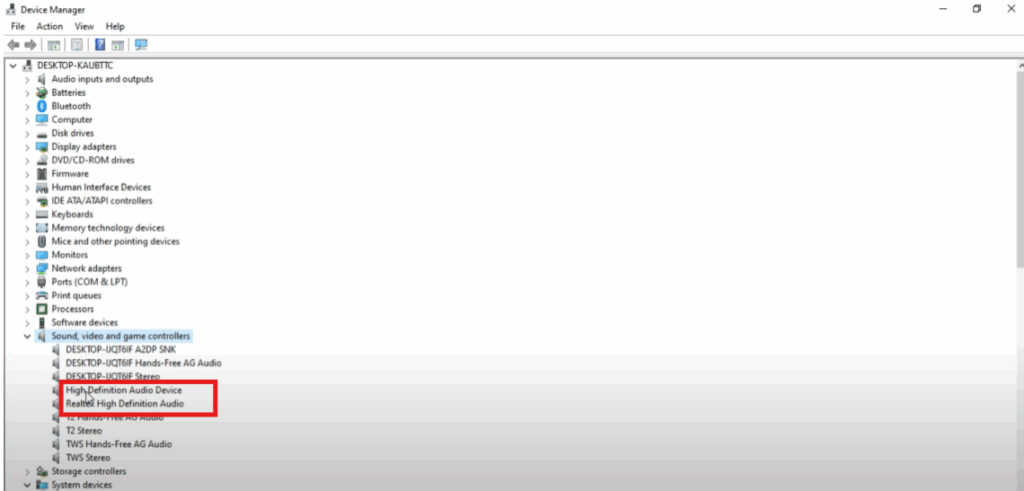
Right click on realtech highdefinition audio and select update driver. Then click on search automatically for drivers. If it shows that the best drivers are already installed, you can simply close the window. But if it finds a newer version, follow the onscreen instructions to install it.
Next, check whether your audio device is enabled. Right click on realtech highdefinition audio again and if you see an enable device option, click it. In my case, it’s already enabled, so I see the disabled device option instead. Do the same check for highdefinition audio device as well.
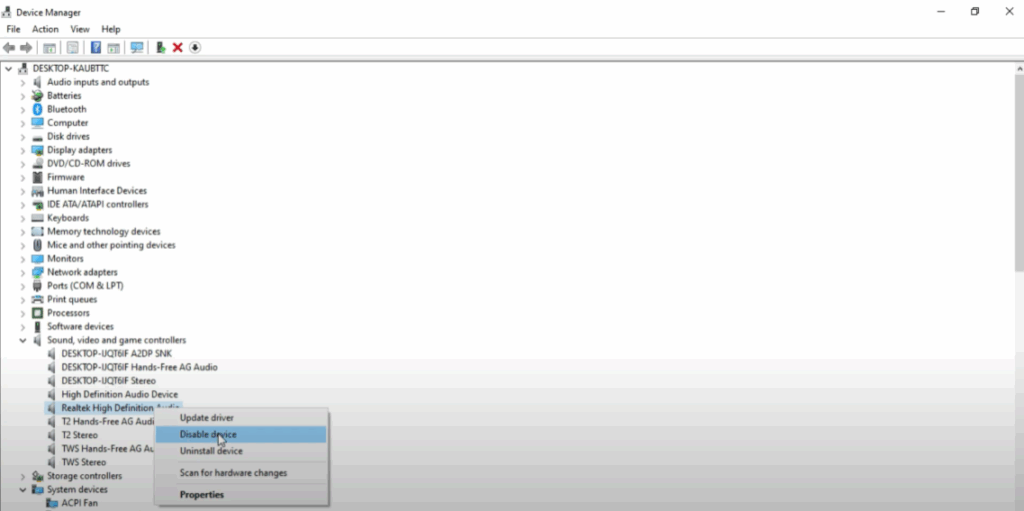
If everything is enabled, but you still don’t hear sound, repeat the process for both audio devices and update them again. Sometimes after reinstalling or updating, restart may be required to make the changes effective.
Finally, after completing all these steps, your audio should start working normally. This method not only reinstalls the drivers but also ensures that your audio device is correctly enabled and updated.
That’s it. Thanks for watching. If you found this tutorial useful, please like, comment, and subscribe for more helpful tech guides.






