
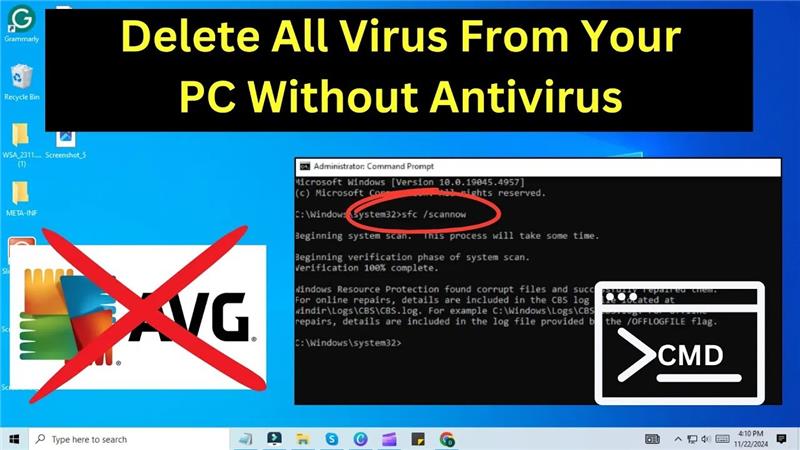
Getting rid of computer viruses doesn’t always require expensive antivirus software. In fact, you can use a simple tool already built into your Windows system—Command Prompt (CMD). With just a few basic commands, you can scan your files, delete suspicious programs, and clean up your PC without installing anything extra. This method is especially helpful if your antivirus isn’t working or your system is running slow. In this blog, we’ll show you how to remove all viruses using CMD in a safe and easy way, step by step. No tech skills needed—just follow along and give your computer a fresh start!
Step 1: Open Command Prompt as Administrator
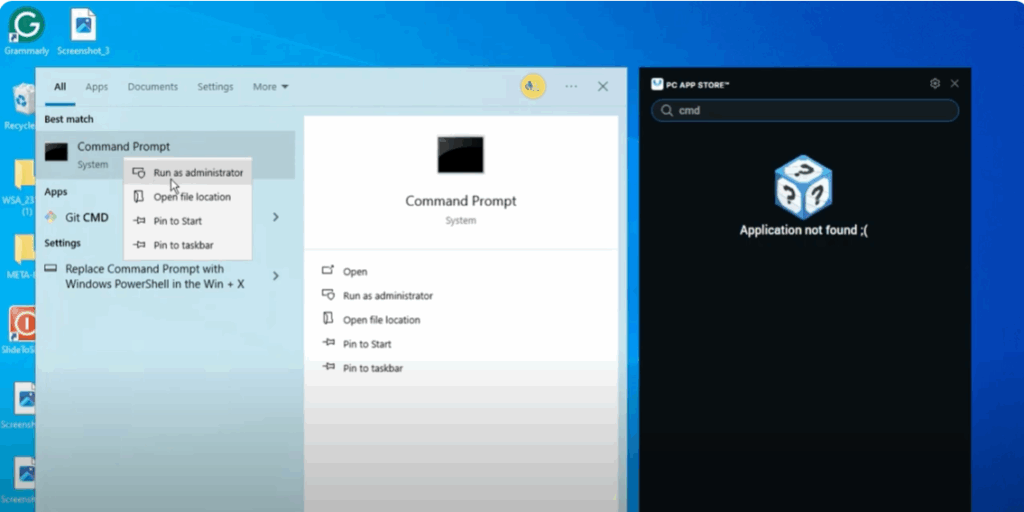
First, go to the search menu on your Windows screen or press the Windows key and type cmd. When it appears, right click on it and choose Run as administrator to open the command prompt with elevated privileges.
Step 2: Run the System Scan Command
Now, in the command prompt, type the following command:
sfc /scannow
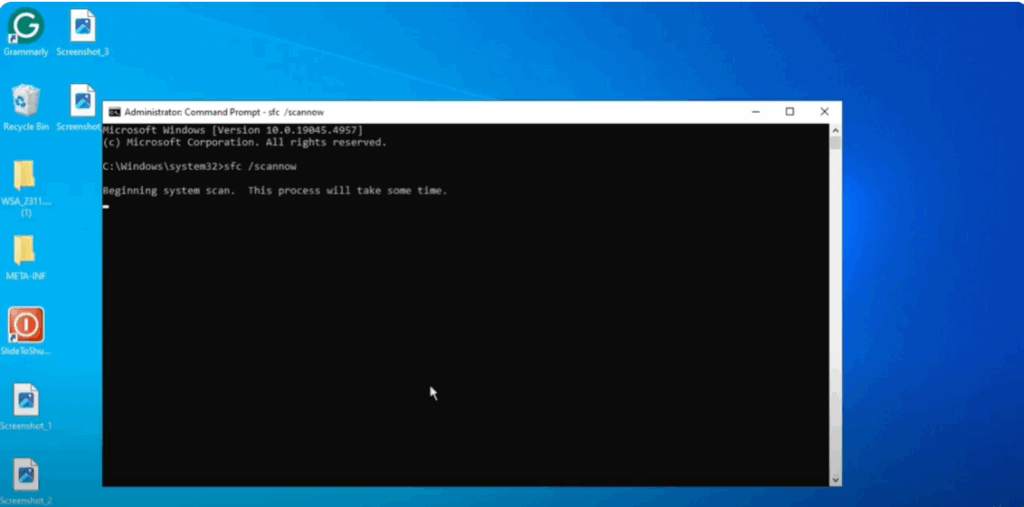
After typing the command, hit Enter.
Step 3: Let the Scan Run
This will begin a system scan, and it will automatically detect and remove any corrupted files or potential viruses on your PC. Please note this process may take a little while, so be patient and let it finish completely.






