
If you find the Bing icon or Discover toolbar in Microsoft Edge distracting, you can easily remove them to have a cleaner browser look. Microsoft Edge includes settings and registry tweaks that let you hide or disable the Bing Discover feature and toolbar icon. In this blog, you’ll learn simple step-by-step methods to remove the Bing icon and Discover toolbar from Microsoft Edge so you can browse without unwanted clutter.
Step 1: Open Microsoft Edge Settings
- Launch Microsoft Edge on your Windows 10 or 11 PC.
- Click the three-dot menu (⋯) located at the top-right corner of the window.
- From the dropdown, select Settings.

Step 2: Go to Sidebar Settings
- In the left pane, click on Sidebar.
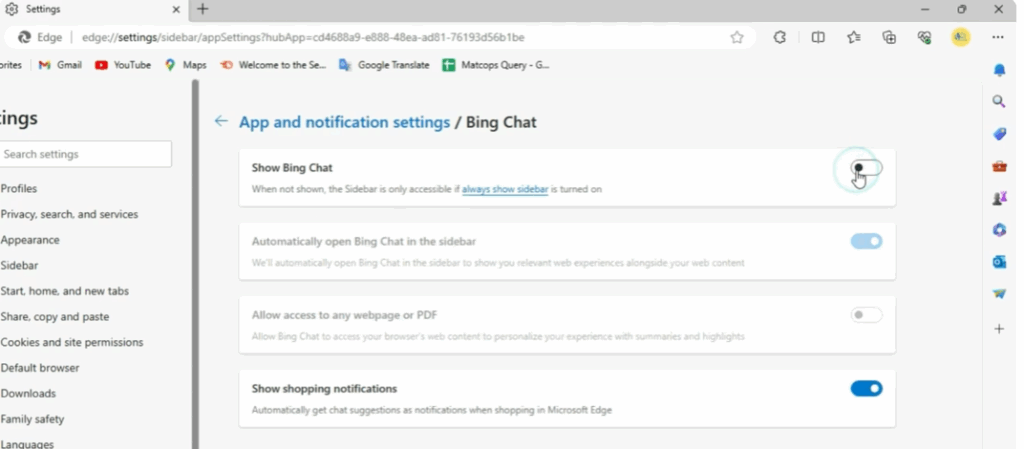
- Look for the Discover option under the “App and notification settings” section.
Step 3: Turn Off Discover (Bing) Icon
- Find the toggle that says “Show Discover” or “Show Bing icon in the toolbar.”
- Turn it off to instantly remove the Bing icon from the top-right corner of Edge.
- You’ll notice the Bing logo disappears right away — cleaning up your toolbar.
Step 4: (Optional) Disable Sidebar Completely
If you don’t use the Edge sidebar at all:
- In the same Sidebar settings section, toggle off “Always show sidebar.”
- This removes all sidebar icons, giving your browser a minimal, distraction-free interface.
Step 5: Restart Edge (if needed)
Sometimes, changes take effect only after restarting Edge. Close and reopen the browser to confirm the icon is gone.
Final Words
That’s it! You’ve successfully removed the Microsoft Edge Bing Discover icon from your toolbar. If you ever wish to bring it back, simply revisit Settings → Sidebar → Show Discover and toggle it on again.






