
Google Chrome makes it easy to save your credit or debit card details for faster checkouts — but if you’re switching devices, sharing your computer, or just prefer privacy, it’s best to delete those saved payment details.
In this guide, we’ll show you how to remove saved card details from Chrome browser — step-by-step.
🧩 Method 1: Delete Saved Cards Directly from Chrome Settings
Follow these quick steps:
- Open Google Chrome.
- Click on the three dots (⋮) at the top-right corner.
- Go to Settings → Autofill and passwords → Payment methods.
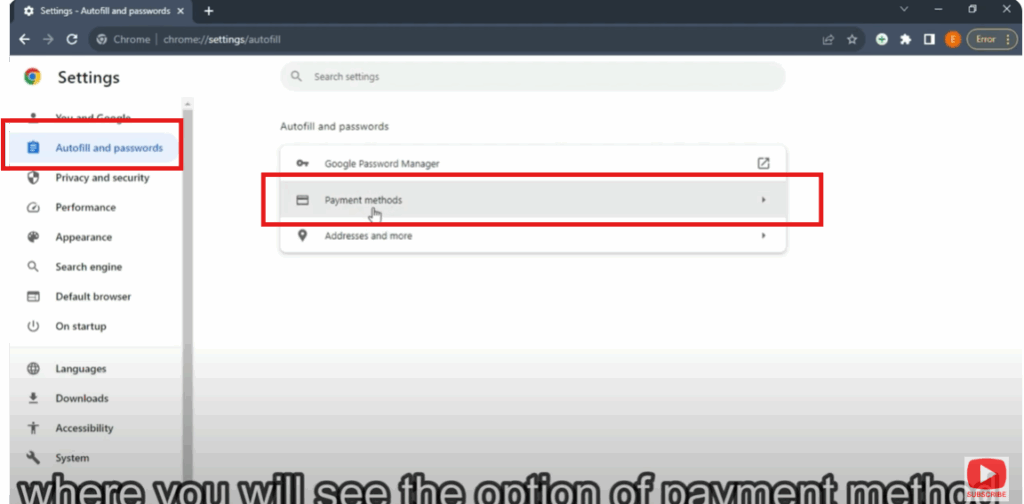
- You’ll see a list of saved credit/debit cards.
- Click the three dots (⋮) next to the card you want to remove.
- Select Remove.
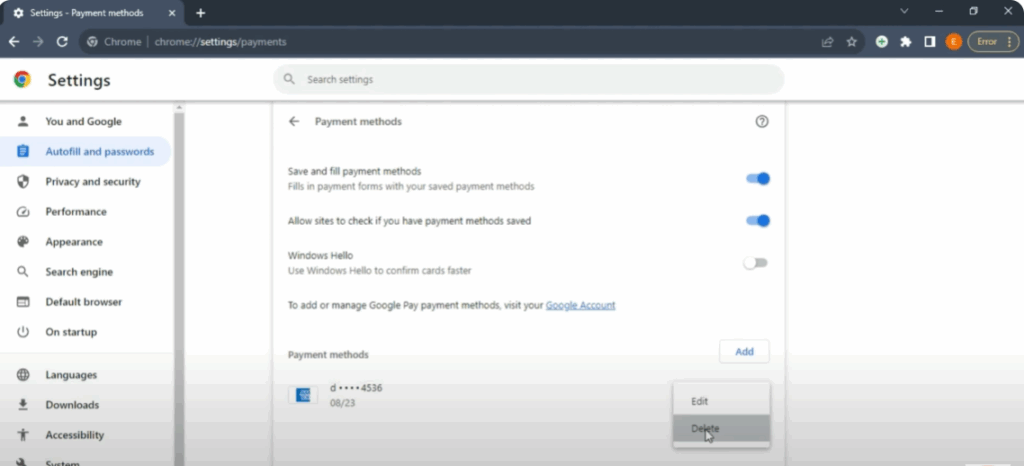
✅ Done! The card will be deleted from Chrome immediately.
💡 Tip: If you use multiple Google accounts, repeat this process for each account synced with Chrome.
✅ Conclusion
By following these simple methods, you can easily remove saved credit or debit card details from your Chrome browser and secure your financial data. Whether you’re cleaning up old cards, switching systems, or tightening privacy, these steps ensure your payment information stays protected.
Keep your browser light, fast, and safe — and remember to disable autofill for added peace of mind!






