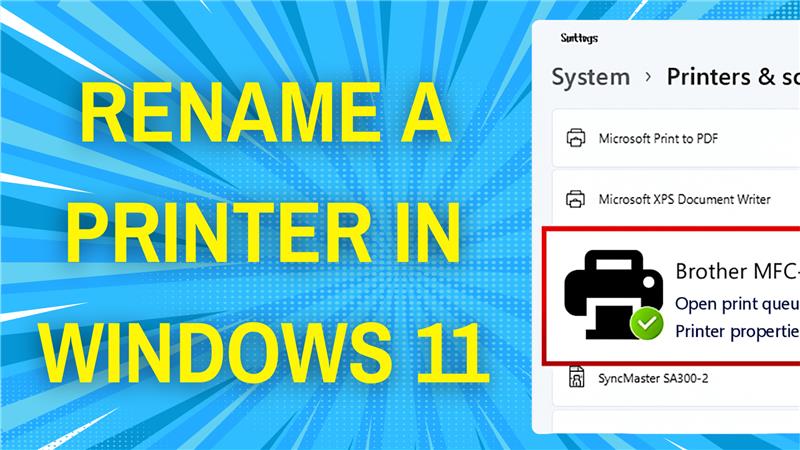
Renaming a printer in Windows 11 is quick and helps you organize your devices with easy-to-remember names. Whether you have many printers or just want a more friendly printer name, you can change it easily through Windows Settings or Control Panel. In this blog, you’ll learn simple step-by-step methods to rename your printer, making it much easier to find and manage your devices on your PC.
1 Rename Using the Control Panel
- Open Control Panel (press
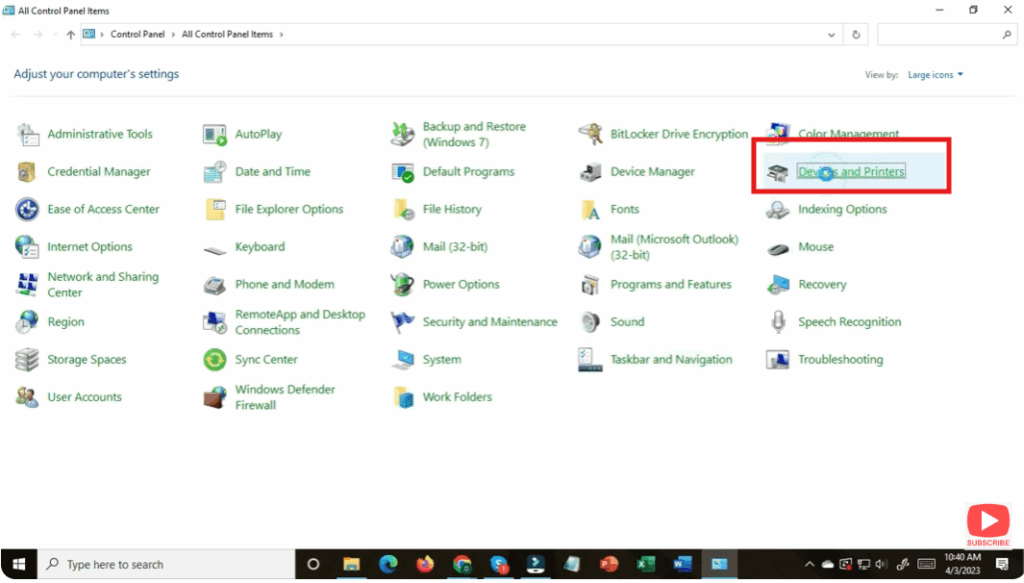
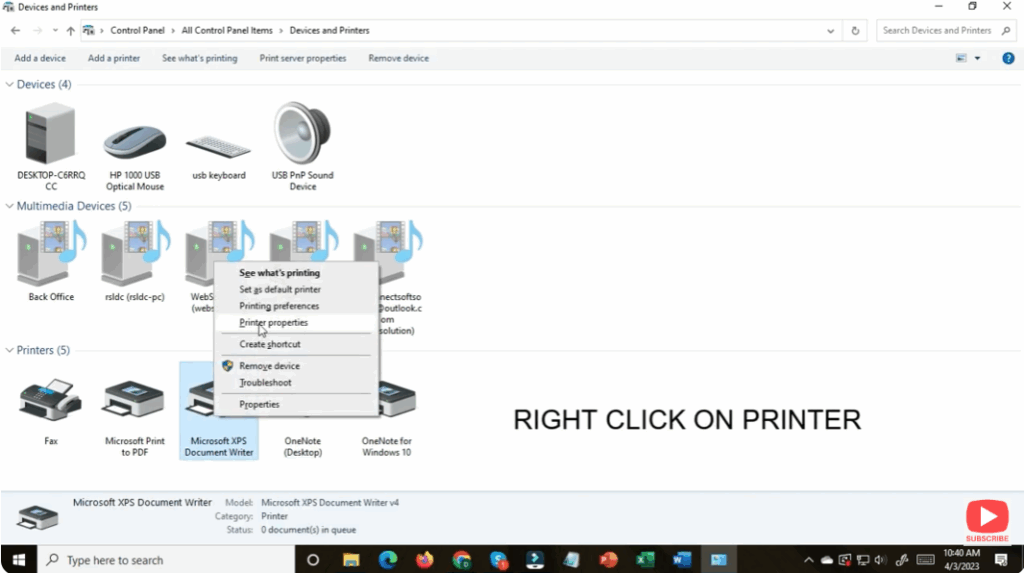
Win + R, typecontrol, Enter). - Go to Hardware and Sound → Devices and Printers.
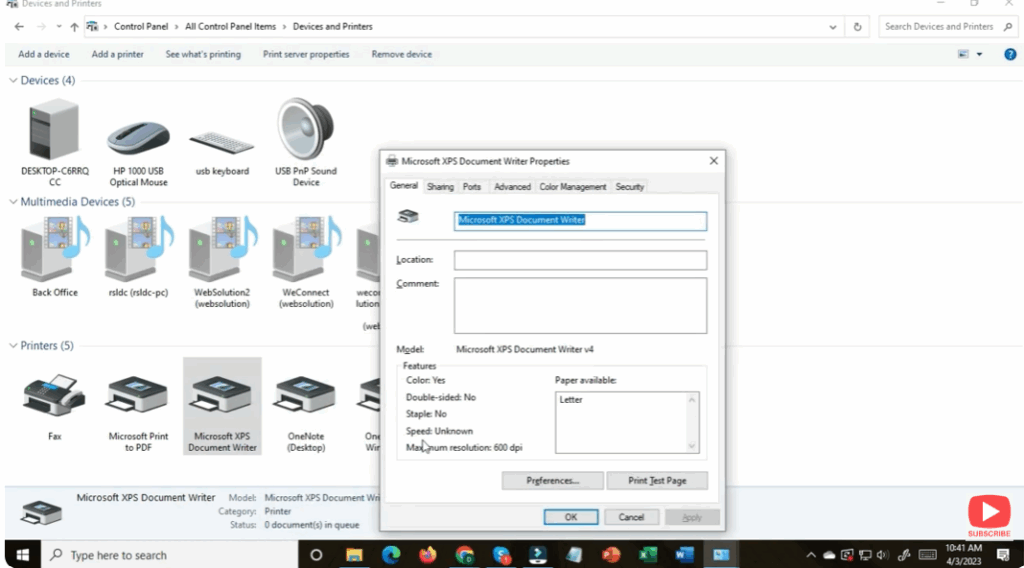
- Right-click the printer you want to rename → select Printer properties.
- In the window that opens, go to the General tab, change the Name field, then click Apply and OK.