
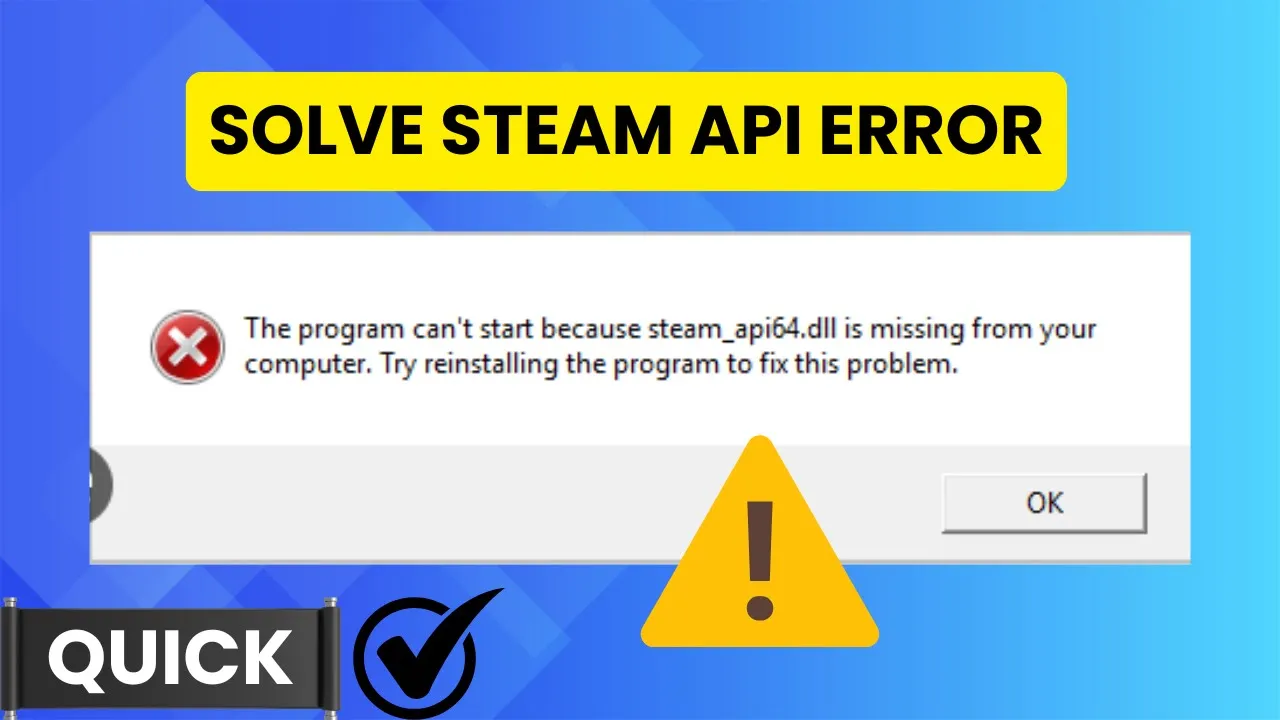
If you are seeing the Steam API error when trying to play a game, don’t worry—it’s a common problem that can be fixed quickly. This error usually happens because Steam or the game is blocked by firewall, running without admin rights, or due to corrupted files. In this blog, you will learn easy 2-minute fixes like restarting Steam, allowing the game through your firewall, running Steam as administrator, and verifying game files, so you can get back to gaming without delay.
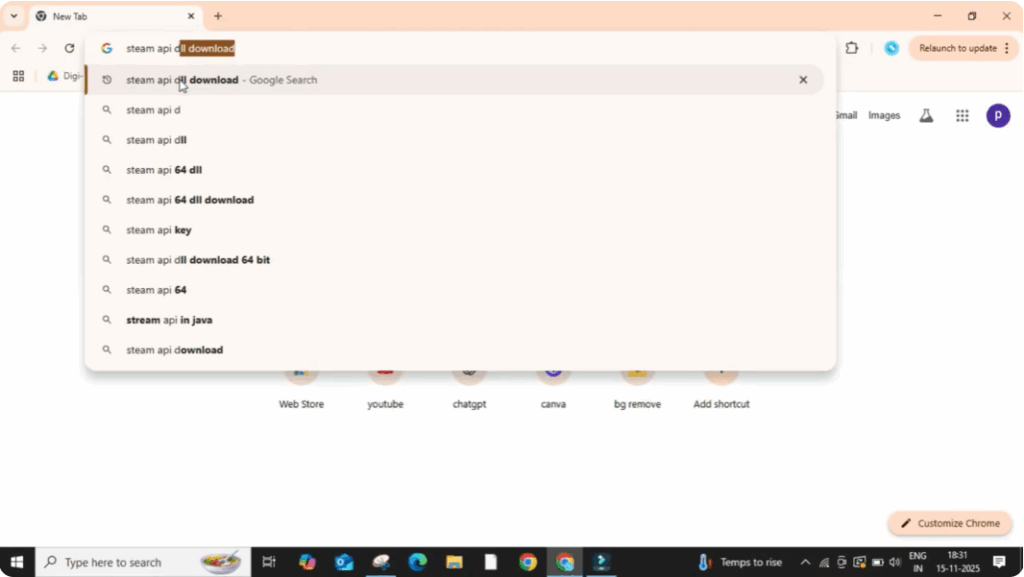
First, open Google Chrome or any web browser you use. In the search bar, type Steam Play DLL download and press enter.
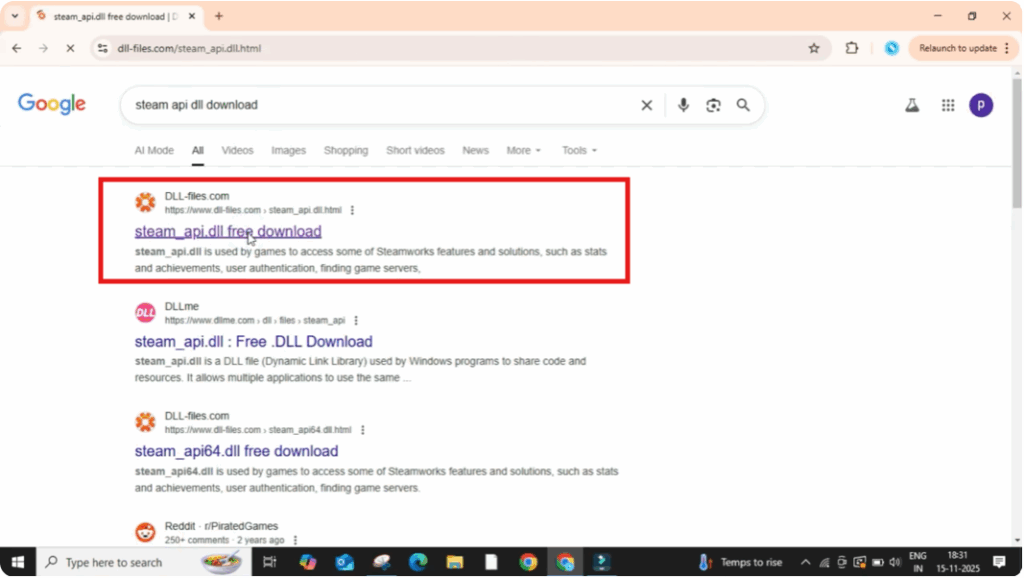
Now, click on the first website that appears. Make sure it’s a trusted one like dl–files.com or Microsoft’s official site.
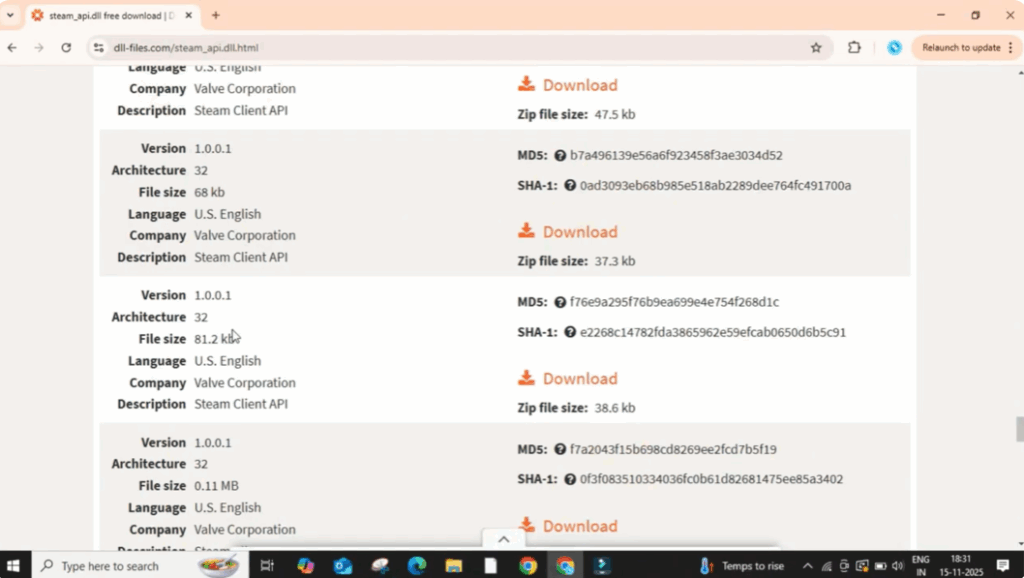
Once you’re on the website, scroll down a little and you’ll see different versions of the file listed under architecture. Here you need to check whether your system is 32bit or 64-bit.
Now download the correct file based on your system. In my case, it’s 32bit. So I’ll click on the download button next to the 32-bit version.
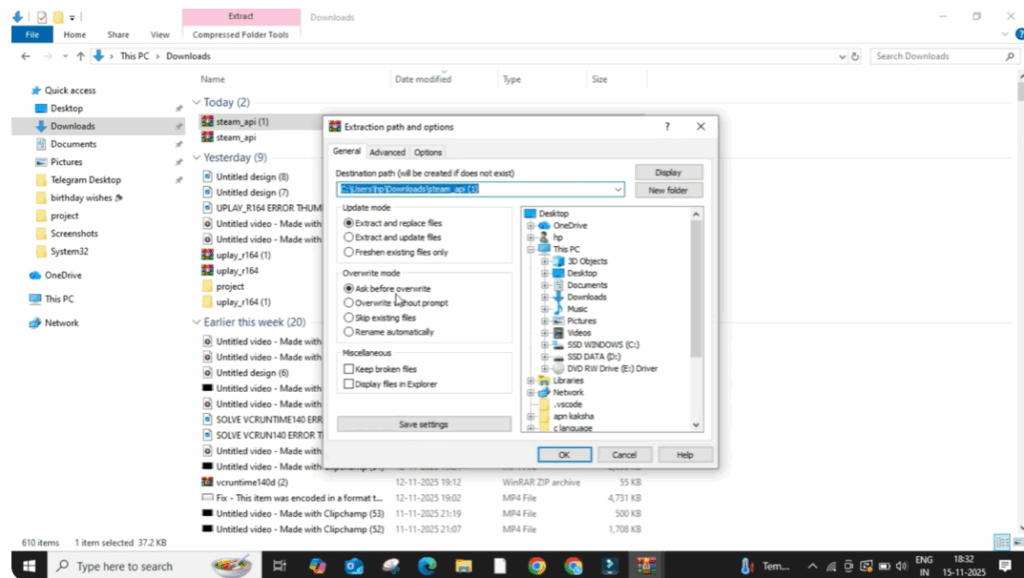
Once the download is complete, open it, then right click on the zip file and select extract files. A small pop-up window will appear. Just click okay to confirm extraction.
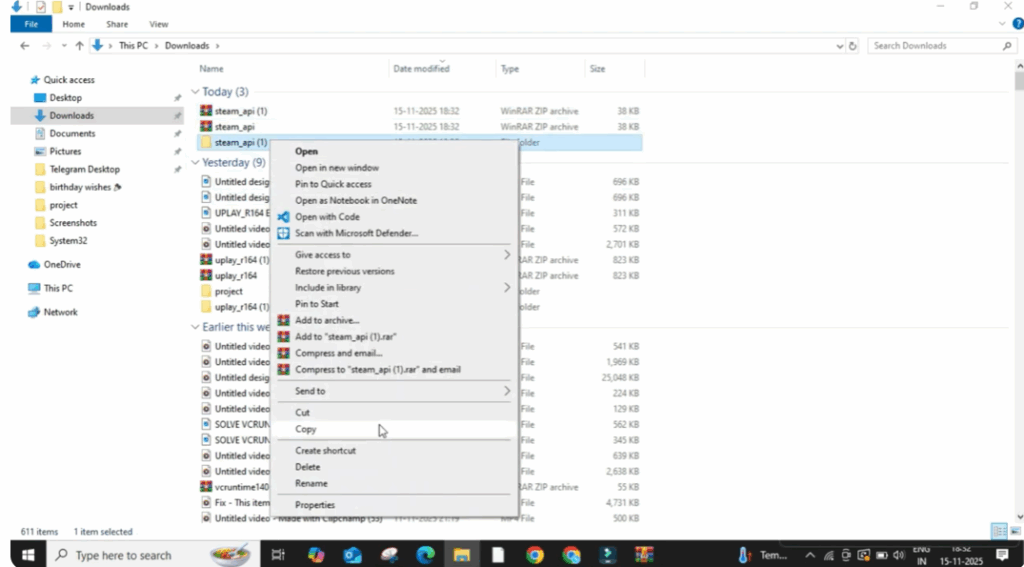
After a few seconds, the files will be extracted into a new folder. Now, right click on the folder and then click on copy.
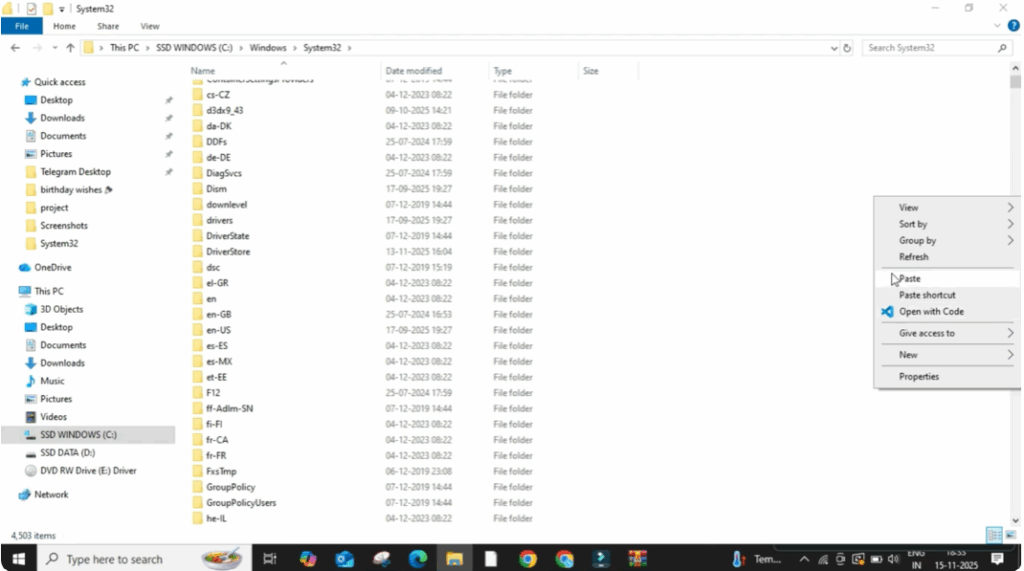
Next, open This PC. Go to your C drive. Then, open the Windows folder and inside that, open the System32 folder. Once you’re inside System32, right click on any empty area and choose paste. This will copy the Steam API files into your system folder.
Now close everything and restart your PC.
After the restart, try opening the same app. This time the missing Steam API error should be completely fixed.






