
Welcome back to my channel, Tech Gitter Official. In today’s guide, we will learn how to reset a forgotten Windows 10 password without losing your important data. Let’s begin.
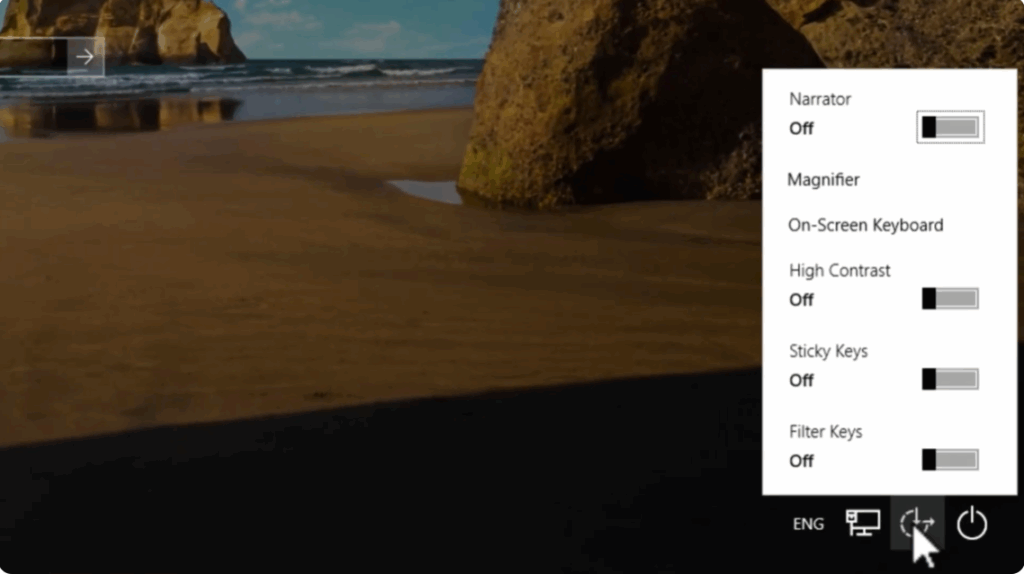
Step 1: Open the Accessibility Icon
At the bottom-right corner of your login screen, you’ll notice the Accessibility icon. Our goal is to convert this accessibility menu into a Command Prompt.
Step 2: Restart with Advanced Options
- Press and hold the Shift key.
- While holding it, click Restart under the power options.
- Once your system restarts, click on Troubleshoot.
- Then, select Advanced Options.
- After that, click on Command Prompt.

Step 3: Enter Commands in Command Prompt
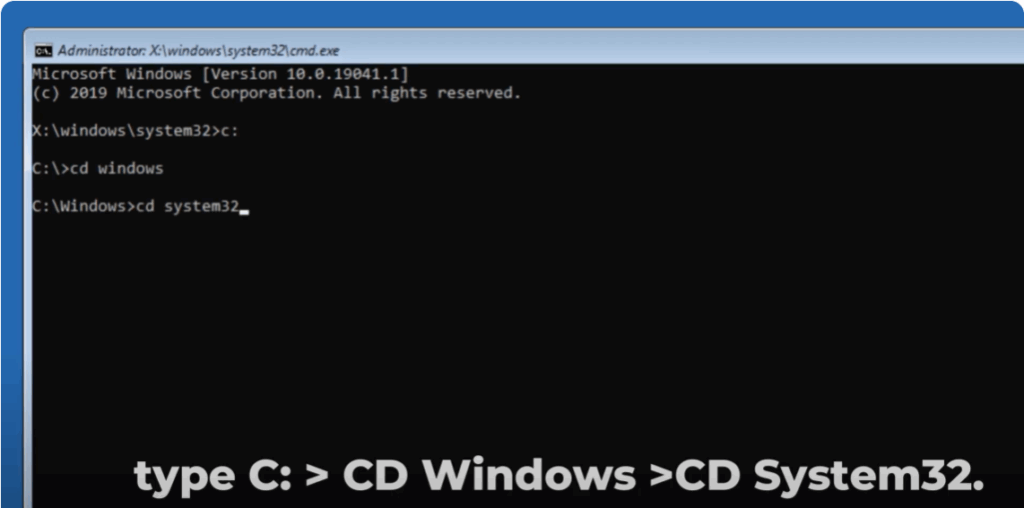
Now, type a few commands carefully:
- Type:
C: - Then type:
cd windows - Followed by:
cd system32
Next, rename the files:
- Rename the Utility Manager file by typing:
ren utilman.exe utilman1.exe - Rename the Command Prompt file by typing:
ren cmd.exe utilman.exe
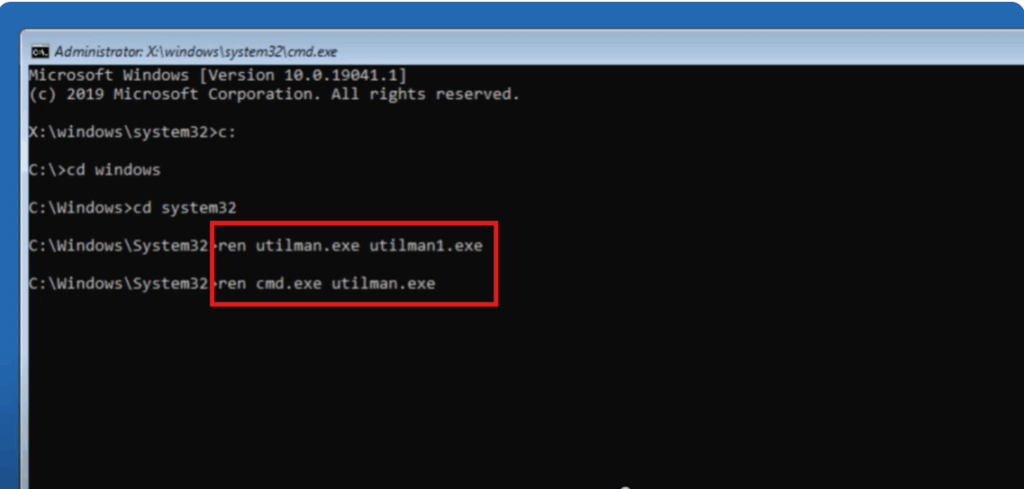
Finally, type exit and click Continue to restart your computer.
Step 4: Reset Your Password
When you return to the login screen:
- Click the Accessibility icon again.
- This time, instead of the accessibility menu, it will launch the Command Prompt.
- In Command Prompt, type:
control userpasswords2and press Enter.
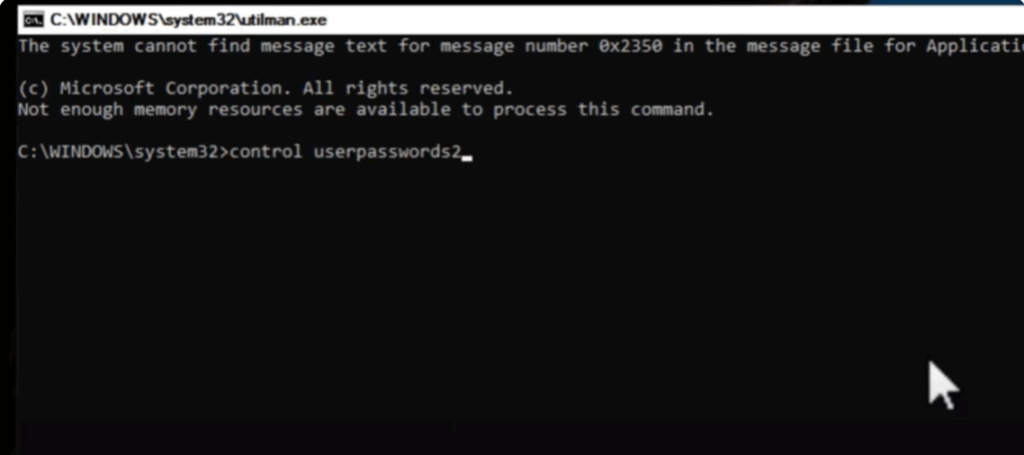
A new window will open showing all user accounts.
- Select your username.
- Click Reset Password.
- Leave the fields blank if you want no password, or type a new one.
- Confirm and press OK.
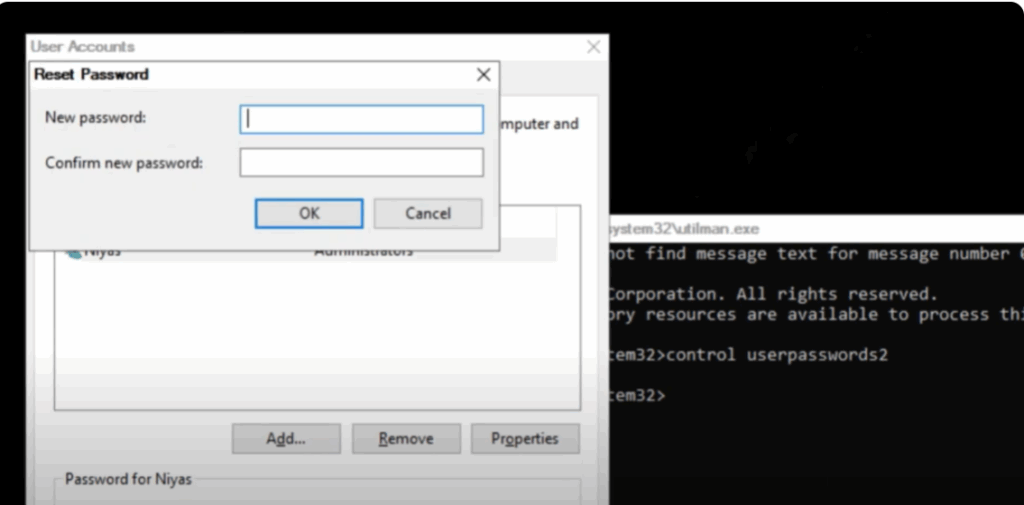
Now you can log into your Windows 10 system directly without entering the old password.
Step 5: If You Use a Microsoft Account
If the reset password option doesn’t appear, it likely means you’re signed in with a Microsoft account instead of a local one. In that case:
- You’ll need to reset your password through the official Microsoft website.
- Once you set a new Microsoft account password, you’ll be able to log in again.
Conclusion
That’s how you can easily reset a forgotten Windows 10 password without losing any data.
Thank you for reading! If you found this tutorial useful, please like, comment, and subscribe to Tech Gitter Official for more helpful tech guides.






