
Hello friends, welcome back to my channel Tech Gitter Official. In today’s video, I’ll show you how to reset your Windows 11 login password. If you’ve forgotten it, don’t worry, I’ll guide you step by step to fix this issue.
So, let’s get started.
First of all, press and hold the Shift key on your keyboard, then click the Restart option from the power menu. Your system will restart and open the Recovery Menu.
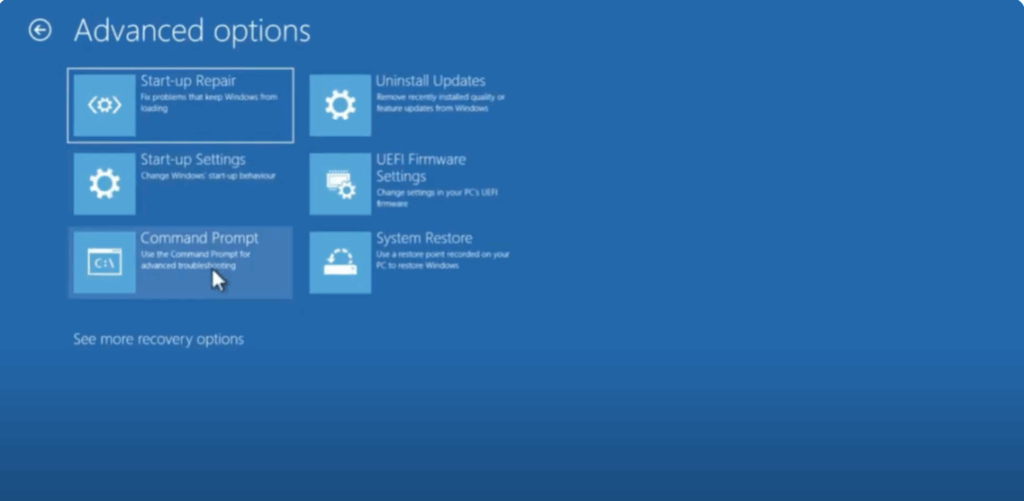
Here, click on Troubleshoot. Now go to Advanced Options and select Command Prompt.
In the command prompt window, type notepad and press Enter. Inside Notepad, click on File > Open. Next, go to This PC, open the C Drive, then the Windows folder, and then open the System32 folder.
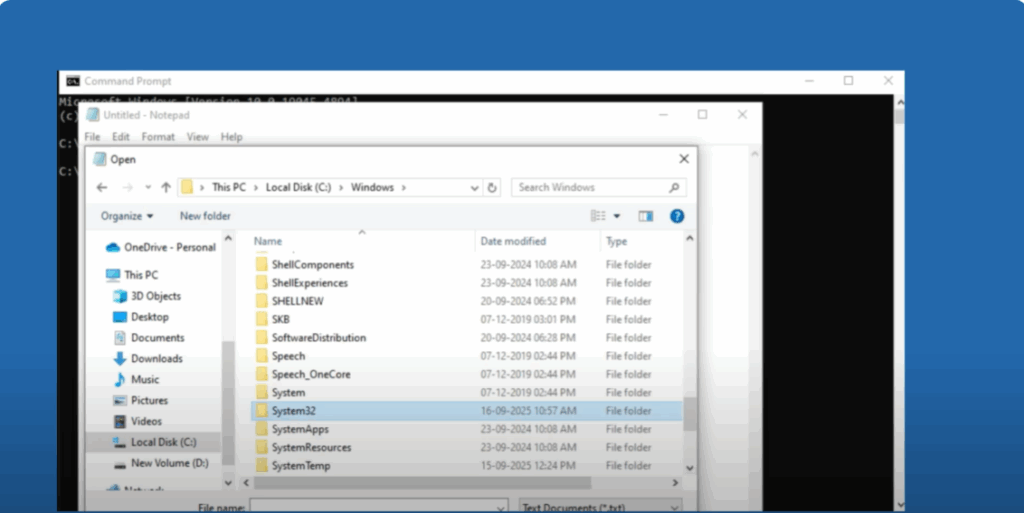
Now comes the important step:
Find the file UDLman. Right-click on it, rename it to Udelman2, and press Enter. Then, find cmd in the same folder. Right-click and rename it to utilman.
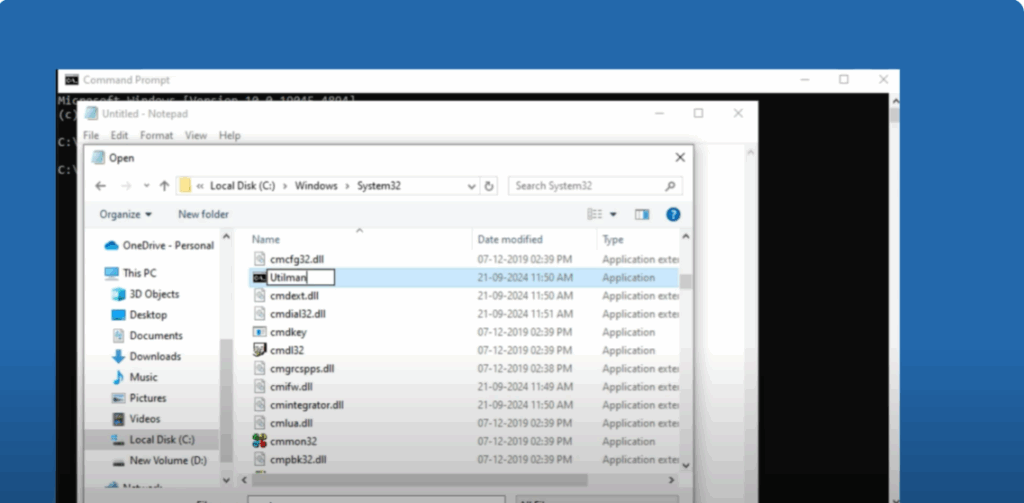
Now close everything and restart your PC.
On the login screen, click the Accessibility icon at the bottom-right corner. Instead of accessibility options, the Command Prompt will open.
In Command Prompt, type:
net user
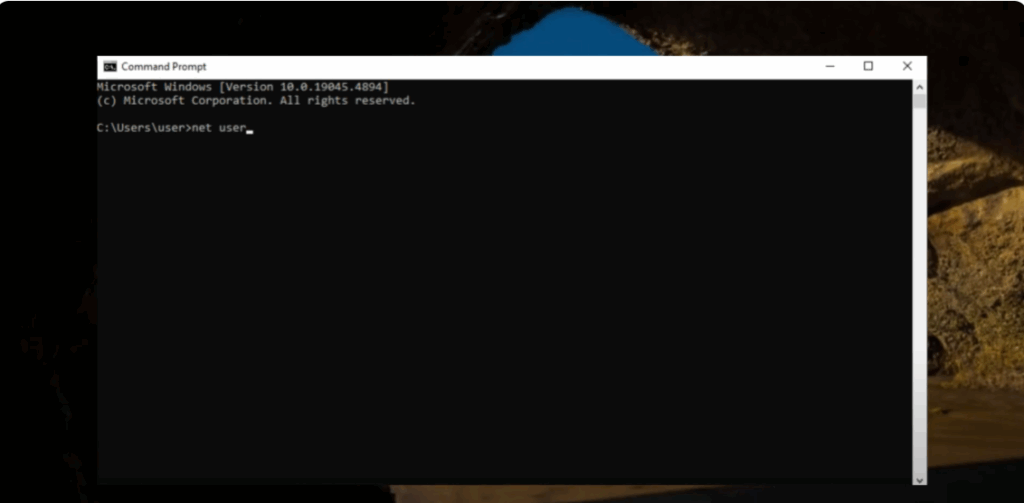
and press Enter. This will show you the usernames on your PC.
Now type the following command:
net user guest *
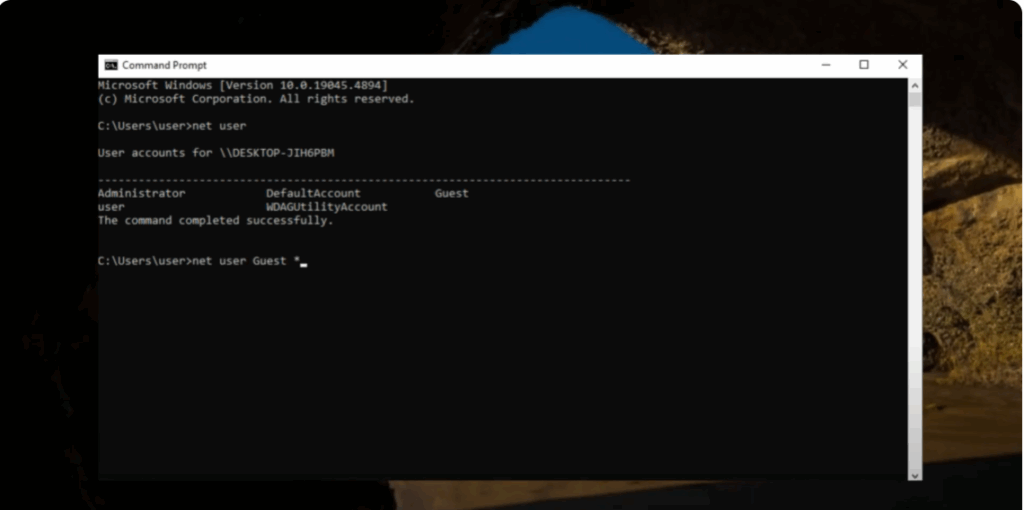
Press Enter, then press Enter again. You will see a message:
The command completed successfully.
Type exit and press Enter. Click Submit. Now Windows 11 is unlocked.
Next, go to This PC and click on Local Disk (C:). Go to the Windows folder, then the System32 folder, and search for utilman. Right-click and copy it, then right-click and paste it here. Continue when prompted.
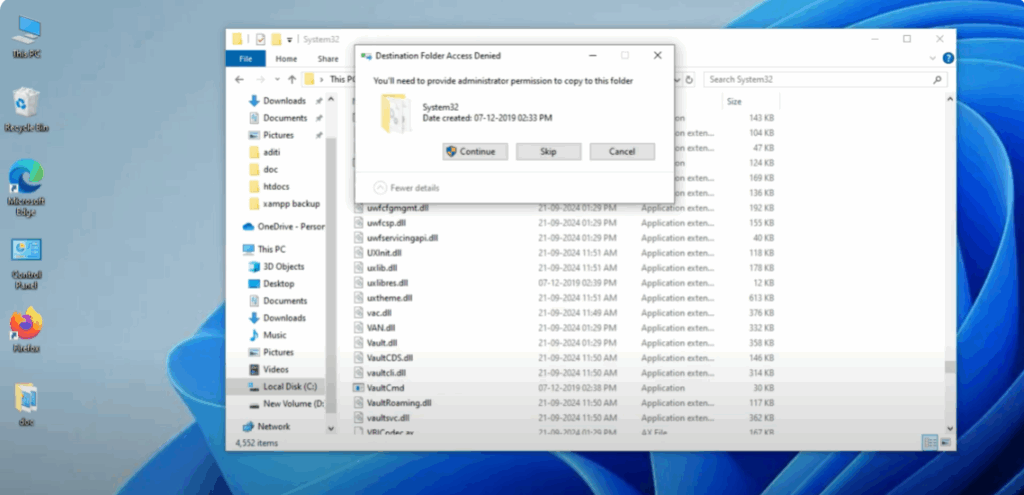
Now go to udman, copy it, and rename it as command. Close it. Now open cmd. You can see here that cmd works properly.
And that’s how you can easily reset a forgotten Windows 11 password without losing data.
If you found this video helpful, don’t forget to like, share, and subscribe for more tech tips. Thanks for watching.






