
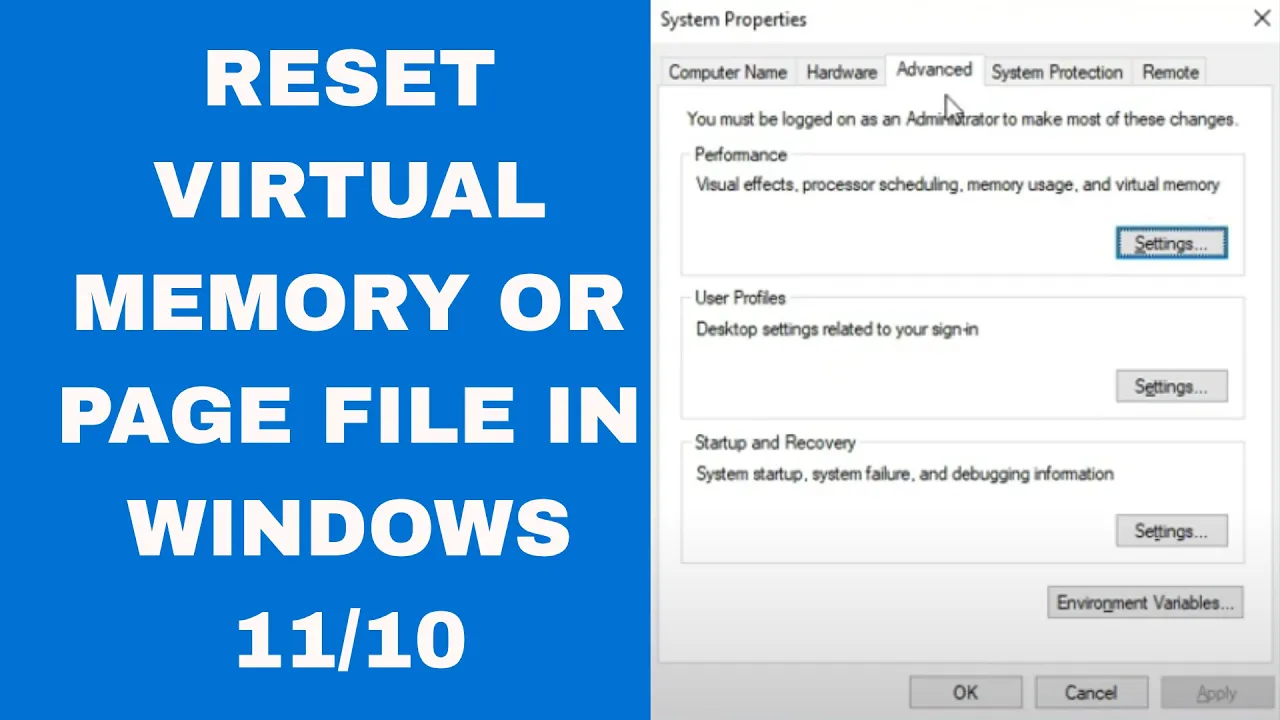
Is your Windows 10 or 11 PC running slow or showing memory errors? Sometimes, the issue could be with your virtual memory or page file settings. Virtual memory helps your computer manage tasks when it runs out of physical RAM, and resetting it can improve performance and fix certain problems. In this blog, we’ll explain what virtual memory is and show you how to reset or adjust the page file step by step, using simple and clear instructions. Let’s help your PC run smoother!
Step-by-Step: How to Reset Virtual Memory in Windows 11/10
Follow these steps carefully. You’ll need administrator privileges.
Step 1: Open System Properties
- Press Windows Key + R, type
SystemPropertiesAdvanced.exe(or open Settings → System → About → Advanced system settings). - In the System Properties window, go to the Advanced tab.
Step 2: Open Performance Settings
- Under the Performance section, click Settings…
- In the Performance Options dialog, go to the Advanced tab.
- Under Virtual memory, click Change…
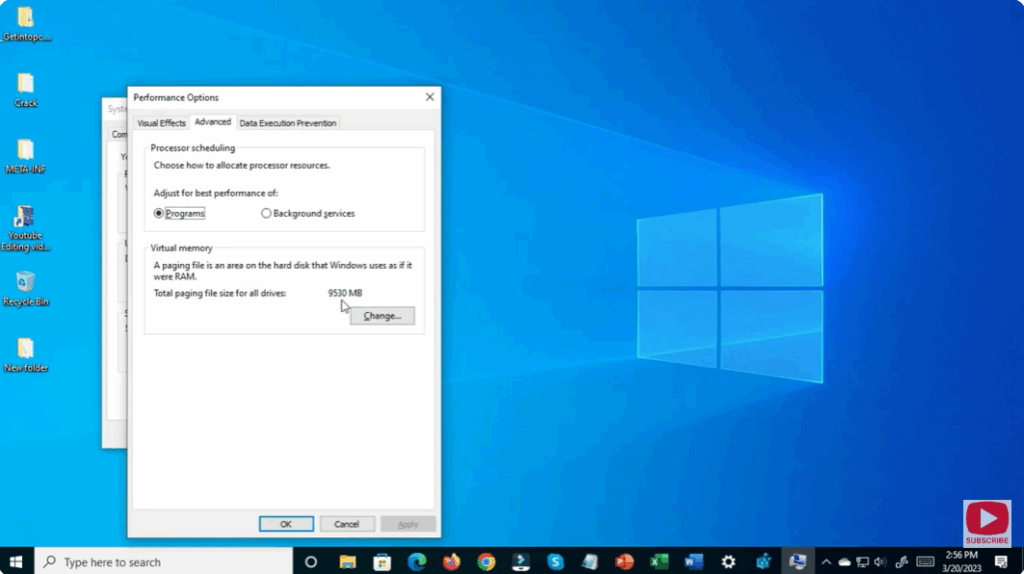
Step 3: Disable Automatic Management & Custom Reset
- Uncheck “Automatically manage paging file size for all drives”.
- Click to select your system drive (usually C:).
- First, you can set No paging file, click Set, then OK.
- Reboot the PC.
- After reboot, go back and select Custom size (or re-enable automatic management) and set values or check System managed size.
- Click Set, then OK. Reboot again.
- This two-step (disable → reboot → enable) effectively resets the page file.

Step 4: Recommended Size (If Using Custom)
If setting custom size manually, a common rule:
- Initial size (MB) = RAM size * 1.5
- Maximum size (MB) = RAM size * 3
But note: newer systems often work fine using System managed size.
Step 5: Final Reboot & Verification
- After setting and rebooting, open File Explorer → drive (C:) → check size of
pagefile.sys. - Also monitor system performance and disk usage.
- If you observe issues (e.g., “low virtual memory” warnings), you can return to Settings and adjust accordingly.
✅ Final Thoughts
Resetting your virtual memory/page file can resolve weird disk space issues, restore reasonable file size, and improve system performance if the paging file was behaving abnormally.
By following the steps above, you can safely reset the page file in Windows 11 or 10. If problems persist, you may want to add more physical RAM, optimize your storage drive, or consult system logs for deeper issues.






