
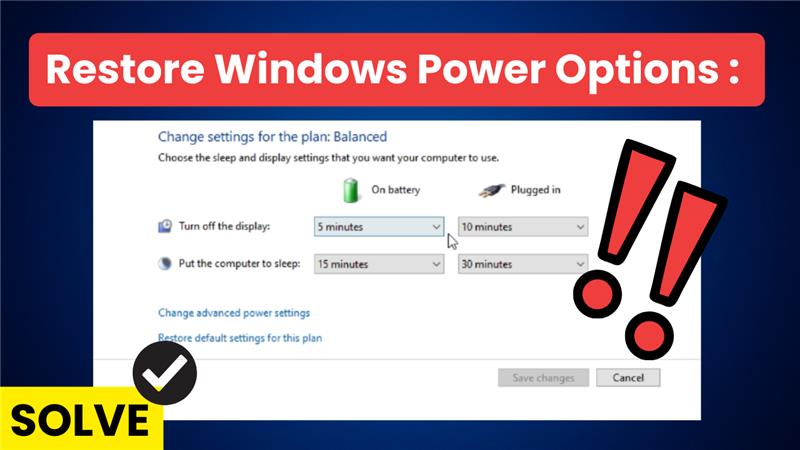
The High Performance power plan in Windows 10 and Windows 11 is designed to give your computer maximum speed by using more system resources. But sometimes, this option may disappear or not show up in your settings, leaving users stuck with Balanced or Power Saver modes. This can be frustrating if you want your PC to run at its best, especially for gaming or heavy tasks. The good news is, restoring the High Performance plan is simple once you know how. In this beginner-friendly blog, we’ll explain in easy language how to bring back the High Performance power plan step by step, so your computer can run faster and smoother.

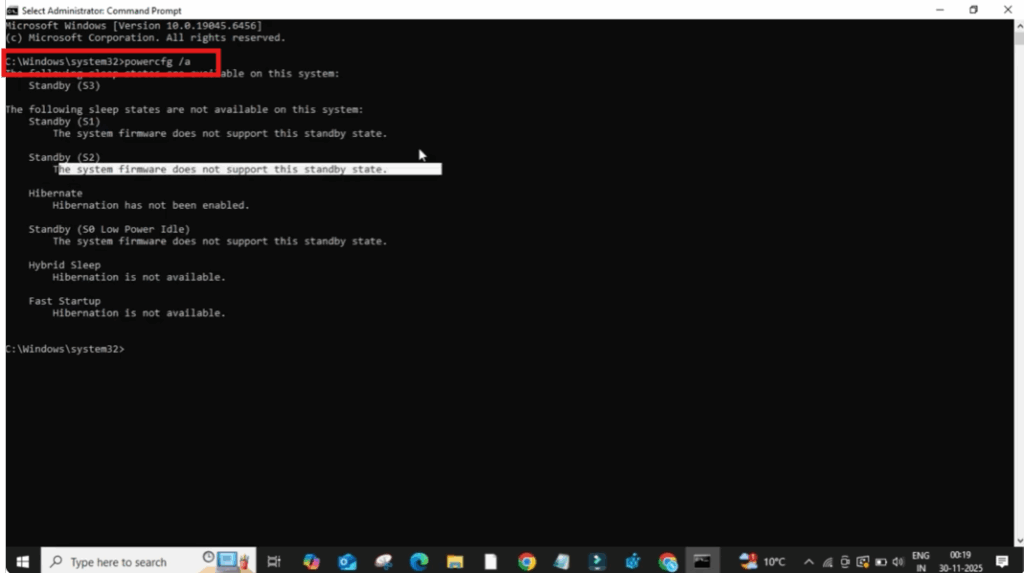
First click on the search bar and type cmd. Then click on run as administrator. Now type the command power/ a and press enter. This command will show you if modern standby mode is active. If you find it active, you’ll need to disable it to restore the missing power plans.
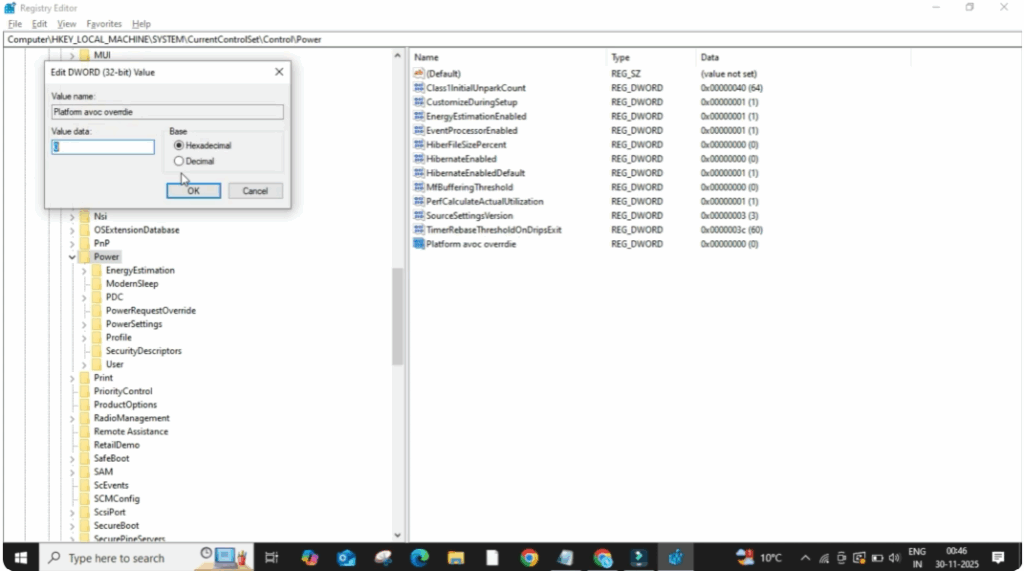
If the command doesn’t automatically add the registry value, you can create it manually. Press the search bar at the bottom again and type regedit. Go ahead and click on run as administrator. Now navigate to the following location computer hc local_achine then system then click on current control set. After that click on control dot then click on power.
Inside the registry editor right click on the blank space on the right side and select new then dword 32bit value. The new value needs to be named platform AOC override. After creating it, double click on it and set the value data to zero. Then click okay.
Once this is done, restart your system. After your PC restarts, modern standby mode will be disabled. Now you can enable your missing power plans by running the command in command prompt again. Finally, open control panel and go to power options. You should now see the restored power plans. If not, simply click on show additional plans and they will appear.






