
Need to run Disk Management with elevated privileges to manage drives, partitions, or volumes? Here’s how to launch it with the necessary admin rights.
Methods to Open Disk Management as Administrator
Method 1: Power User Menu (Win + X)
- Press Win + X to open the Power User Menu.
- Press and hold Ctrl + Shift, then click Disk Management (Create and format hard disk partitions).
- If prompted by User Account Control (UAC), click Yes to grant administrative access.
Method 2: Run Command with Elevated Rights
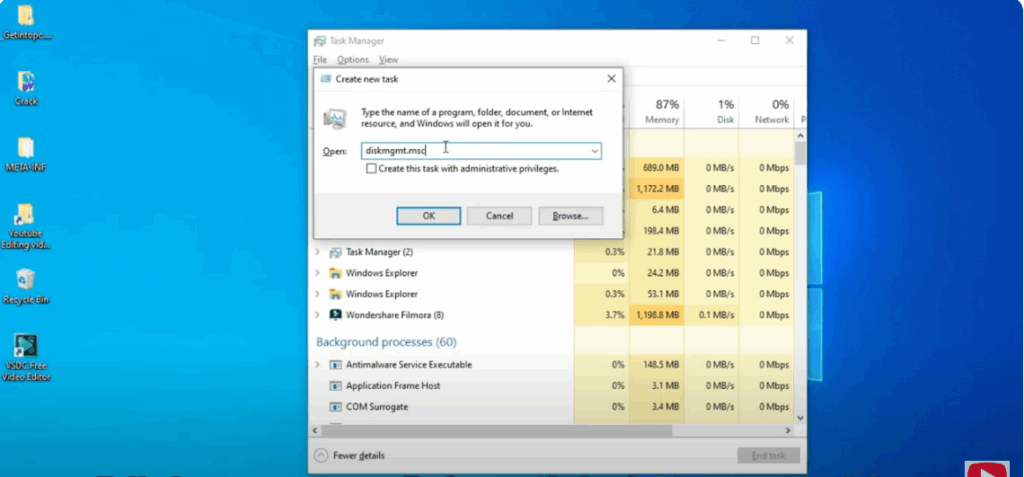
- Press Win + R to open the Run dialog.
- Type
diskmgmt.msc, then press Ctrl + Shift + Enter instead of Enter. - Confirm the UAC prompt to open Disk Management as administrator.
Method 3: Via Computer Management
- Open the Start Menu and search for Computer Management or compmgmt.msc.
- Right-click the result and select Run as administrator.
- In Computer Management, navigate to Storage → Disk Management.
Method 4: Using Command Prompt with Admin Rights
- Search for Command Prompt, right-click it, and select Run as administrator.
- In the elevated Command Prompt, type
diskmgmt.mscand hit Enter. - This will launch Disk Management with administrative privileges.
When to Run as Administrator
Running Disk Management as administrator is required for tasks like:
- Creating or deleting partitions
- Formatting volumes
- Initializing new disks
- Changing drive letters
It ensures the necessary system permissions are in place to make changes to your storage setup securely and effectively.






