
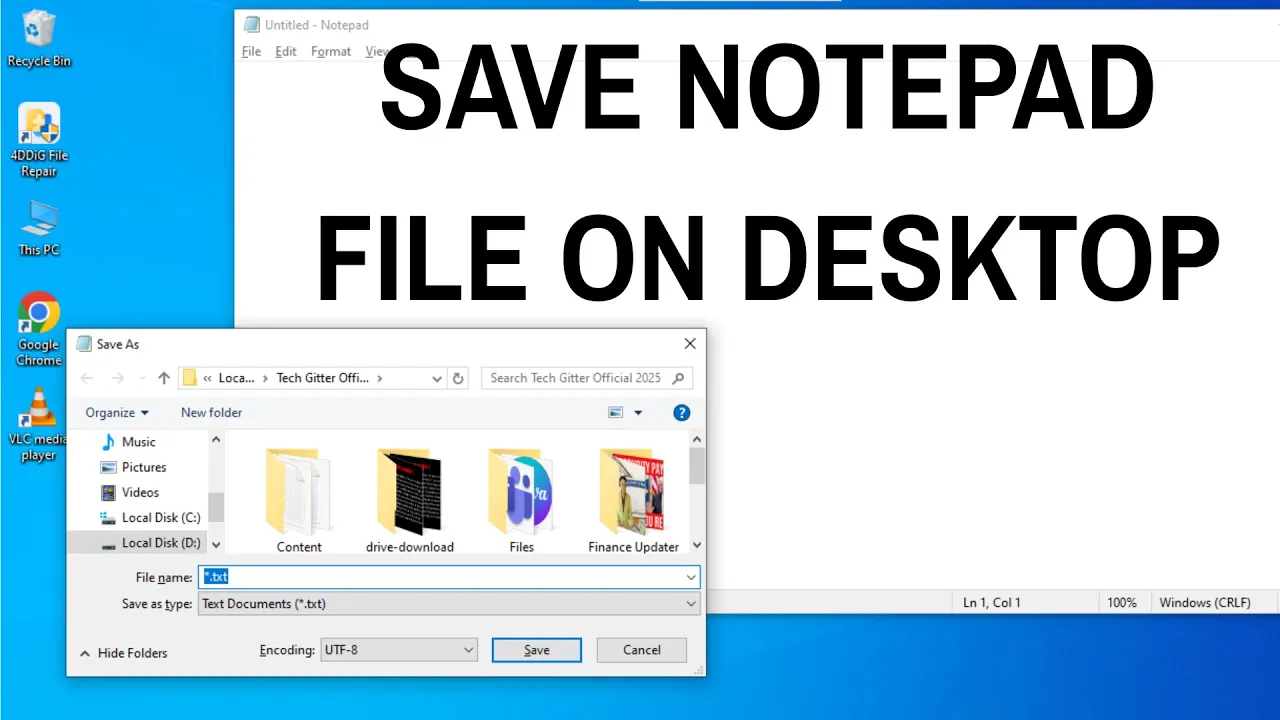
Saving a Notepad file on your desktop is one of the simplest things you can do on Windows, but if you’re new to computers, it might feel a little confusing at first. Notepad is a basic text editor that lets you quickly write notes, lists, or even simple code. The good news is, saving your work directly to the desktop only takes a few clicks, and once you know how, you’ll never lose track of your files again. In this beginner-friendly blog, we’ll explain in easy language how to save a Notepad file on your desktop step by step, so you can access it anytime with ease.
Step-by-Step: Save a Notepad File to Your Desktop
- Open Notepad
- Press
Win + S→ type Notepad → press Enter. - Alternatively, right-click on your desktop → New → Text Document to open a new Notepad file immediately.
- Press
- Write Your Text
- In the Notepad window, type whatever you want to save (notes, code, etc.).
- Make sure you’re done editing before saving — though you can always reopen and edit later.
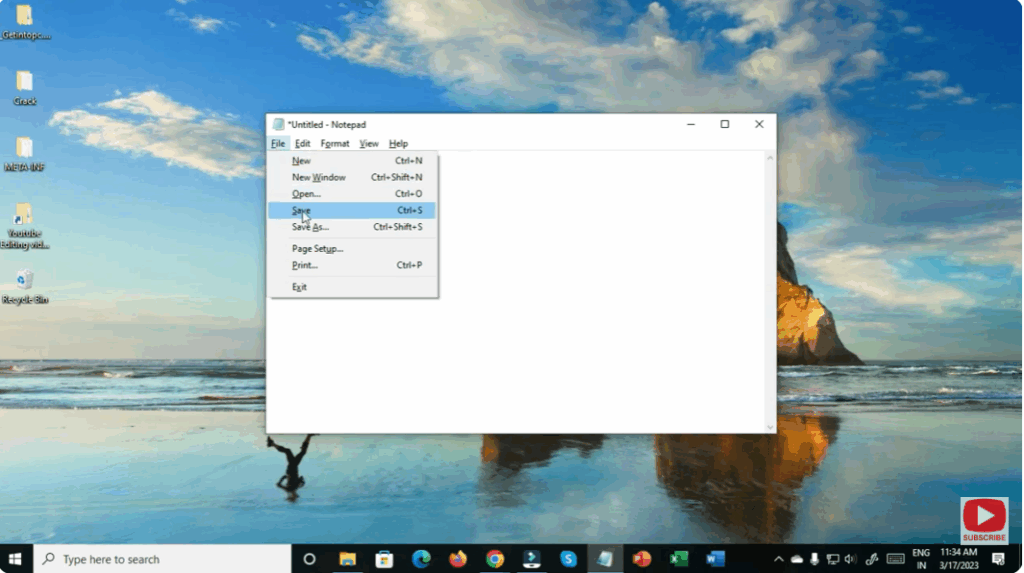
- Open the Save Dialog
- Click File in the top-left menu → then click Save As….
- This opens the “Save As” window, where you choose where and how to save your file.
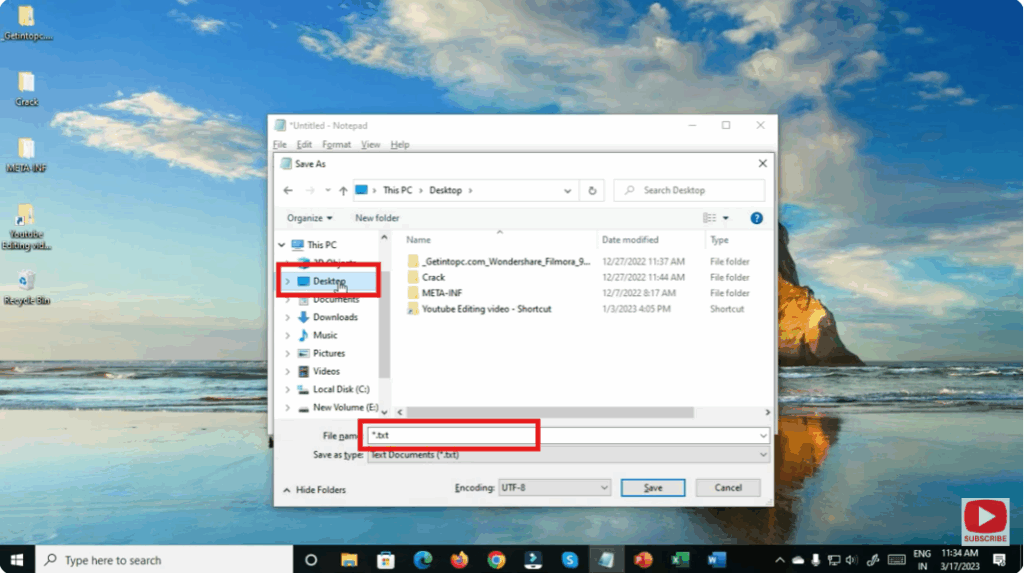
- Select Desktop as the Save Location
- In the “Save As” window, look for Desktop in the left sidebar (or under “This PC → Desktop”).
- Click on Desktop so the file will be saved there.
- Name the File
- In the File name box, type your desired filename, such as
Notes.txtorMyScript.txt. - Make sure to include
.txtat the end so it’s saved as a plain text file.
- In the File name box, type your desired filename, such as
- Choose the File Type
- In the “Save as type” drop-down, ensure Text Documents (*.txt) is selected.
- Click Save
- Once your file name and location are set, click the Save button.
- The Notepad window remains open so you can continue editing if needed.
- Check Your Desktop
- Minimize or move the Notepad window.
- On your desktop, you should now see the file you just saved, with the name you gave it.
Conclusion
Saving a Notepad file to your desktop is quick and easy. With just a few clicks — File → Save As → Desktop — you’ll have your text document ready on your desktop for quick access. Whether you’re working on notes, scripts, or just keeping a simple log, this method helps you keep your files organized and handy.






