
Finding your browsing history in Microsoft Edge is easy and helps you revisit sites quickly or check recent activity. Microsoft Edge stores your visited websites, download history, and timestamps automatically. In this blog, you’ll learn simple steps to view history using the three-dot menu, Ctrl+H shortcut, or search by date/device, plus tips to manage or clear it safely.

✔️ Using the History Menu Manually
- Open Microsoft Edge.
- Click the three-dots menu (… ) in the top-right corner.
- Select History from the menu.
- A side menu will open showing all recently visited websites.
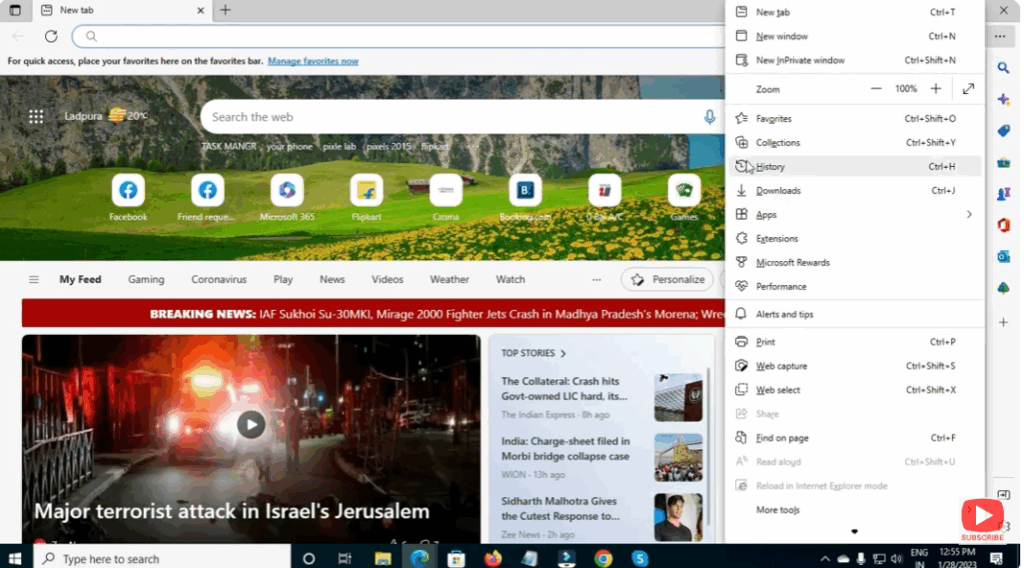
You can scroll, search for a specific site, or clear any entry.
✔️ Final Thoughts
Microsoft Edge makes it extremely easy to view and manage your browsing history. Whether you’re checking past websites, retrieving closed tabs, or clearing your data for privacy, the built-in tools are simple and effective.






