
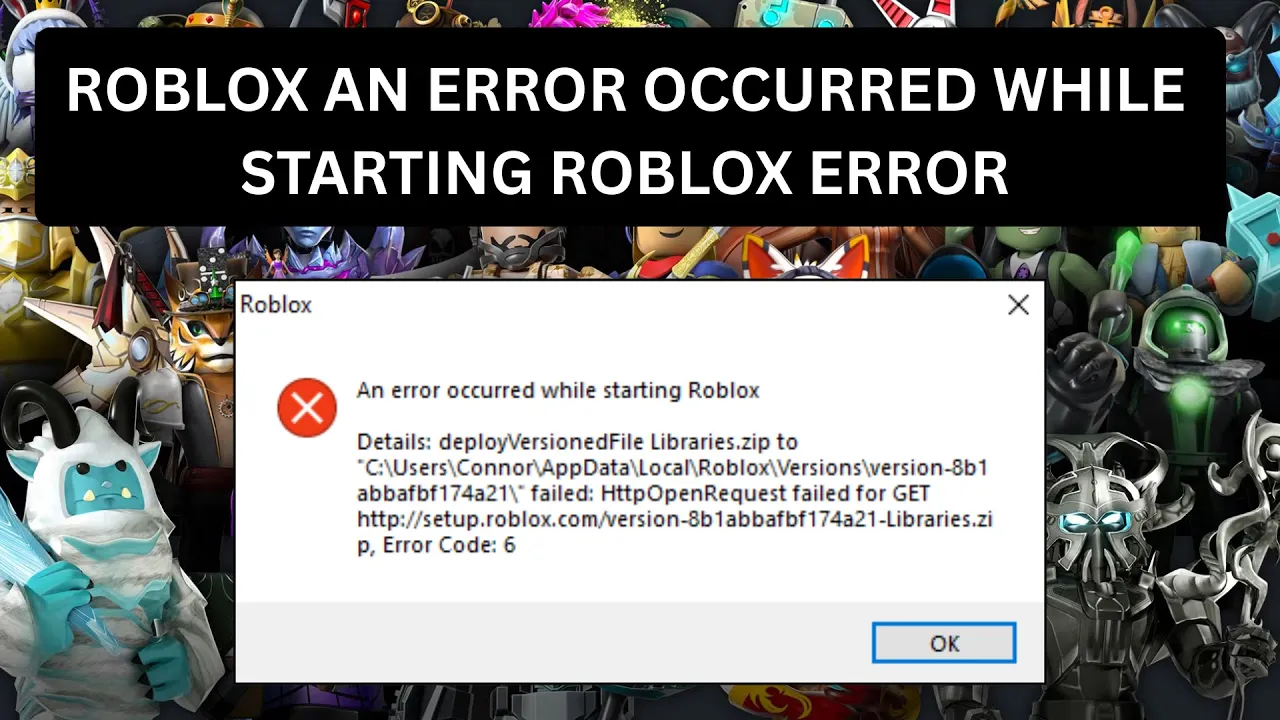
If you see the error message “An error occurred while starting Roblox” on Windows 11, it means the game is having trouble launching properly. This can happen due to issues like corrupted files, outdated drivers, or network problems. The good news is that you can fix this by trying some simple steps like running Roblox as an administrator, clearing its cache, updating Windows and graphics drivers, or reinstalling the game. In this blog, you’ll find easy and effective solutions to quickly get Roblox working again on your Windows 11 PC.
🛠 Step-by-Step Fix Guide
Here’s a detailed guide you can follow to troubleshoot and fix the error. If one step doesn’t work, move on to the next.
1. Close Roblox & Related Processes
- Press Win + X → Task Manager.
- Under “Processes”, look for any processes named RobloxPlayerBeta.exe, RobloxPlayerLauncher.exe or RobloxStudio.exe.
- Right-click each and choose End task.
- This ensures no Roblox components are locked.
2. Uninstall Roblox
- Go to Settings → Apps → Installed apps.
- Find Roblox, click the three dots, then Uninstall.
- Confirm uninstall.
- Optionally also uninstall Roblox Studio if present.
3. Delete Leftover Roblox Files
- Press Win + R, type
%localappdata%, press Enter. - In the folder that opens, locate the Roblox folder and delete it.
- Also check
%appdata%(type that in Win + R) for any Roblox folder and delete if present. - Deleting these ensures no corrupted data remains.
- Restart your PC after deletion.
4. Update Windows & Drivers
- Go to Settings → Windows Update, click Check for updates. Install any pending updates.
- Open Device Manager → Expand Display adapters → Right-click your GPU → Update driver.
- If your GPU manufacturer (NVIDIA/AMD/Intel) offers a Control Panel, open it and install the latest driver for your graphics card.
- An outdated or incompatible driver is a common cause of Roblox launch failure on Windows 11.
5. Run Roblox Installer as Administrator
- Download the Roblox launcher fresh from the official site (or go through the Microsoft Store version).
- Right-click the installer → Run as administrator.
- Then follow the installation prompts. This helps avoid permissions issues.
6. Check Compatibility and Security Features
- Right-click the Roblox shortcut → Properties → Compatibility tab.
- Check Run this program as an administrator.
- Optionally check Disable fullscreen optimizations.
- Some Windows 11 users reported turning off Memory Integrity (Settings → Privacy & security → Windows Security → Device security → Core isolation → Memory integrity) fixed the crash.
- If you have an AMD CPU, some users found disabling SVM / Virtualization in BIOS (UEFI) helped.
⚠️ Note: Turning off Memory Integrity or Virtualization may reduce certain security protections. Only do so if you understand the trade-off.
7. Disable Conflicting Software Temporarily
- Antivirus or firewall applications sometimes block Roblox.
- Temporarily disable third-party antivirus (not Windows Defender) and test if Roblox launches.
- Close background apps that heavily use the GPU or inject overlays (Discord, OBS, etc).
- If Roblox launches, you may need to add Roblox to the exceptions/exclusions list.
8. Launch Roblox & Test
- After reinstalling, open your browser, go to the official Roblox site, log in, and click Play on any game.
- The installer should launch, complete, and then Roblox should open.
- If it still fails, check Event Viewer for application error logs (Win + R →
eventvwr.msc→ Windows Logs → Application). Look for entries around the time you attempted to launch Roblox for clues (faulting module name, exception code).






