
If you notice your system taking too long to load programs, freezing frequently, or not running as smoothly as before, you’re not alone. Many people face these frustrating problems with their computers. But don’t worry. Today, I will show you the most powerful ways to speed up any computer and get it running like new again. Let’s get into it and get your system performing at its best.
Welcome to my channel Tech Gitter. If you are new to the channel, then subscribe to it.
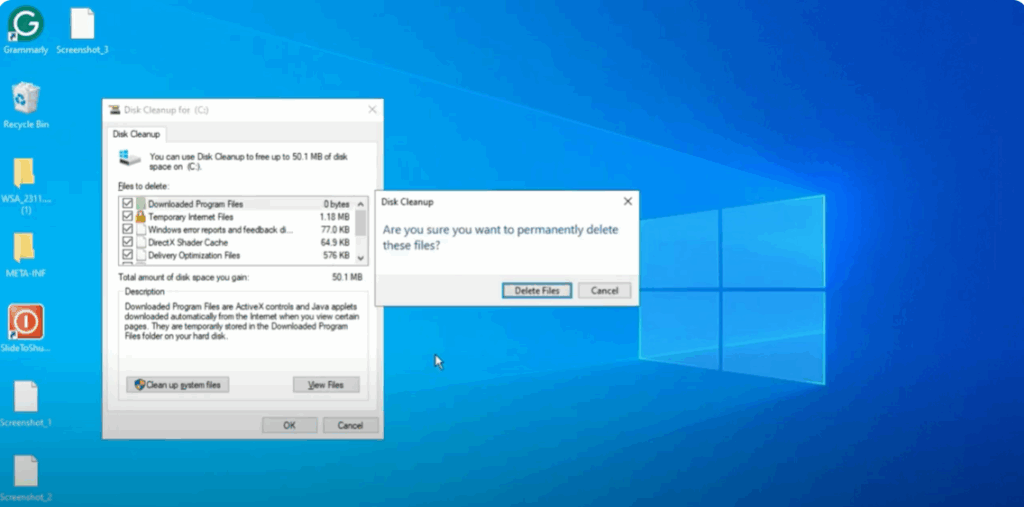
Step 1: Run Disk Cleanup
- Come to PC screen and press Windows + R key or go to Windows search menu and open Run.
- Type cleaner and click OK.
- The Disk Cleanup window will open.
- Check everything here (if there is anything in your recycle bin that you don’t want to delete, copy it first).
- You may see 50 MB, 10 GB, 15 GB, or even 20 GB of junk data depending on your system.
- These are temporary files and it’s completely fine to delete them.
- Select all the check marks → click OK → then click Delete Files.
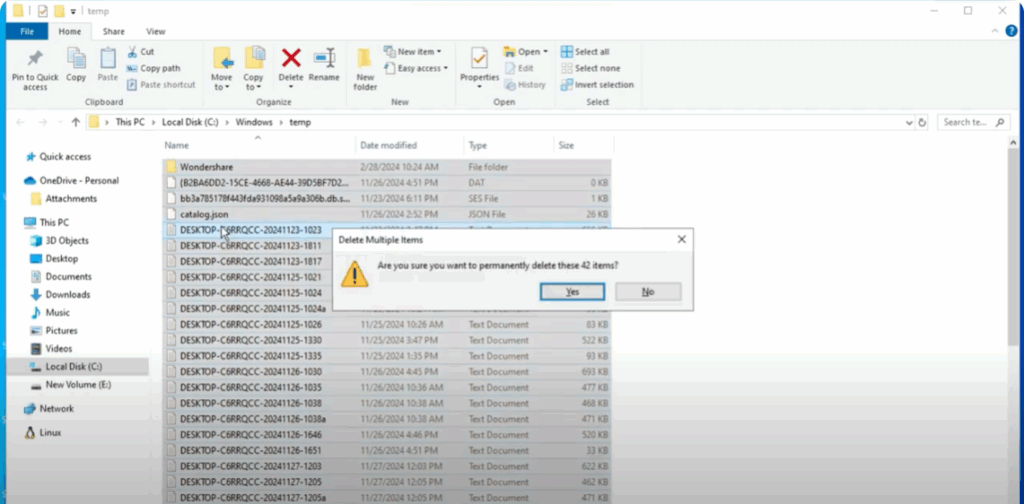
Step 2: Clear Temp Files
- Again press Windows + R.
- Type temp and click OK.
- Select any file → press Ctrl + A (to select all).
- Press Shift + Delete → confirm Yes to delete permanently.
- Some files won’t be deleted – just leave them as they are.
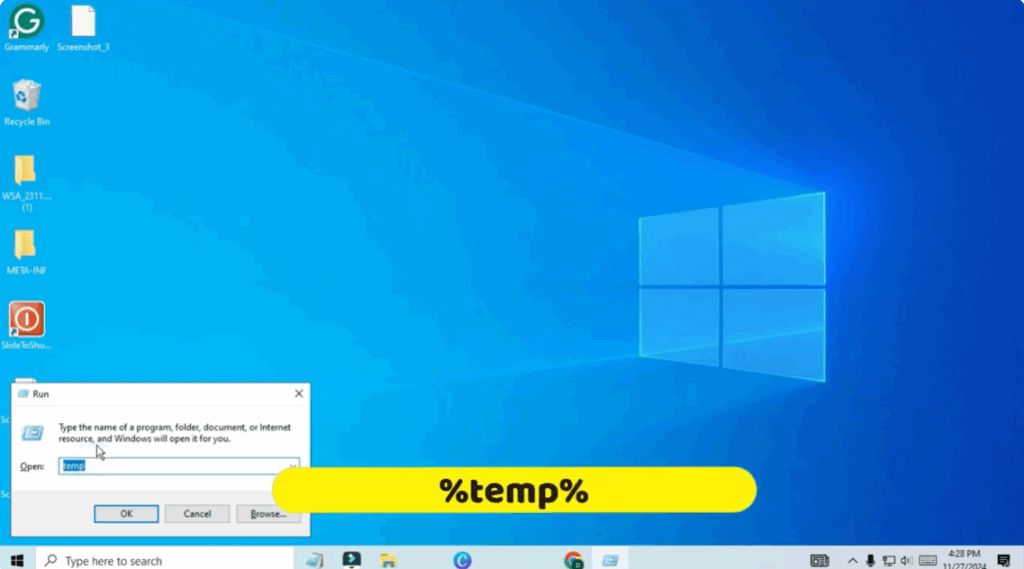
Step 3: Delete %temp% Files
- Press Windows + R again.
- Type %temp% and click OK.
- These are registry-related files created by software.
- Select any file → press Ctrl + A → then Shift + Delete.
- Confirm deletion.
- Some files cannot be deleted – skip them.
Step 4: Internet Properties Settings
- Open Run again by pressing Windows + R.
- Type inetcpl.cpl and click OK.
- Internet Properties window will appear.
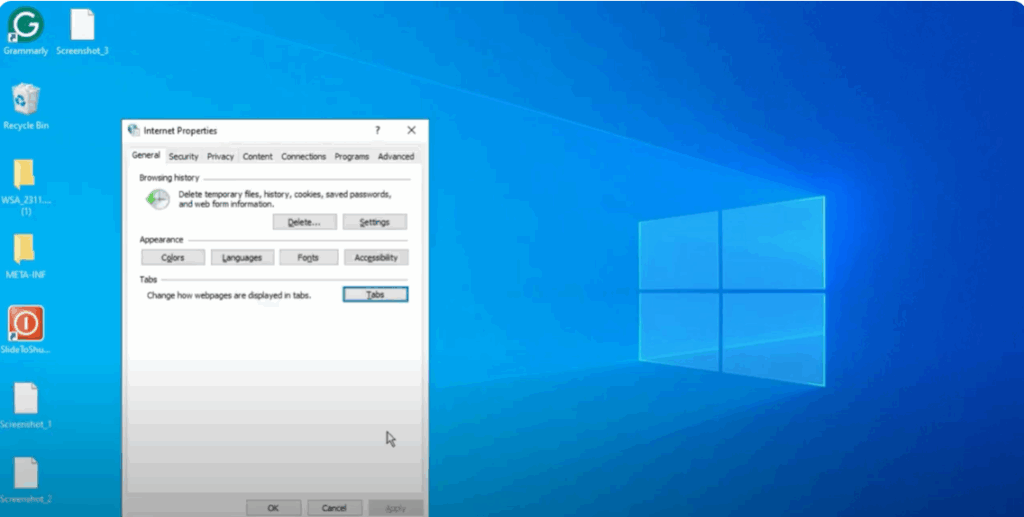
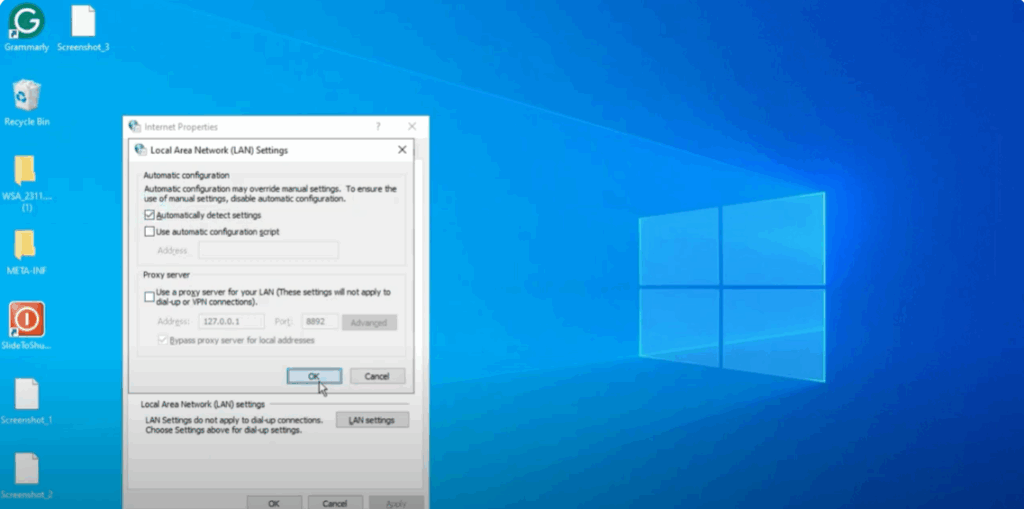
Adjust Proxy Settings:
- Go to Connections → click LAN Settings.
- If there is any proxy checked, uncheck it.
- Select Automatically detect settings → click OK.
Restore Advanced Settings:
- Open inetcpl.cpl again.
- Go to Advanced → click Restore Advanced Settings → then click Reset.
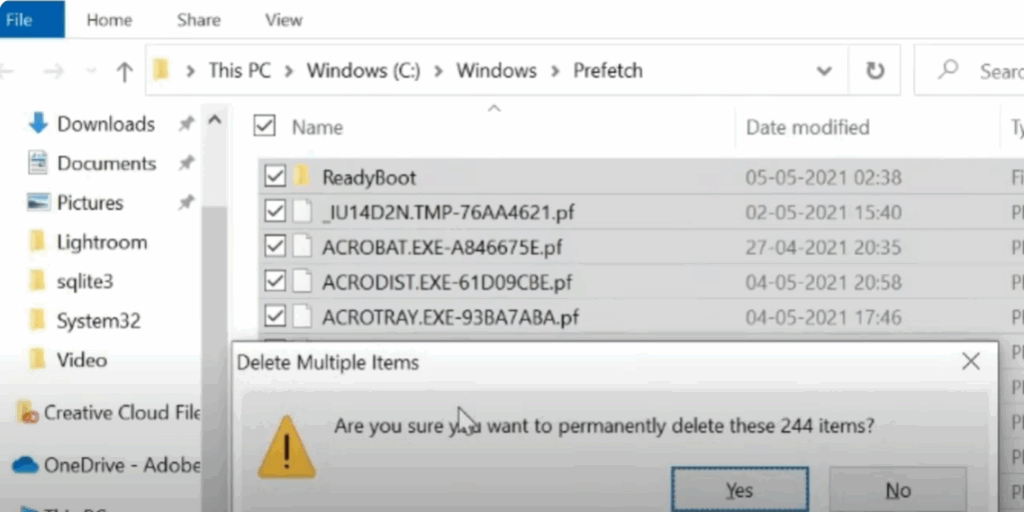
Step 5: Delete Prefetch Files
- Press Windows + R.
- Type prefetch and press OK.
- Click Continue if prompted.
- Select any file → press Ctrl + A → then Shift + Delete.
- Confirm deletion.
Step 6: Disable Unwanted Startup Programs
- Open Task Manager (search from Start Menu).
- Go to the Startup tab.
- Disable all unwanted or unknown applications except:
- Microsoft apps
- Graphics drivers
- Security software
- Essential third-party apps
- Remember: Disabling apps here only prevents them from auto-starting. You can still open them manually.
Step 7: Close High-Usage Applications
- In Task Manager, check the Processes tab.
- Identify applications consuming high CPU usage.
- Right-click and close unnecessary apps.
Final Words
You may notice a high startup time because of too many unwanted applications running. By following the above steps, your computer will run smoother and faster.
Hope you found this guide helpful. If you did, don’t forget to hit the Like button. And if you’re new to the channel, make sure to subscribe so you won’t miss any future content.
We’ll meet again in the next guide. Have a great day!






