
Are pop-up ads constantly interrupting you on your Windows 10 PC? They can be really annoying—whether they show up while browsing the internet or even when you’re just using your computer. These pop-ups might come from websites, apps, or system notifications. The good news is, you can easily stop most of them with a few simple settings. In this blog, we’ll show you step-by-step how to block pop-up ads in Windows 10, so you can enjoy a cleaner, distraction-free experience. Let’s get started!
Step 1: Open Windows Settings
First, click on the Windows icon and open Settings.
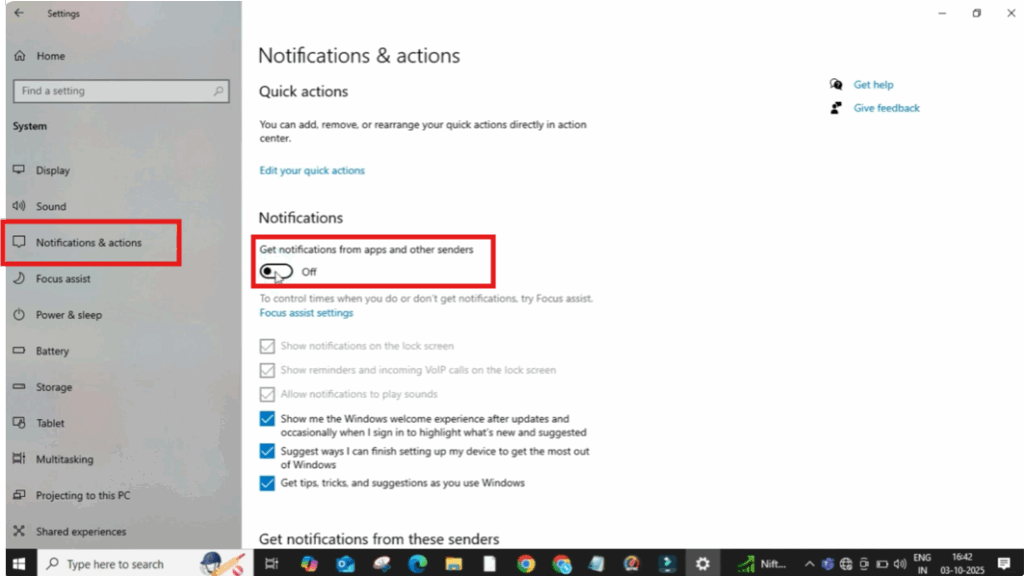
Now, go to System.
On the left panel, click on Notifications & Actions.
Scroll down and look for the option that says:
“Get notifications from apps and other senders”
Turn this option OFF to stop unnecessary app suggestions and ad-like notifications.
Step 2: Turn Off Lock Screen Ads
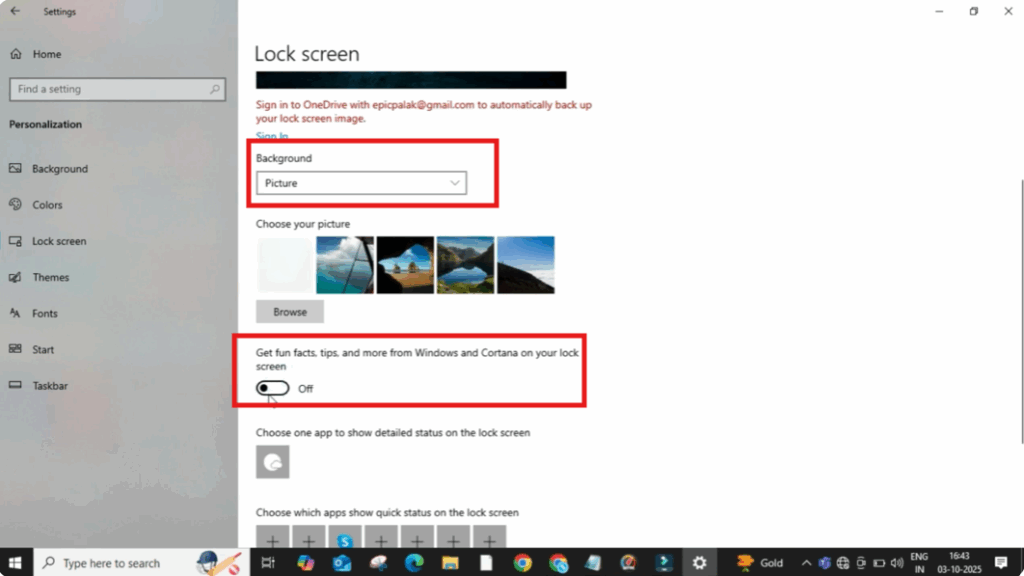
Click on the Back button and go into Personalization.
From here, select Lock Screen.
Scroll down and under the Background option, change it to Picture.
Below that, you’ll see an option that says:
“Get fun facts, tips, and more from Windows and Cortana on your lock screen.”
Make sure to turn this OFF.
This will remove ads and promotions from your lock screen.
Step 3: Remove Suggested Apps in Start Menu
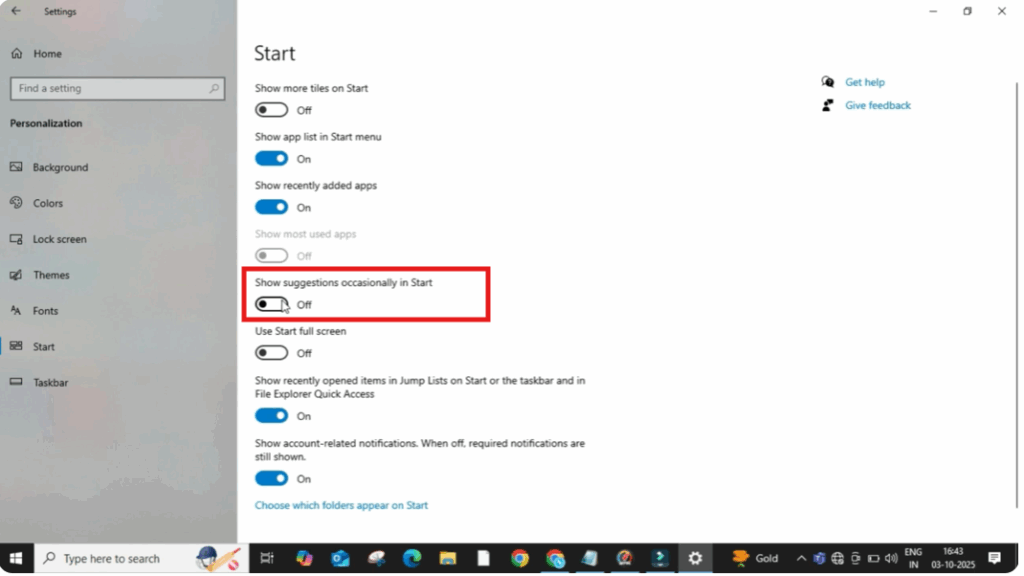
Then click on Start.
Here you’ll see an option that says:
“Show suggestions occasionally in Start”
Turn this OFF as well.
This stops Windows from showing suggested apps or ads in your Start Menu.
Step 4: Disable File Explorer Ads
We’re not done yet.
Close Settings and right-click on the Windows icon.
Open File Explorer.
Inside File Explorer, click on the View tab.
Then again click on View.
A new window will appear.
Scroll down and look for the option:
“Show sync provider notifications”
This is another way Microsoft pushes ads inside File Explorer.
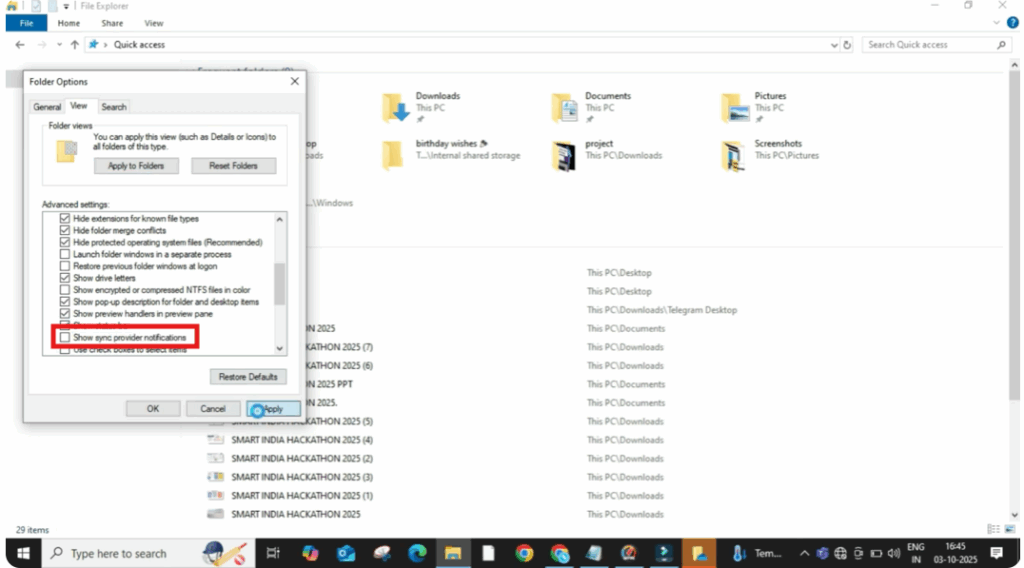
Simply uncheck this option, then click Apply and OK.






