
Do you find Spotify opening automatically every time you start your Windows 10 or 11 PC? 🎵 While it’s handy for music lovers, it can also slow down your computer’s startup and feel annoying if you don’t want it running right away. The good news is, you can easily change a few settings to stop Spotify from launching at startup. In this blog, we’ll guide you through simple steps to disable Spotify auto-start on Windows, so your computer boots faster and only runs apps you actually need.
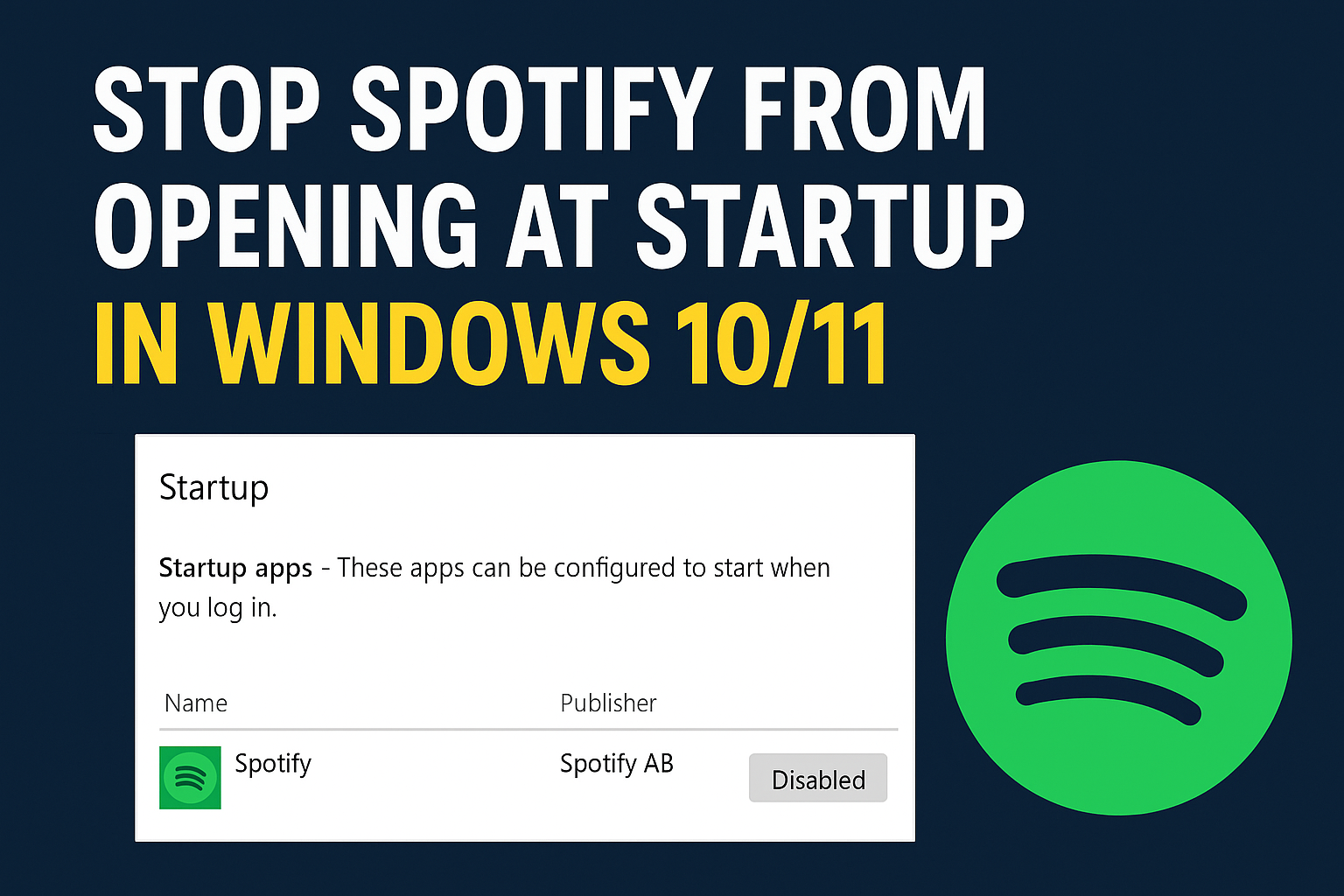
✅ Method 1: Disable Spotify Startup from Task Manager
This is the simplest method.
Step-by-Step:
- Press Ctrl + Shift + Esc to open Task Manager.
- Click on the Startup tab.
- Scroll down and find Spotify in the list.
- Right-click Spotify → select Disable.
This removes Spotify from Windows startup programs.
✅ Method 2: Turn Off Spotify Auto-Start From Spotify Settings
Spotify has its own built-in startup setting.
Steps:
- Open Spotify.
- Click on your profile icon (top right).
- Select Settings.
- Scroll down to Startup and Window Behavior.
- Find Open Spotify automatically after you log into the computer.
- Change it to No.
Now Spotify will not launch during system startup anymore.
✅ Method 3: Disable Spotify Background App (Windows 11)
Windows 11 allows you to prevent apps from running in the background.
Steps:
- Open Settings (Windows + I).
- Go to Apps → Installed apps.
- Search for Spotify.
- Click the three dots (…) → Advanced options.
- Under Background apps permissions, select Never.
This will keep Spotify from running in the background unnecessarily.
🎯 Final Words
Stopping Spotify from opening at startup is quick and simple. Using any of the methods above—Task Manager, Spotify settings, or Windows app permissions—you can prevent the app from slowing down your boot time.






