
Don’t want Google Chrome to track your location while browsing on your Windows 10 PC? You’re not alone—many people prefer to keep their location private. Chrome uses your location to show nearby results or personalized content, but you can easily turn this feature off. In this blog, we’ll show you how to disable location access in Google Chrome, step by step, using simple language. Let’s take control of your privacy!
Follow these simple steps:
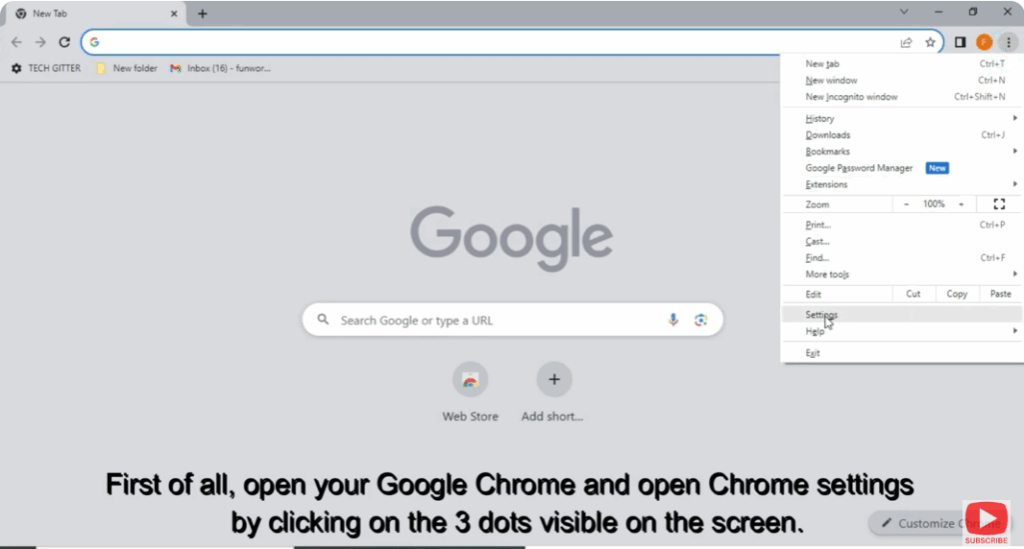
- First of all, open Google Chrome on your PC.
- Click on the three dots visible on the screen to open the Chrome Settings.
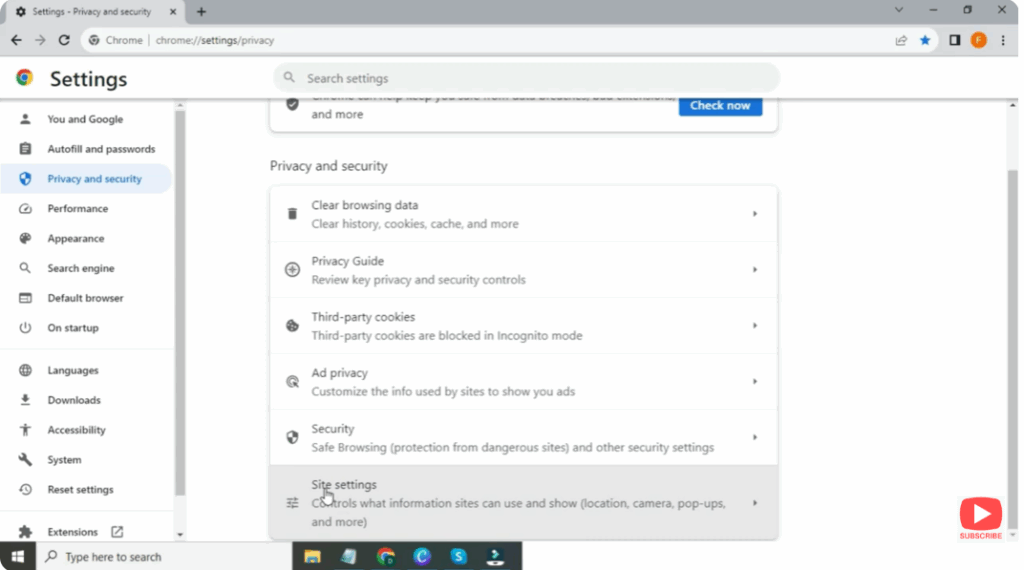
- Open the Privacy and Security option.
- Scroll down the screen and you will see the Site Settings — tap on it.
- Go to Google Location and disable your device location.
- You can re-enable it anytime as per your usage.
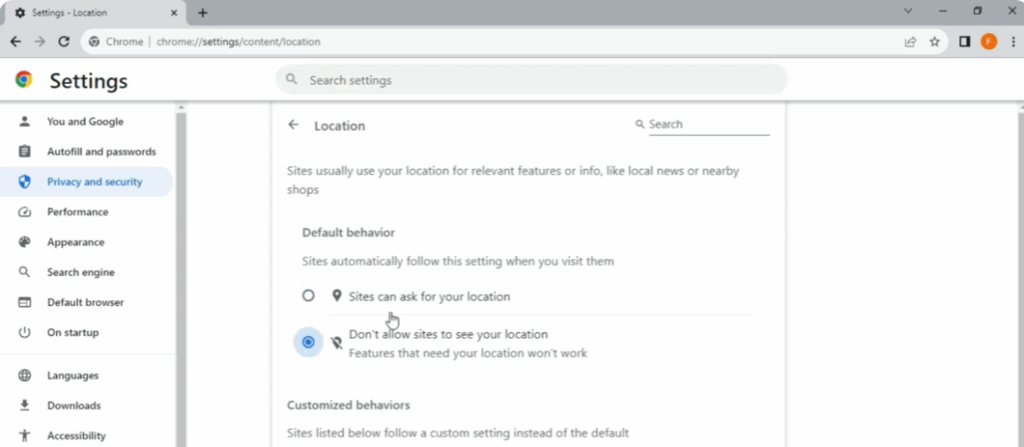
That’s it! Your Google Chrome location is now turned off successfully.






