
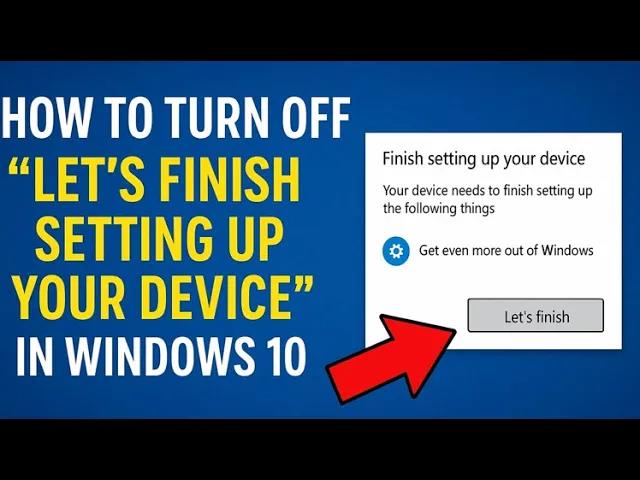
The “Let’s finish setting up your device” message in Windows 10 can be annoying when it keeps popping up again and again. It usually appears after updates or when you sign in, asking you to set up things like OneDrive, Microsoft account, or other features. While it’s meant to help, many users just want to skip it and get straight to using their PC. The good news is, you can easily turn this message off with a few simple steps. In this beginner-friendly blog, we’ll explain in easy language how to disable the “finish setting up your device” prompt in Windows 10, so you can enjoy a smoother experience without interruptions.
✅ Disable via Windows Settings (Quick Way)
This method works on Windows 10 and Windows 11:
- Press Win + I to open Settings.
- Go to System → Notifications (or Notifications & actions).
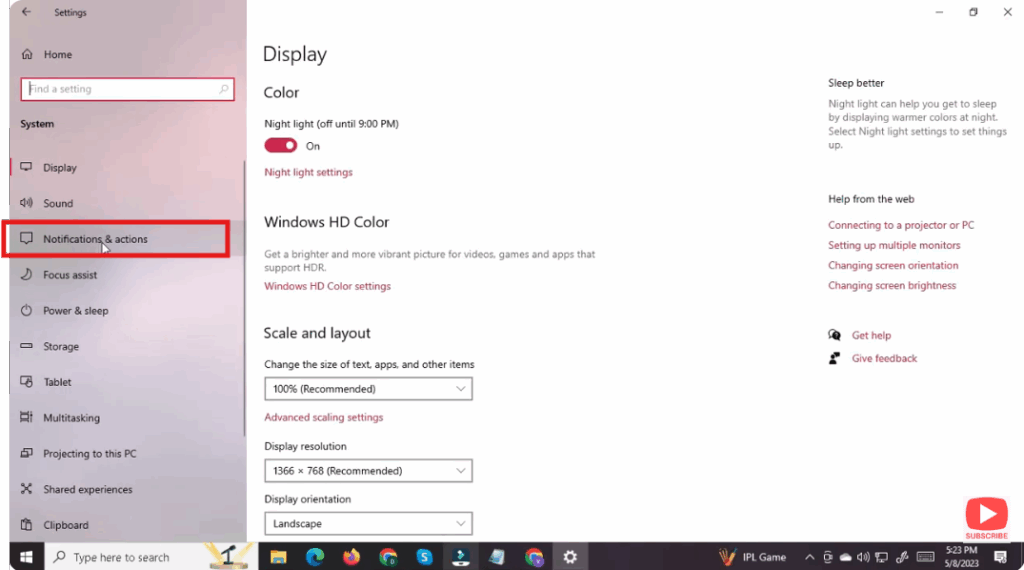
- Scroll down (or expand Additional Settings, depending on Windows version).
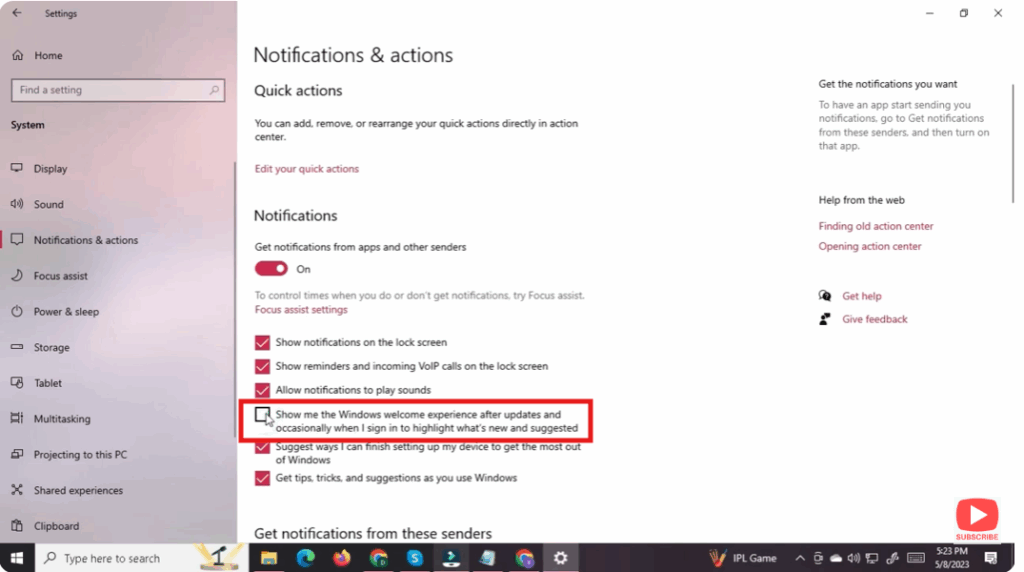
- Uncheck the box for:
- Suggest ways I can finish setting up my device to get the most out of Windows (or similar phrase).
- (Optional) Also uncheck “Show the Windows welcome experience after updates and occasionally when I sign in” if you don’t want welcome screens or update promos.
- Close Settings.
- Restart your computer. The prompt should no longer appear when you sign in.
💡 This method is simple and usually effective — but note: some updates may re-enable the setting, so you might need to repeat periodically.






