
Don’t want Google Chrome to track your location while you browse the internet? You’re not alone—many people prefer to keep their location private. Chrome uses your location to show nearby search results or personalized content, but you can easily turn off location tracking in just a few steps. In this blog, we’ll explain how to disable location access in Google Chrome on your computer, using simple and clear instructions. Let’s take control of your privacy!
Steps to Turn Off Location Tracking in Google Chrome
Step 1: Open Google Chrome
First, launch the Google Chrome browser on your computer.
Step 2: Open Chrome Settings
- Click on the three dots (⋮) in the top-right corner of the browser.
- Select Settings from the dropdown menu.

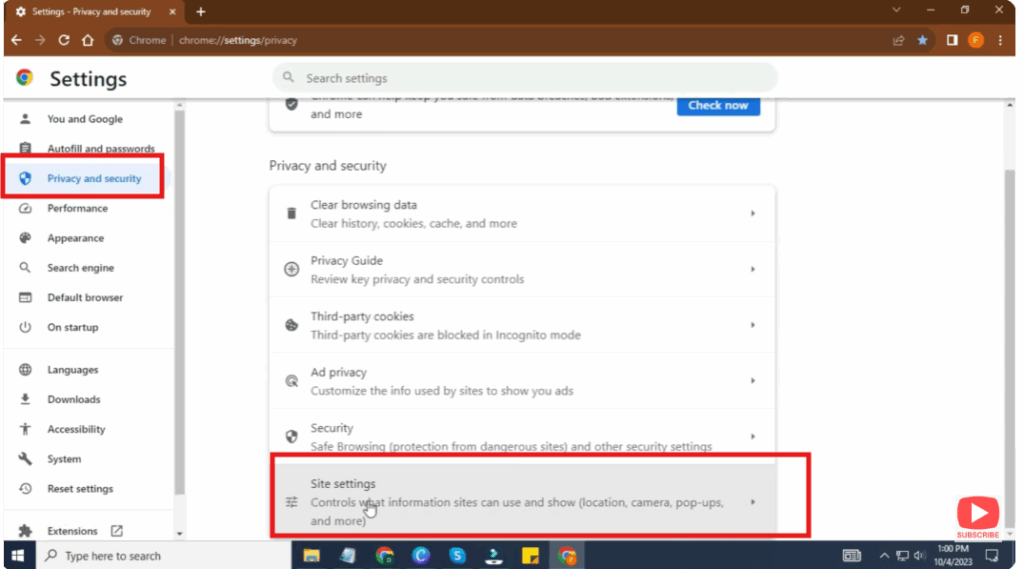
Step 3: Go to Privacy and Security
- On the left sidebar, click on Privacy and security.
Step 4: Open Site Settings
- Under Privacy & Security, click on Site settings.
Step 5: Manage Location Permission
- Scroll down until you find Location and click on it.
Step 6: Turn Off Location Access
You will see two main options:
- Sites can ask to know your location
- Don’t allow sites to see your location
- Select Don’t allow sites to see your location.
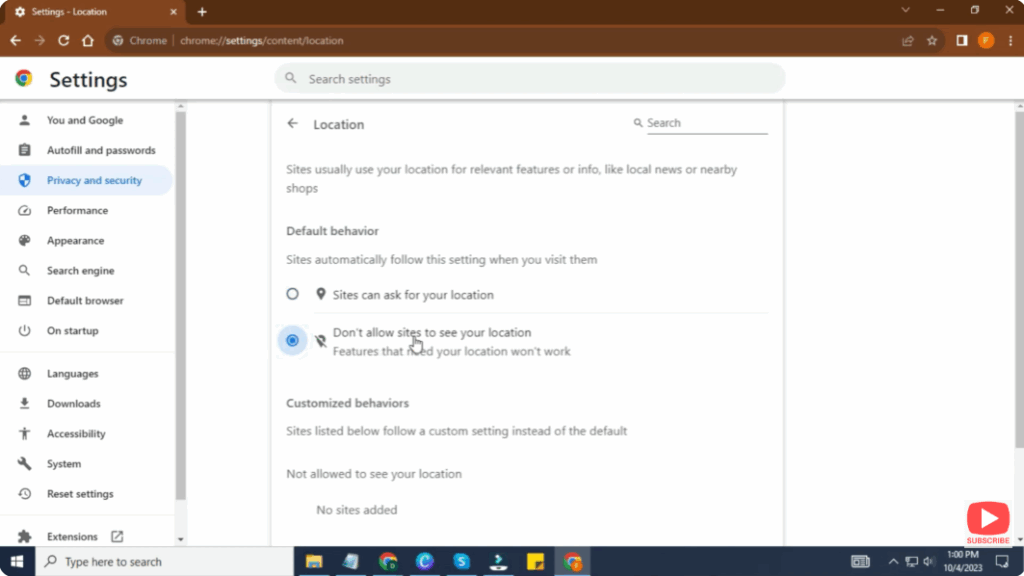
This will completely block all websites from accessing your location through Chrome.
Conclusion
Turning off location tracking in Google Chrome is a simple but effective way to protect your privacy. By following the steps above, you can make sure websites no longer access your location without your permission.






