
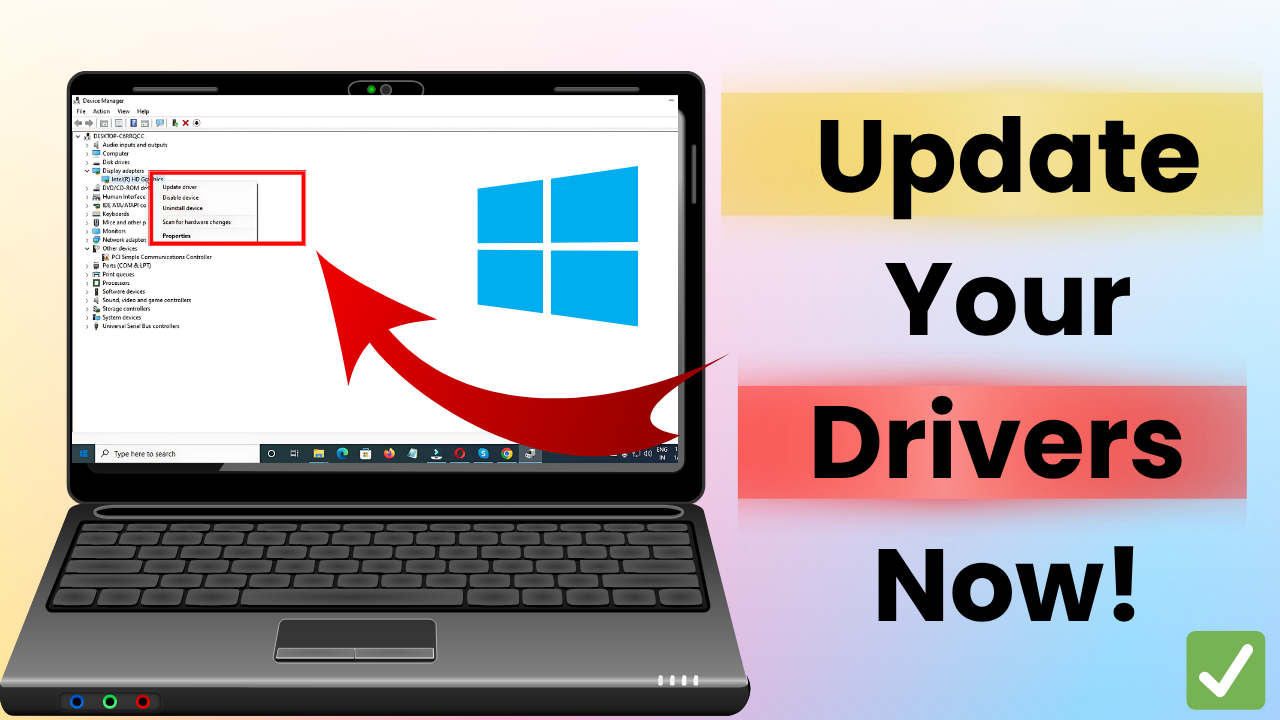
Welcome back to Tech Gitter Official. Today we’re going to see how to update drivers in Windows 10.
First, open the search bar and type Device Manager. Then click on it. This will open a list of all hardware devices on your system.
Now, find and click on Display Adapters to expand the section. You’ll see something like Intel HD Graphics or your system’s graphic card.
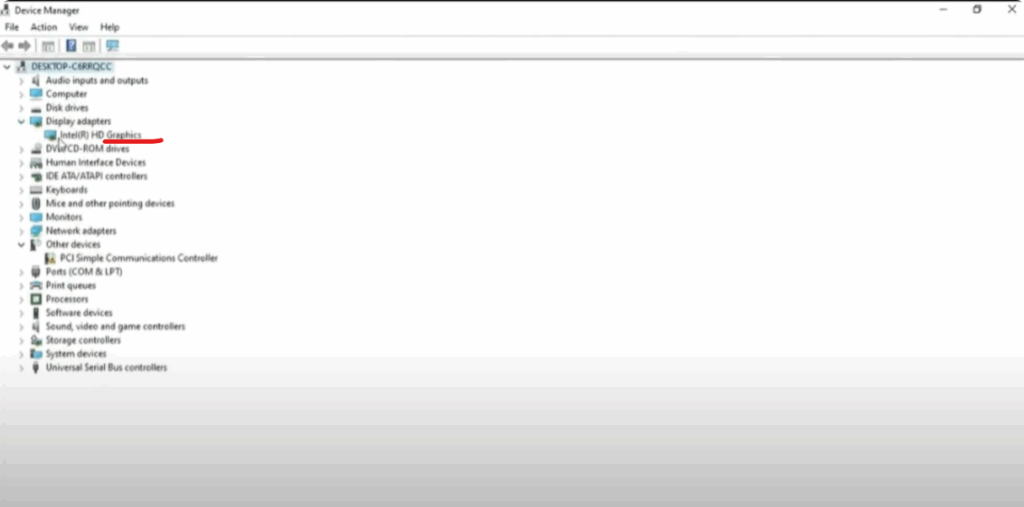
Right click on Intel HD Graphics and a menu will appear with a few options. Click on the first one: Update Driver.
A new window will pop up with two choices:
- Search automatically for drivers
- Browse my computer for drivers
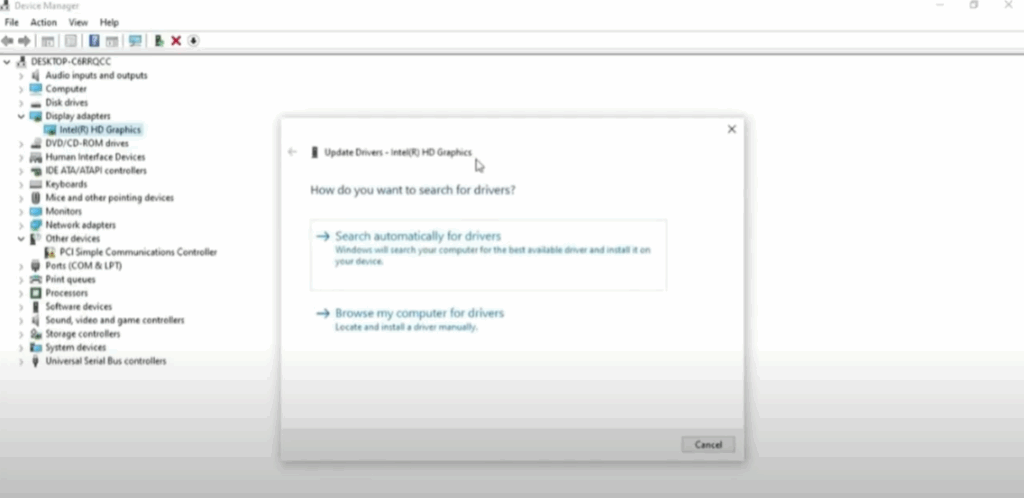
Click on the first option, Search automatically for drivers. Windows will now start checking for any available driver updates online.
After a few moments, you might see a message that says:
“The best drivers for your device are already installed.”
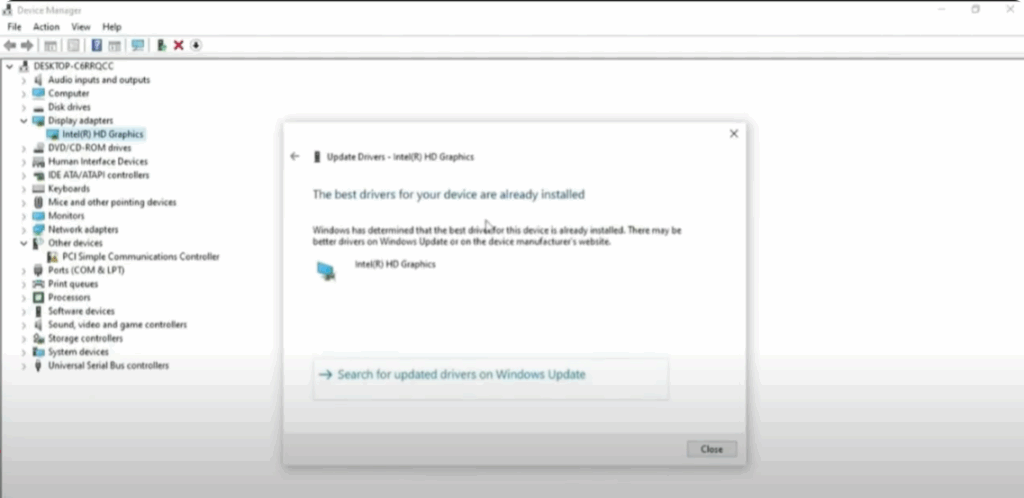
That means your driver is up to date. Now, click on Close.
And that’s it! Your driver update process is complete.
Thanks for reading. If this guide helped, don’t forget to like, share, and subscribe to Tech Gitter Official.






