
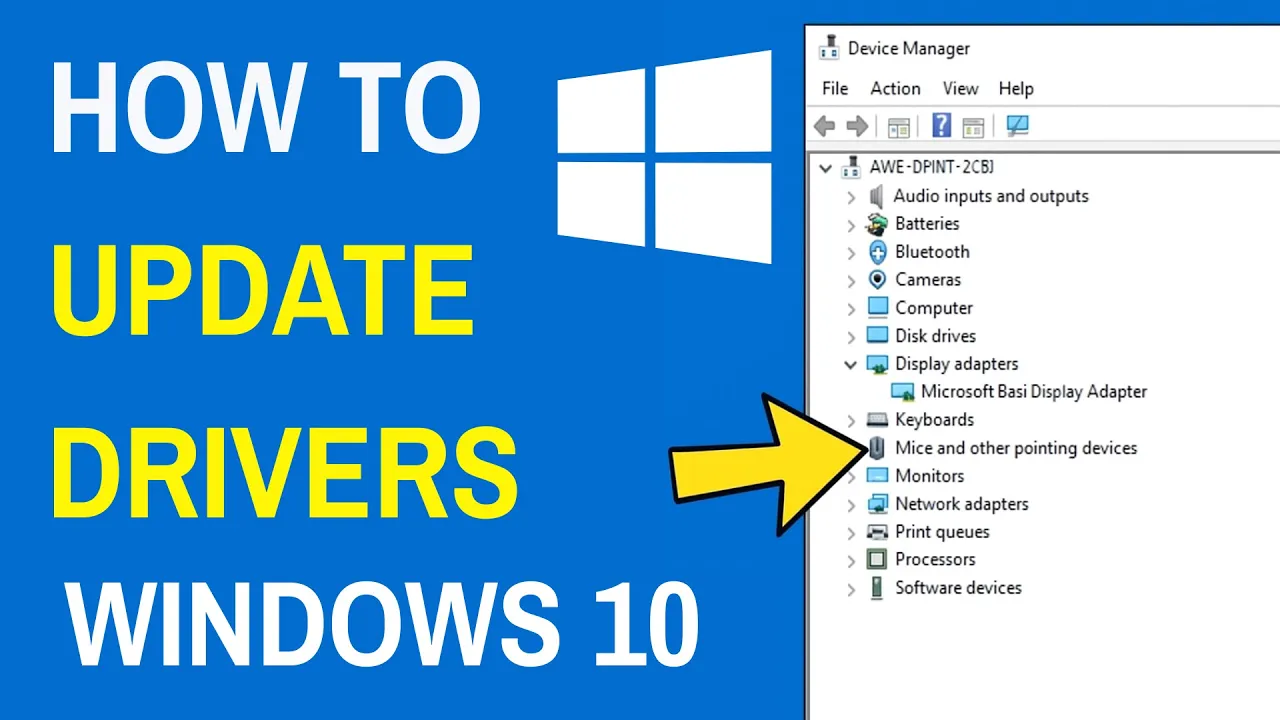
Updating drivers in Windows 10 is important to keep your PC running fast, stable, and compatible with the latest apps and games. Drivers help Windows talk to your hardware, like your graphics card, sound card, printer, and more. In this blog, you’ll learn simple methods to update drivers using Device Manager, Windows Update, and official manufacturer websites, all explained in easy steps so even beginners can follow without any confusion.
✅ Update Drivers via Device Manager
- Right-click the Start menu → choose Device Manager.
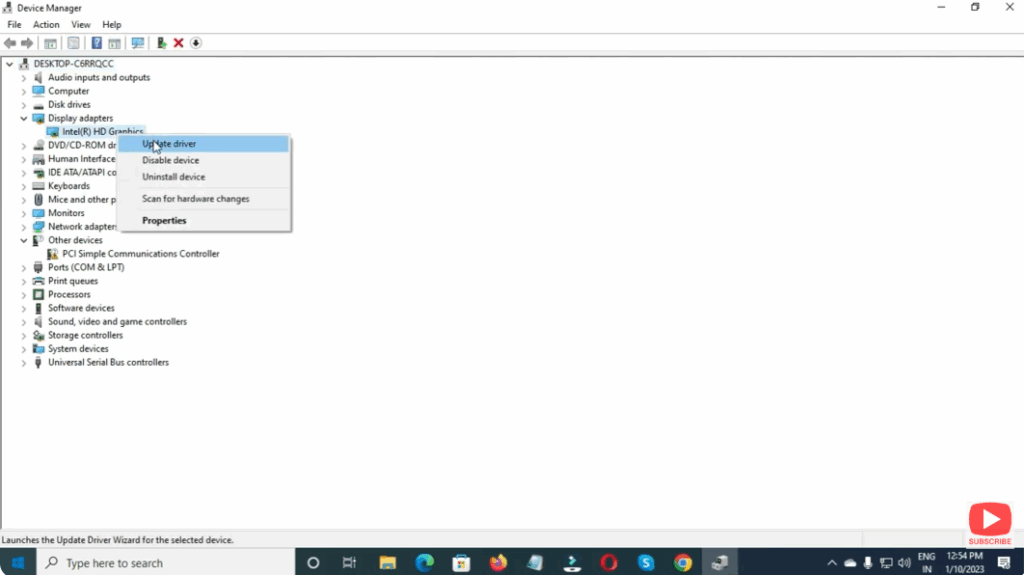
- In Device Manager, find the hardware category (e.g. Display adapters, Network adapters, etc.) → expand it.
- Right-click the specific device → select Update driver.
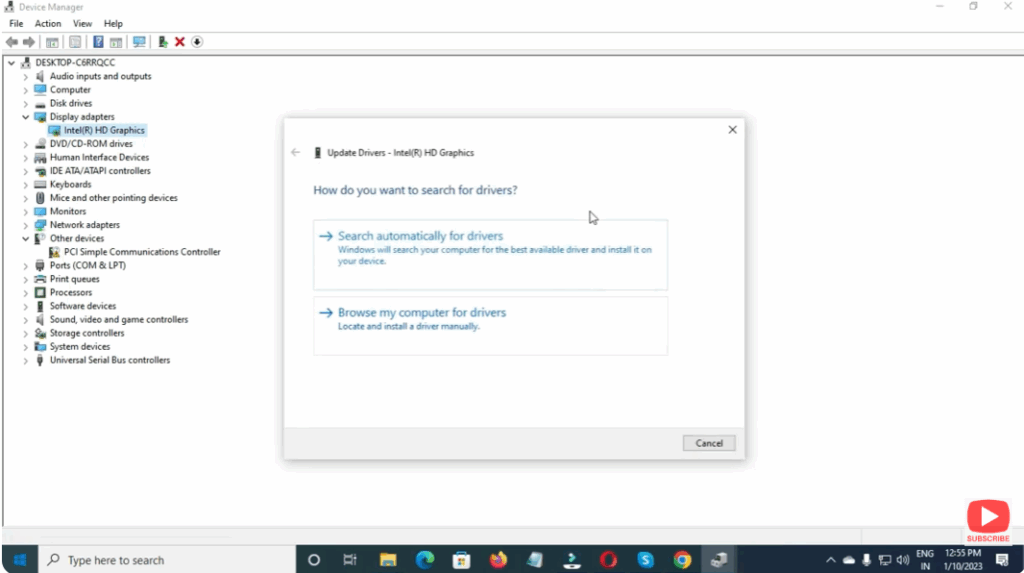
- Choose one of:
- Search automatically for updated driver software — Windows will online-search and install if found.
- Browse my computer for driver — use this if you downloaded a driver manually.
- Follow prompts. If Windows finds a newer driver, it will install it and might ask you to restart.
This method gives you more control — useful when Windows Update doesn’t have drivers for some devices (e.g. dedicated graphics cards, specialized hardware).
Conclusion
Updating drivers in Windows 10 is important to keep your PC running smoothly and compatible with new software. Whether you rely on Windows Update for simplicity or prefer manual updates for control and performance, it’s not hard — and often solves hardware issues.






