
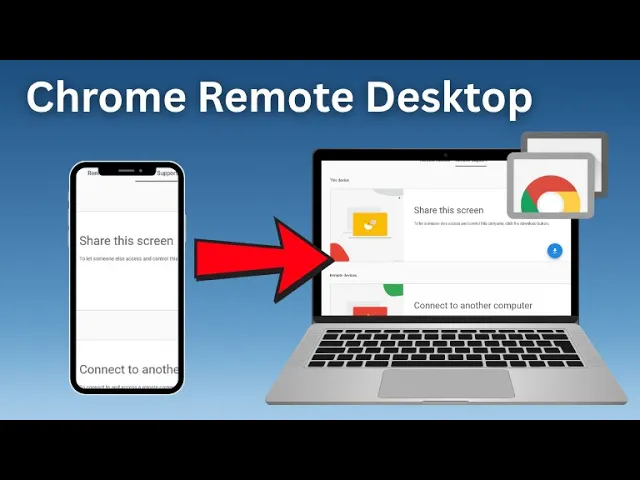
Sometimes we need to use our computer but can’t be near it. Maybe you forgot an important file at home, or you want to check something on your office computer while traveling. In such situations, remote access becomes very useful.
One of the simplest tools for this is Chrome Remote Desktop, a free service from Google. It allows you to open and control your computer screen from another device, whether it’s a laptop, tablet, or even your phone. All you need is the Chrome browser and an internet connection.
In this blog, we’ll explain step by step how to set up Chrome Remote Desktop and start using it. Don’t worry—it’s beginner‑friendly, and by the end, you’ll know exactly how to access your computer from anywhere with ease.
Step 1: Download Chrome Remote Desktop
To make a remote connection to your computer, open your Chrome browser and search Chrome Remote Desktop in the search bar.
- Open the first website that appears on the screen.
- Click on the Download button.
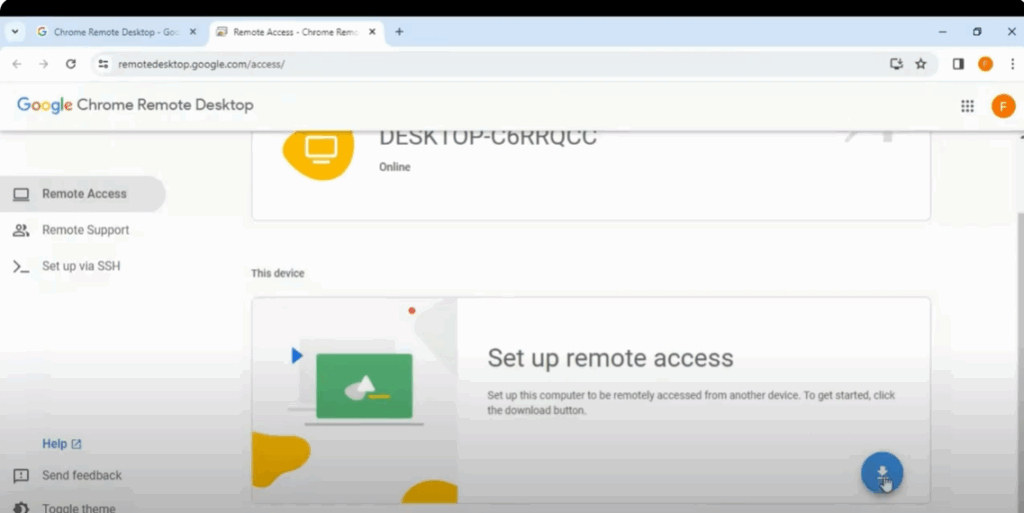
- You will see a screen asking you to add the extension. Click on the Add to Chrome button.
- A dialogue box will appear allowing you to add the extension to your Chrome.
- Click on Accept and Install.
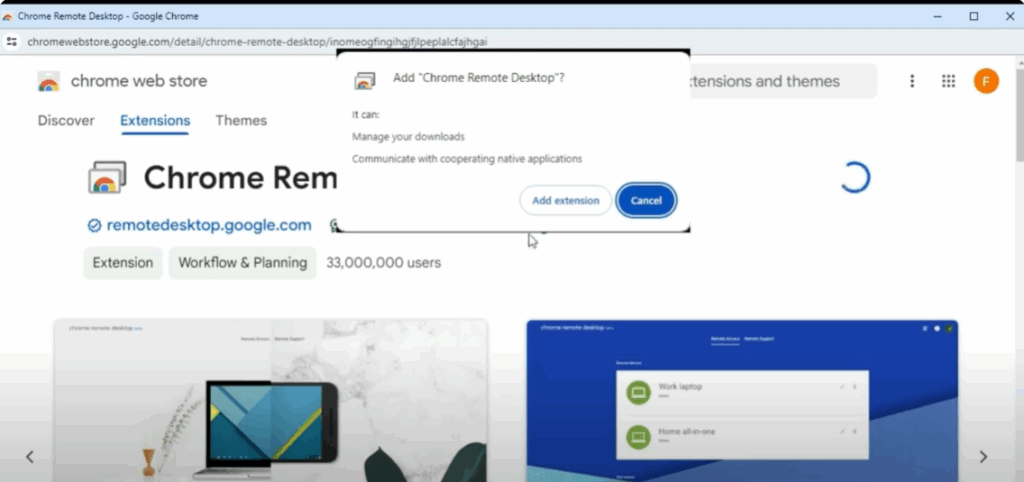
Step 2: Device Setup
- Enter your computer name.
- Set a six-digit PIN and retype it.
- Click on Start.
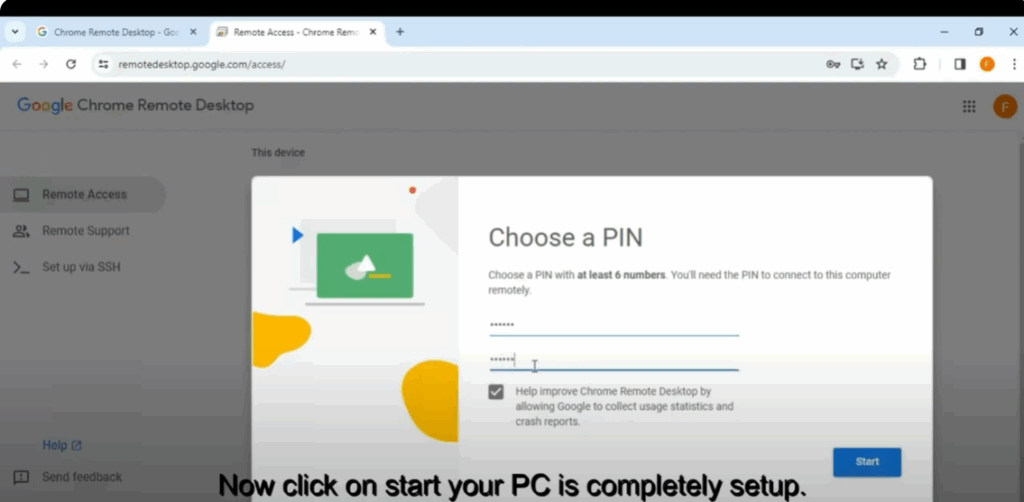
Your PC is now completely set up for remote access.
Step 3: Install Chrome Remote Desktop App on Phone
Now it’s time to download the Chrome Remote Desktop app on your mobile device.
- Go to the Play Store and install the Chrome Remote Desktop app.
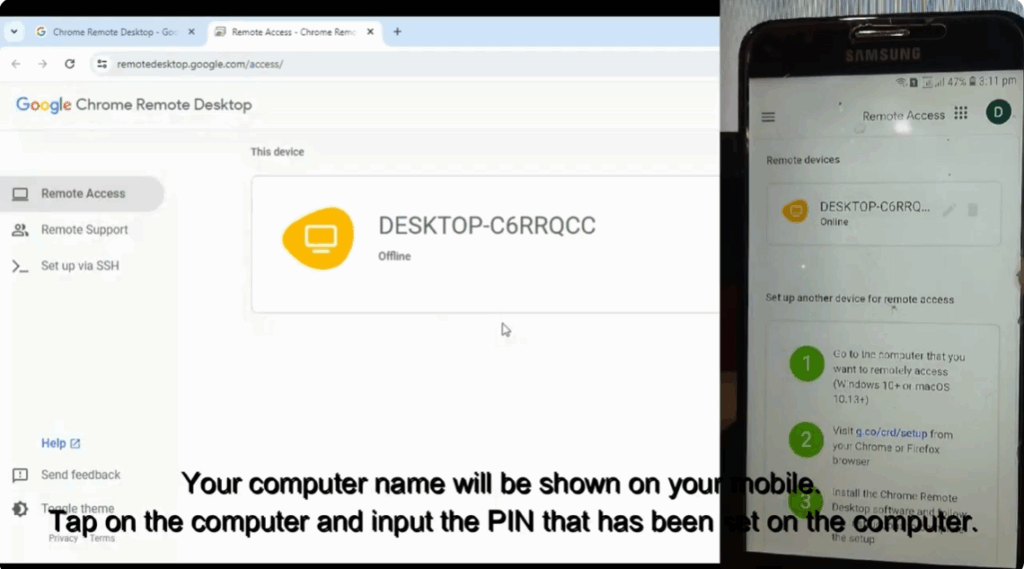
- Sign in on your mobile device with the same email address that is signed in on your PC.
- Your computer name will now be displayed on your mobile.
- Tap on the computer name and input the PIN that was set on the computer.
Step 4: Access and Control Your Computer
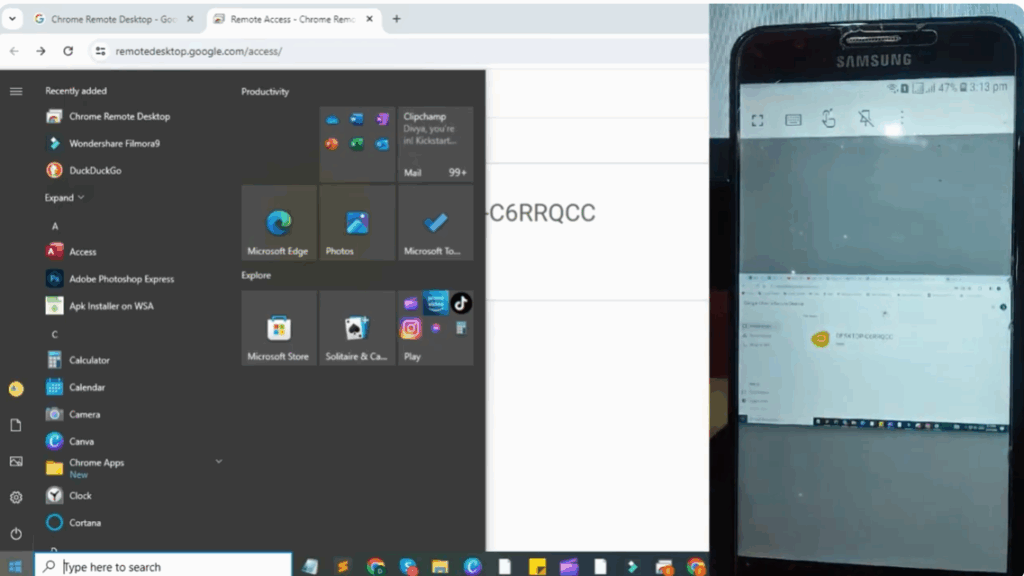
Now you can access your computer screen remotely from your phone. You will also get mouse and keyboard functionality at the top of the screen, with the help of which you can control your computer screen just like you’re sitting in front of it.
Final Words
That’s it! You have successfully learned how to control your computer screen using your phone through Chrome Remote Desktop.






