
Gmail’s offline mode lets you read, write, and search your emails even when you don’t have an internet connection, making it perfect for times when you’re traveling or have a limited network. You can enable this feature easily in the Chrome browser, allowing Gmail to save recent emails on your computer so you can keep working without interruptions. When you’re back online, Gmail automatically syncs any changes you made while offline. In this blog, you’ll learn simple steps to turn on Gmail offline mode in Chrome so you can stay productive anytime, anywhere.
🛠 Steps to Enable Gmail Offline
- In Chrome, open Gmail (go to mail.google.com).
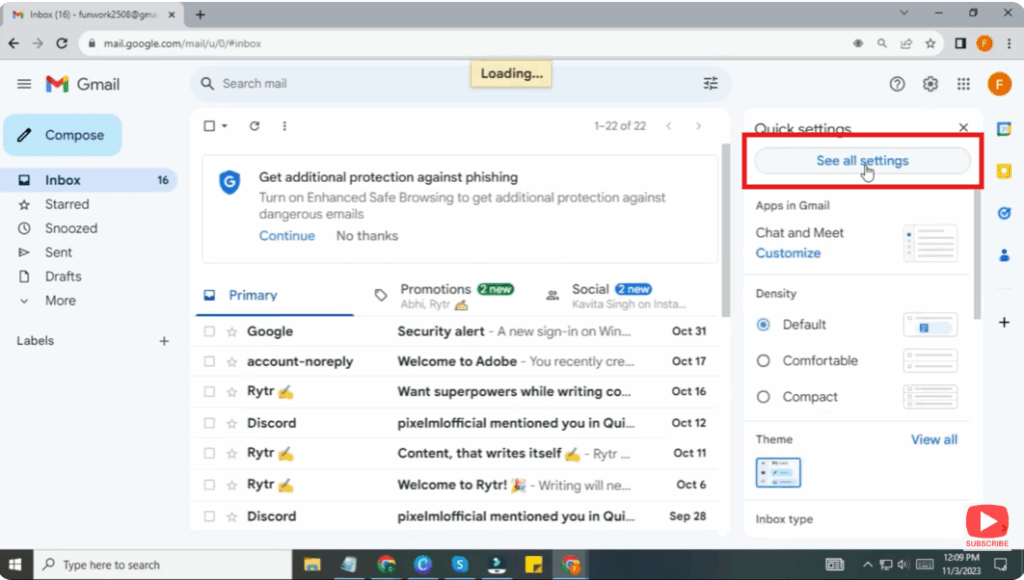
- Click the settings gear icon in the top right, then click See all settings.
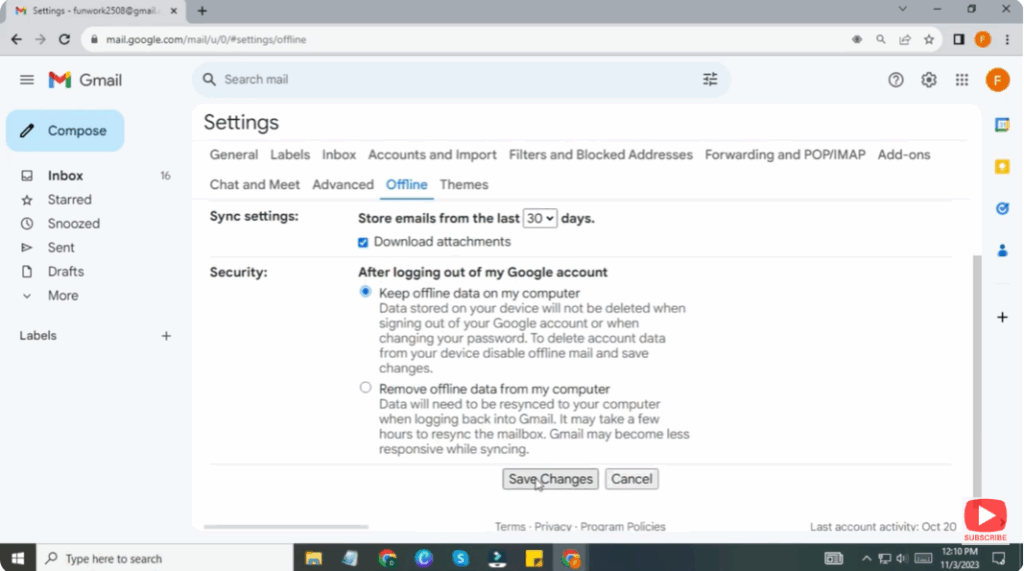
- Click the Offline tab.
- Check the box next to Enable offline mail.
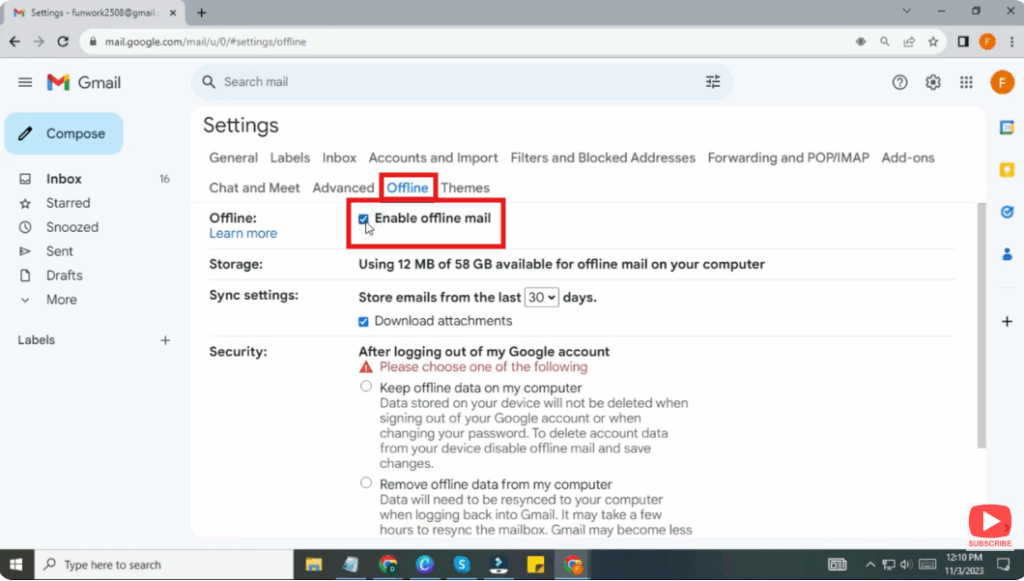
- Choose your settings:
- How many days of messages to sync
- Whether to download attachments or not
- Click Save changes.
- After enabling, when you need to use Gmail without internet, open Chrome and go to Gmail. Your messages will be available.






