
Using a video as a screensaver lets you make your Windows PC more creative and fun. You can use tools like VLC Media Player or Video Screensaver Maker to set any video (like MP4 or AVI) as your screensaver. Just choose your video, enable the loop option, and apply the settings. Now, your favorite video will automatically play whenever your computer is idle — giving your screen a stylish and personalized look.
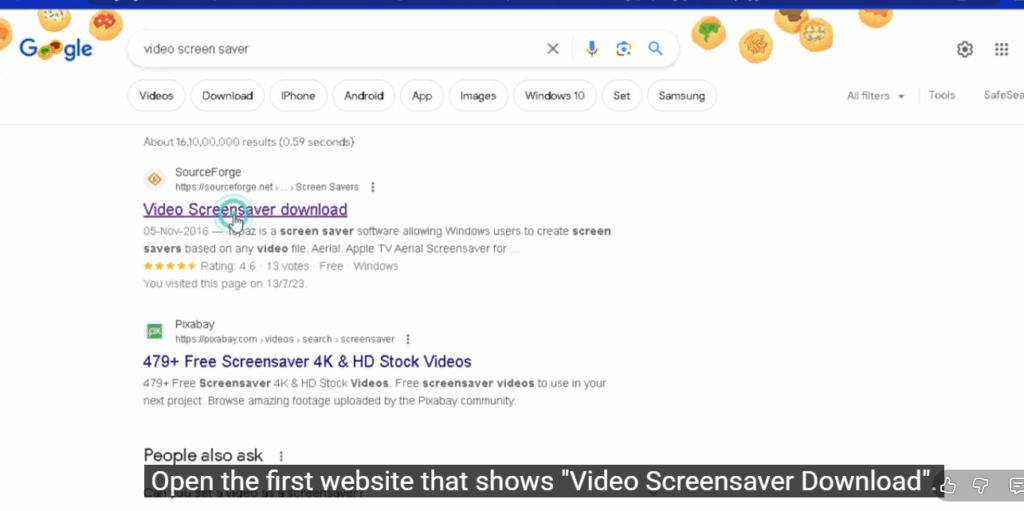
Step 1: Open Your Browser
- First, open any browser on your PC — Google Chrome, Microsoft Edge, or Firefox — and search for “Video Screen Saver”.
- Alternatively, you can directly visit the link provided in the video description to access the download page.
Step 2: Download the Video Screen Saver File
- On the search results page, open the first website that says “Video Screensaver Download”.
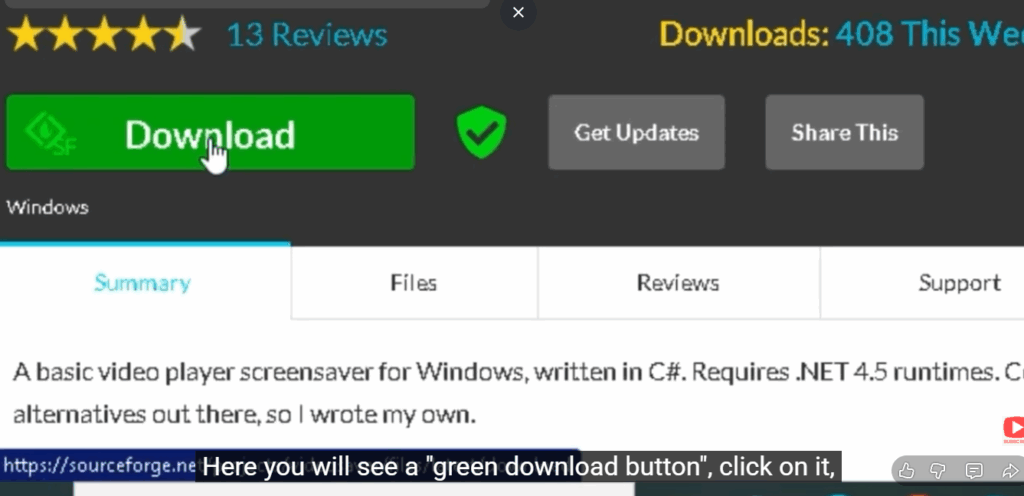
- You’ll find a green download button — click on it.
- The file will download in .zip format.
Step 3: Extract the Files
- Once downloaded, right-click on the ZIP file and choose “Extract All”.
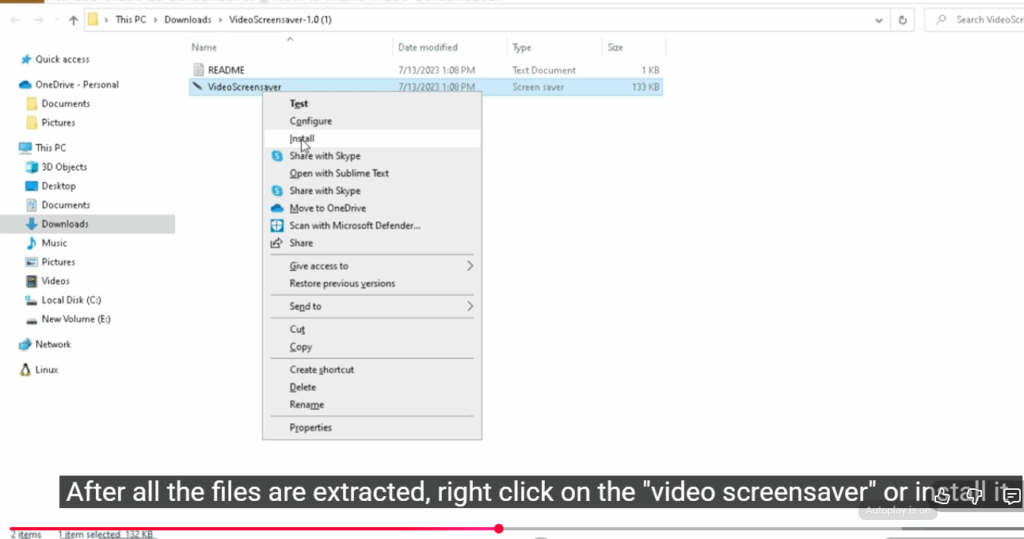
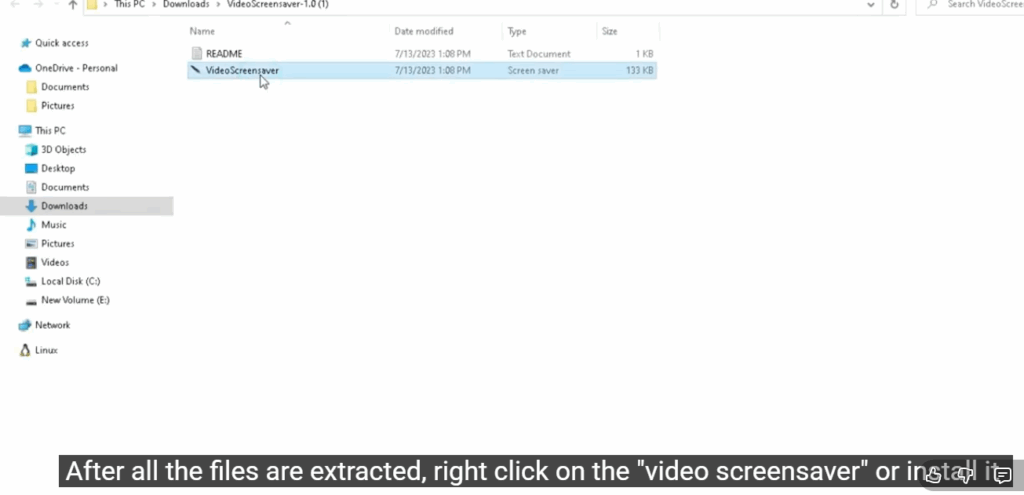
- After extraction, you’ll see a file named “Video Screensaver” — right-click and install it.
Step 4: Open Screen Saver Settings
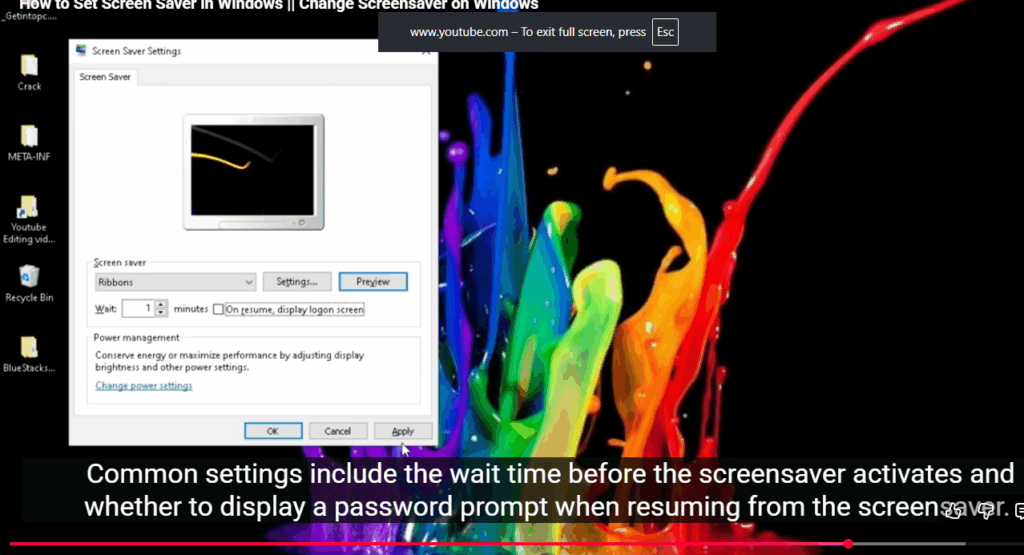
- Once installed, the Screen Saver Settings window will appear automatically.
- From the dropdown menu, select “Video Screen Saver”.
Step 5: Upload Your Own Video
- Click on Settings — here you’ll get an option to upload a video from your device.
- Choose any video you like — it could be nature clips, stock footage, or even a custom animation.
Step 6: Set the Screen Saver Timer
- In the same settings, you can set the time duration after which your screen saver activates.
- For example, you can set it to appear after 5 or 10 minutes of inactivity.
Step 7: Preview and Apply
- Click Preview to see how your video looks as a screen saver.
Once you’re satisfied, click Apply and then OK to save the settings.
Conclusion:
You’ve successfully set a video as your screensaver, transforming your PC into a dynamic and personalized display. Now, whenever your system goes idle, your favorite video will come to life, adding a creative and modern touch to your desktop. If you found this tutorial helpful, don’t forget to like, share, and subscribe to Tech Gitter for more exciting customization tips, tech tutorials, and creative Windows tricks. Also, make sure to turn on the notification bell so you’ll be the first to know when we post new guides to help you make your PC truly your own.






