
Microsoft Edge’s Web Capture is a handy built-in tool that lets you take screenshots of web pages quickly and easily. Whether you want to capture the entire page or just a part of it, Web Capture makes it simple to save, copy, or even add notes to your screenshots without needing extra software. In this blog, you’ll learn easy steps to use Web Capture in Microsoft Edge for better browsing and sharing.
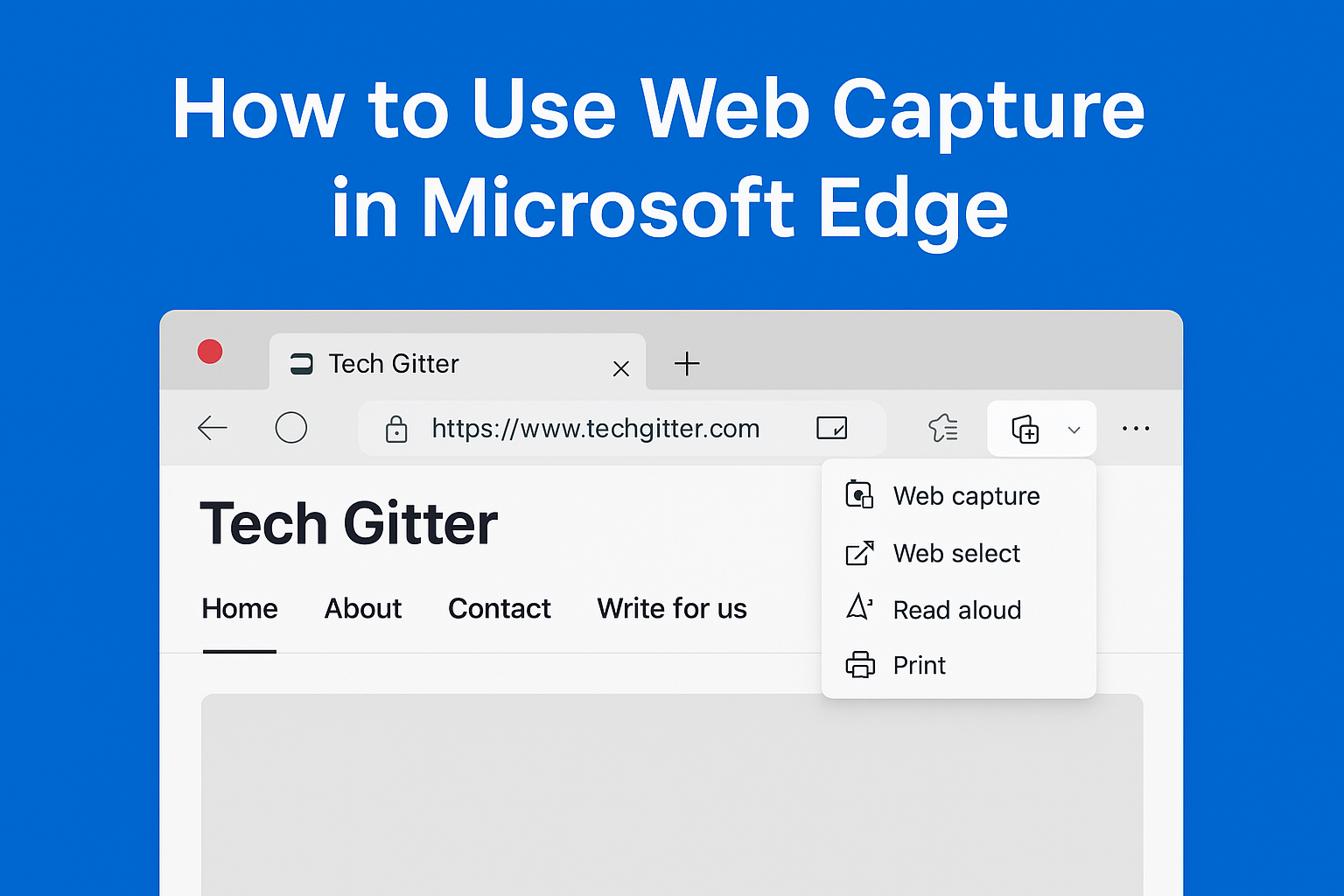
Open Microsoft Edge in your Pc
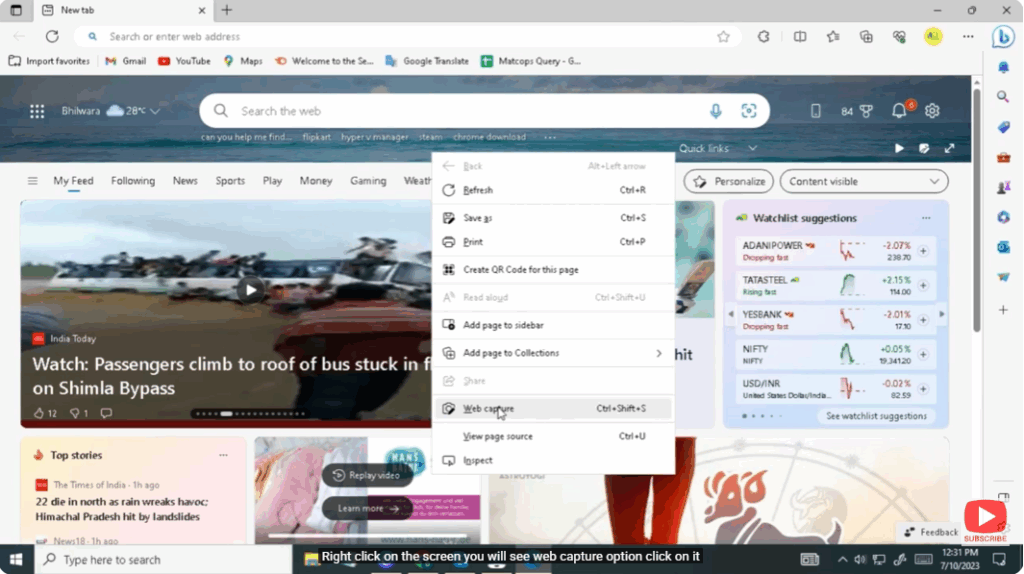
Right click on the screen you will see web capture option click on it
You can also press the shortcut key “ctrl + shift + s”.
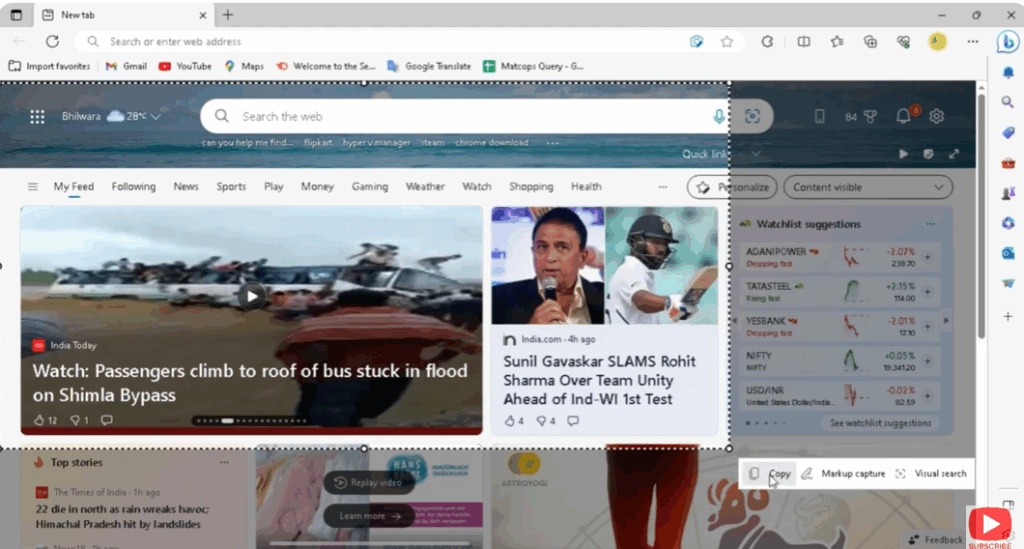
Here we will see 3 options capture area / capture full page / web select
You can select the capture area and edit it
You can save this capture by copy or save option
You can save it wherever you want on the pc location
Final Words
Using the Web Capture feature in Microsoft Edge makes taking screenshots and saving important information incredibly simple. Whether you want to capture a selected area, a full webpage, or use the handy shortcut keys, this tool helps you work faster and smarter. Try exploring its editing and saving options to make your captures even more useful.






