

If you love anime and use Crunchyroll, you’ll be happy to know that you can watch your favorite episodes offline. In this guide, we’ll walk you through the step-by-step process to download Crunchyroll episodes so you can enjoy them anytime, anywhere—without an internet connection.

Step 1: Access Crunchyroll
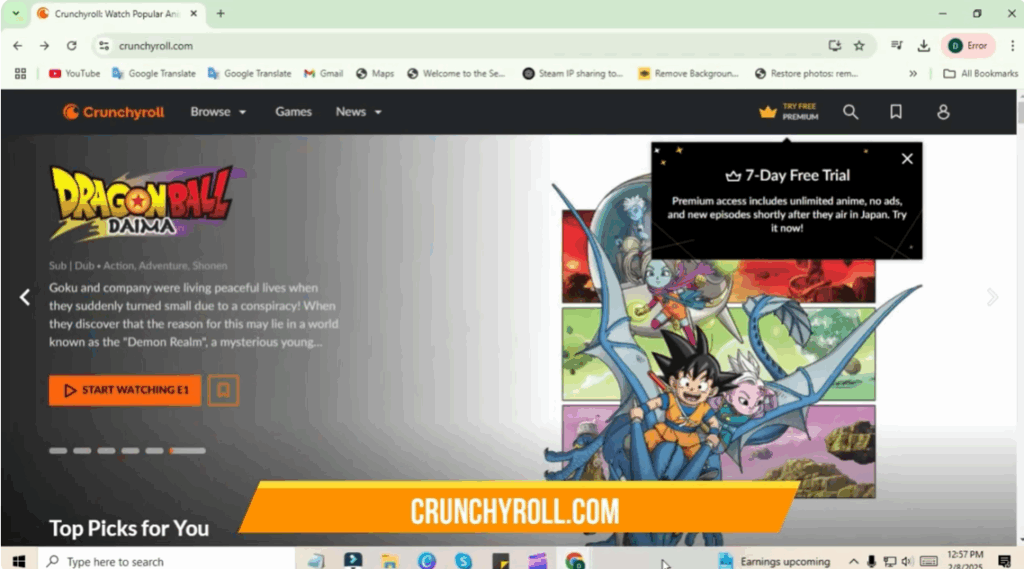
Visit the Crunchyroll website on your computer or open the Crunchyroll app on your mobile device.
Step 2: Start a Free Premium Trial
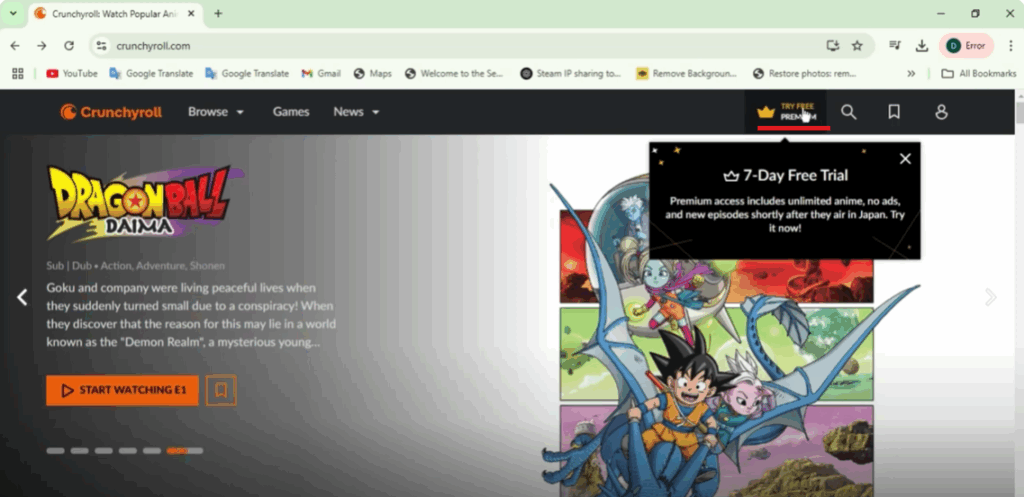
To access offline downloads, you need a Premium subscription. Click the “Try Free Premium” button at the top. You’ll see a list of subscription plans—select Mega Fan to enable the offline viewing feature. Start your 7-day free trial if you haven’t subscribed yet.
Step 3: Log In to Your Account
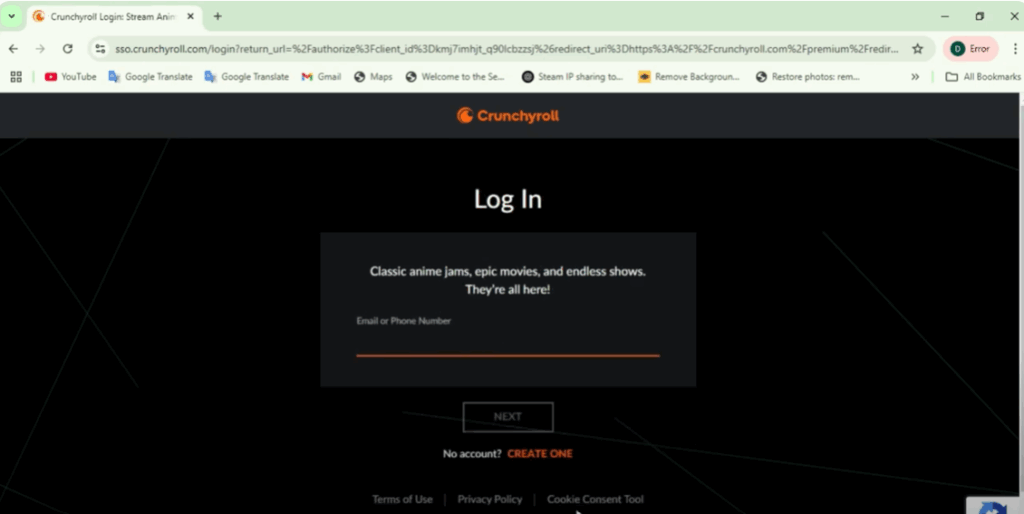
If you already have a Crunchyroll account, click Login, enter your credentials, and activate your free trial or subscription.
Step 4: Choose and Download Your Anime
Once logged in:
- Browse and select the program you want to watch.
- Tap the Download icon next to the episode or movie.
- To view your downloads, go to My Lists at the bottom of the app and select Offline.
Step 5: Manage Downloads
- Pause or Cancel a Download: Go back to your offline list, click the program, and press the Pause button.
- When a download is complete, a check mark will appear next to it.
Step 6: Watch Offline
After downloading:
- Turn off Wi-Fi and mobile data.
- Hit Play on your episode and enjoy it without an internet connection.
Now you can watch Crunchyroll anytime—whether you’re on a flight, commuting, or simply relaxing without Wi-Fi.
If you found this guide helpful, like, share it with friends, and subscribe to never miss future tips and tutorials.






