
![Hyper-V VM Won’t Start – Not Enough Memory in The System [FIXED]](https://techgitterofficial.com/wp-content/uploads/2025/10/Hyper-V-VM-Wont-Start-–-Not-Enough-Memory-in-The-System-FIXED.jpg)
Trying to start your Hyper-V virtual machine and getting the error “Not enough memory in the system”? Don’t worry—you’re not alone, and it’s fixable! This issue usually means your computer doesn’t have enough free RAM to run the VM, or the settings are using more memory than available. In this blog, we’ll walk you through easy steps to fix the memory error and get your VM running again. Whether you’re using Hyper-V for testing, development, or learning, we’ll help you solve the problem quickly without needing advanced tech skills. Let’s get your virtual machine back on track!
Causes of the Error:
- The virtual machine is assigned more RAM than available.
- The dynamic memory option is not enabled.
- Memory is reserved for the host operating system.
- Other background apps are consuming too much memory.
Fix 1: Adjust Virtual Machine RAM
- Open Hyper-V Manager.
- Right-click your virtual machine and select Settings.
- Go to the Memory section.
- Reduce the startup RAM to a lower value (for example, 2048 MB or less depending on your system).
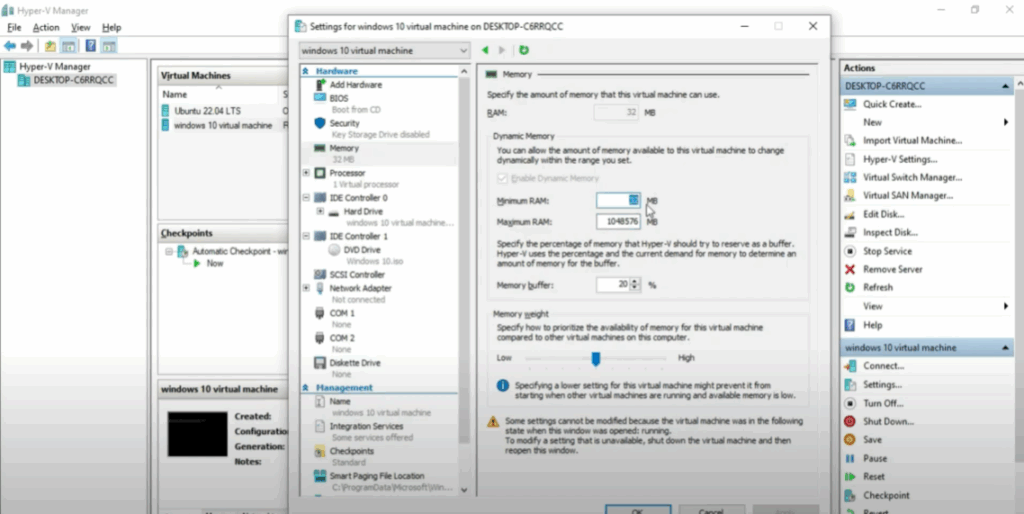
Fix 2: Enable Dynamic Memory
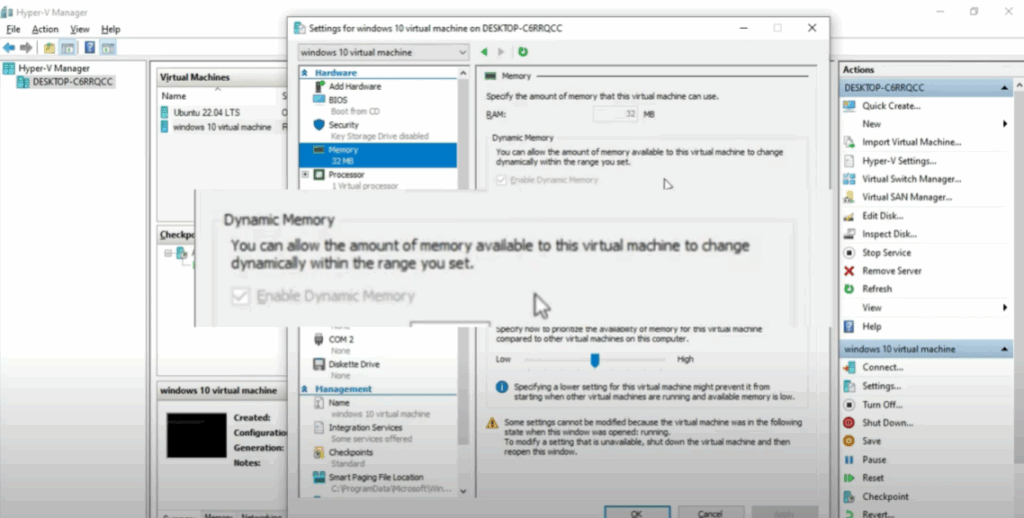
- In the same Memory settings, tick Enable Dynamic Memory.
- Set a reasonable Minimum RAM and Maximum RAM range.
- This allows Hyper-V to allocate memory dynamically based on usage.
Fix 3: Free Up System Resources
- Close background apps consuming high memory.
- Restart your PC before launching the VM.
- Ensure your host OS has at least 2 GB of free memory available after VM allocation.
Fix 4: Check BIOS/EFI Settings
- Ensure Virtualization Technology (VT-x/AMD-V) is enabled.
- Update your BIOS if required.
That’s it!
After making these changes, your Hyper-V virtual machine should start without the “Not enough memory” error.






