
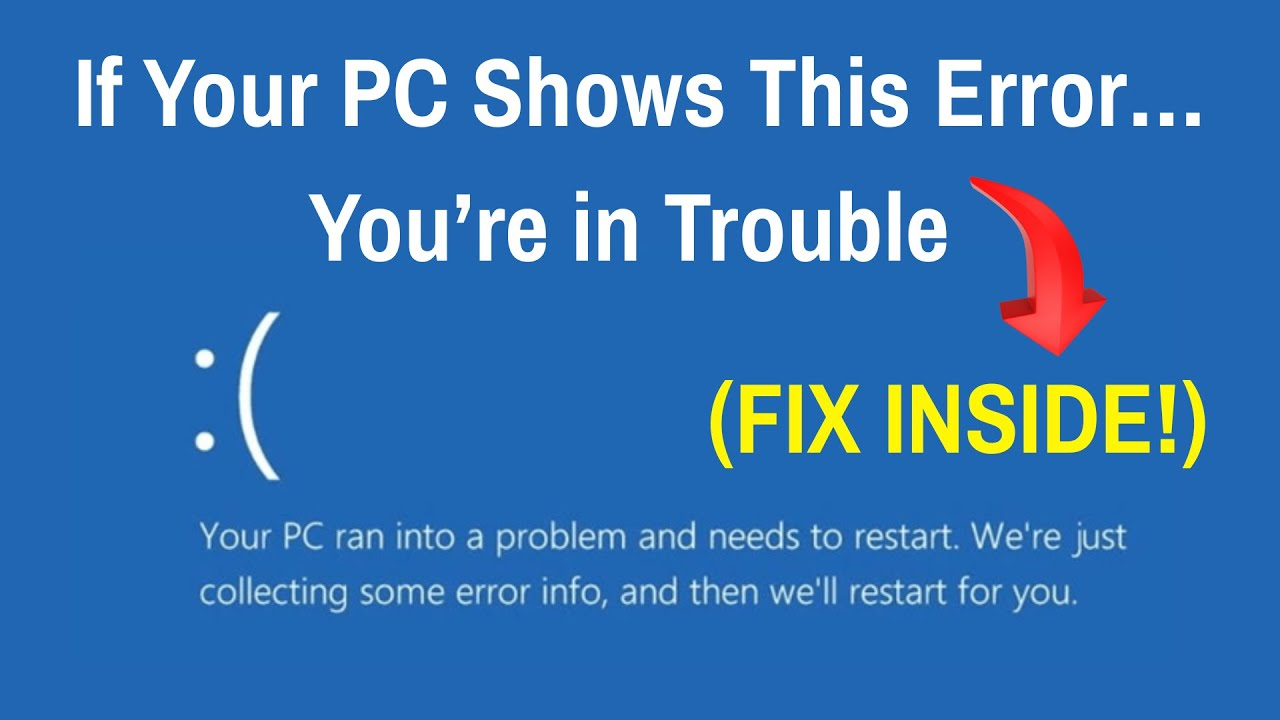
If your PC shows an error message, it means something is wrong that needs your attention. These errors can be caused by software bugs, hardware problems, or system conflicts, and ignoring them might cause your computer to slow down, crash, or even stop working. In this blog, you will learn how to recognize common PC error messages and simple steps to fix them quickly, so you can keep your computer running smoothly and avoid bigger problems.
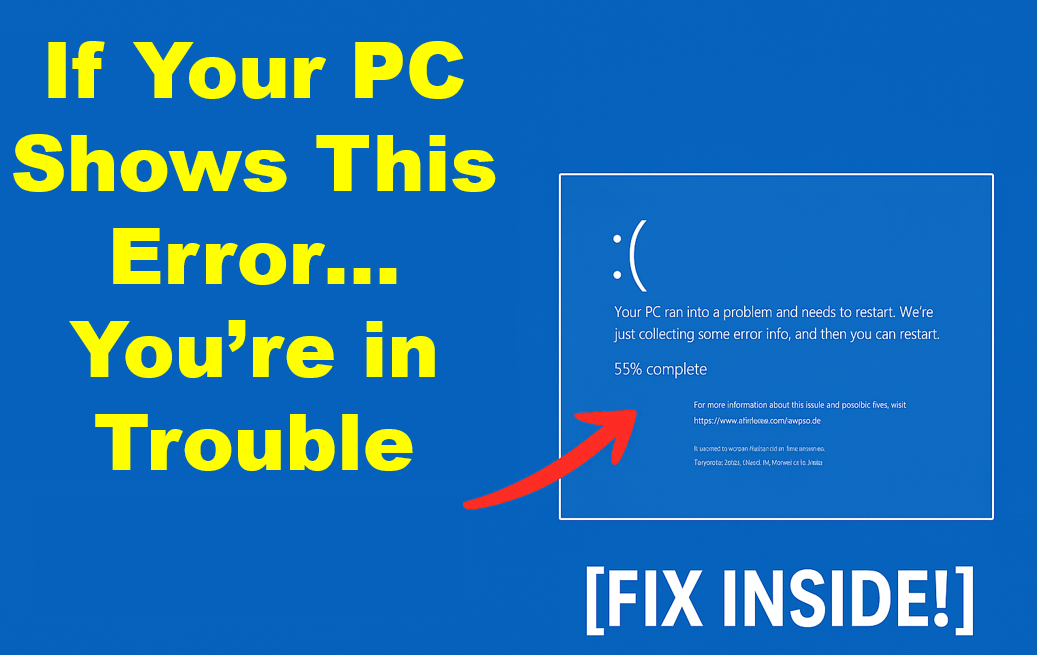
Before we jump into fixing it, let me quickly explain why this happens. This issue is often caused by corrupted or modified registry files, recent hardware changes, a driver installation that went wrong, or an improper or forced shutdown.
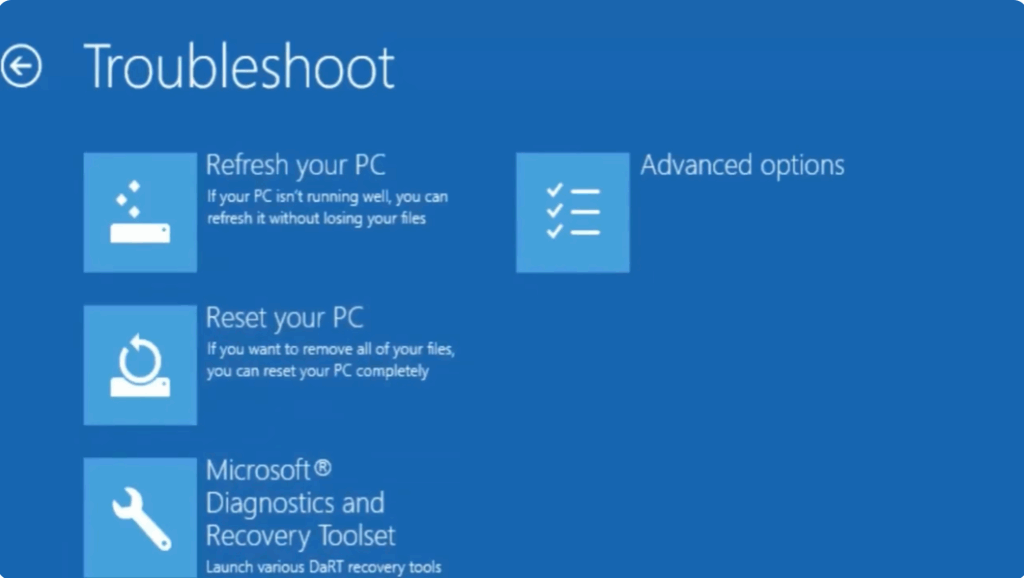
Okay, now let’s get back to the repair screen. If you click restart, the same error comes back and you’re stuck in the loop again. So, click Advanced options. You will now see Continue, Troubleshoot, Turn off your PC. Click Troubleshoot. Here you’ll see four options: Refresh your PC, Reset your PC, Diagnostic and Recovery Toolset, Advanced options. The first three won’t help in this case. So open Advanced options.
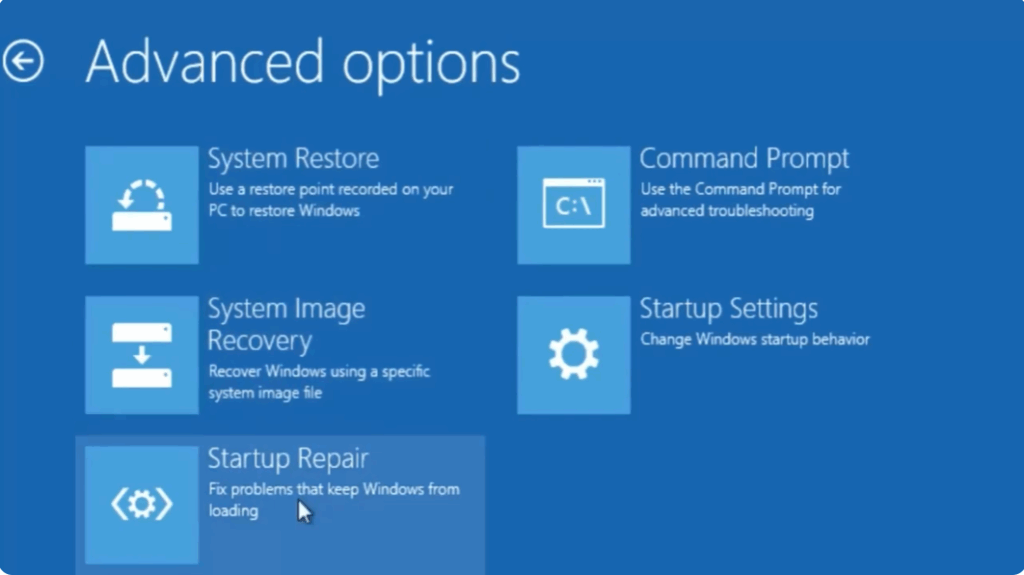
Now you’ll see different tools like System Restore, System Image Recovery, Startup Repair, Startup Settings, Command Prompt. If you have a restore point or recovery image, you can use those, but most users don’t, and Startup Repair also doesn’t fix this issue. So the real solution is through Command Prompt. Let’s go ahead and open Command Prompt. Select your user, enter password.
Now we will restore your registry manually. This is the most effective solution for this error. Type your first command sfc/scannow in the Command Prompt and press Enter. It takes at least 5 to 7 minutes for this command to complete. After that entire process is complete, you have to type one more command chkdsk /f /r c:. After typing the command, you will press Enter. What will happen with this command is that if there is any problem in your hard disk, then this command will solve it. This process may take 10 to 15 minutes too because this process runs in five stages and it cleans your entire hard disk.
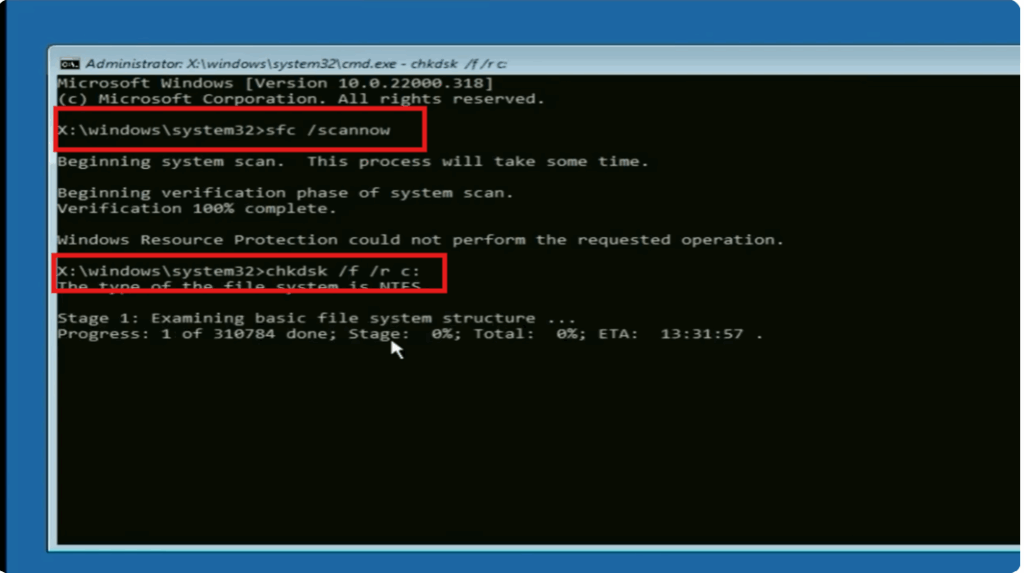
After the entire process is complete, you have to exit. So simply write exit here and press Enter. After that, turn off your PC. When you start your system again, Windows will load normally and you’ll be able to log in without any error.






