
Keyboard shortcuts in Google Chrome are a quick way to do things faster without using your mouse. Whether you want to open a new tab, switch between tabs, reload a page, or bookmark a website, shortcuts save you valuable time and make browsing smoother. In this blog, you’ll learn the most useful Google Chrome keyboard shortcuts that you should start using today to browse more efficiently and enjoy a better surfing experience.
1. Go to Homepage Quickly
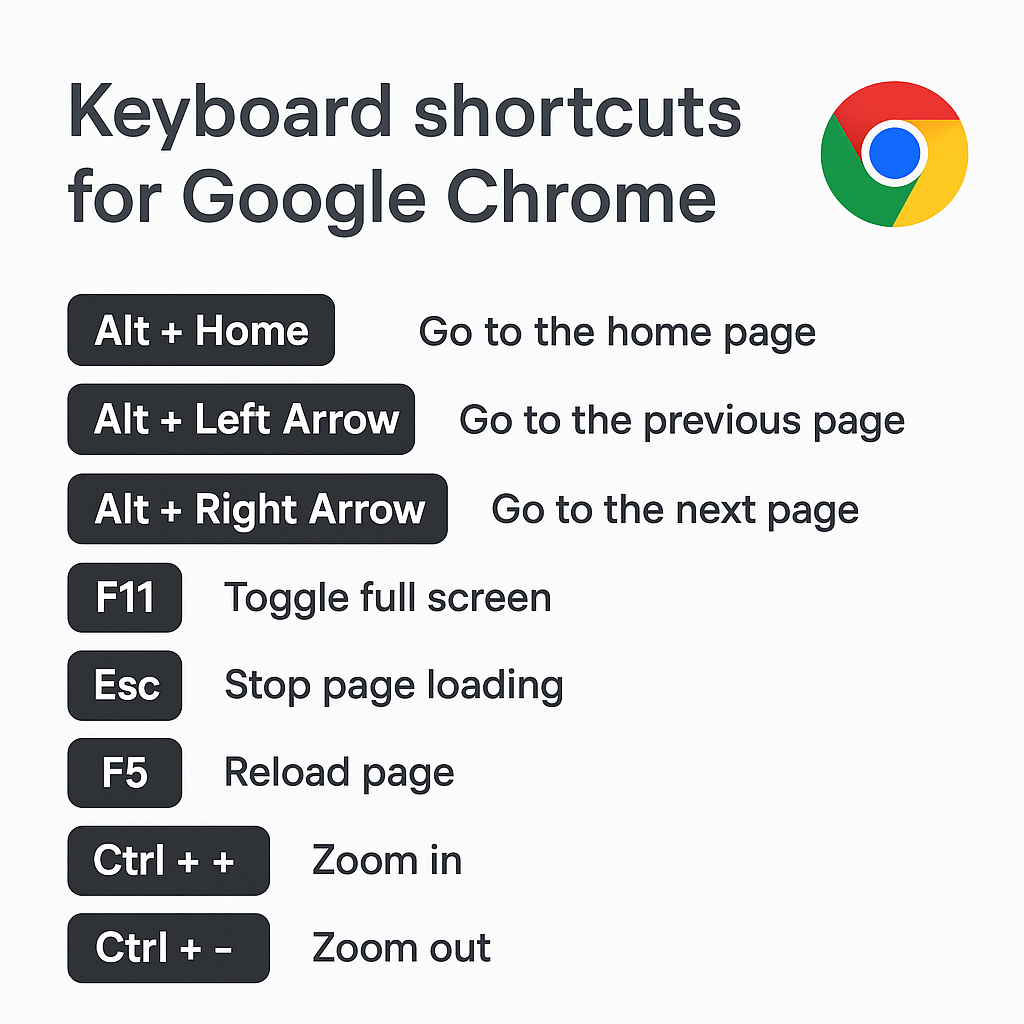
First- Press the shortcut key “Alt + Home”
On pressing this, we will come directly to the home page of Google.
2. Go to Previous and Next Pages
We press the above arrow to go to the previous and next page.
For this press the shortcut key “Alt + Left Arrow”.
You will come to the previous page.
And on pressing “Alt + Right Arrow” we will again come to the next page.
3. Enable or Disable Full Screen
If you want to bring Windows screen to full screen then press “F11” key.
Which is a “Toggle” key that can turn the function “on or off”.
And pressing “F11” again will remove the full screen.
4. Stop Website Loading
If you visit a website and you say that it is not loaded, then press the “Esc” button”.
And the website will stop there.
5. Refresh the Webpage
Press “F5” (refresh) to reload the website.
6. Zoom In and Zoom Out
If you want to zoom the web page then press “Ctrl + plus key”.
You can zoom out by pressing “Ctrl + minus KEY”.






