
The internal microphone on your laptop is important for online classes, meetings, gaming, or video calls—but sometimes it suddenly stops working on Windows 10 or Windows 11. This can be frustrating when people can’t hear you, even though your laptop seems fine. The issue usually happens because of wrong settings, driver problems, or small system glitches. The good news is, it’s easy to fix! In this beginner-friendly blog, we’ll explain in simple language how to solve the internal microphone not working problem step by step, so you can get back to clear conversations without any hassle.
✅ Step-by-Step Fixes for Internal Microphone Issues
1. Check Windows Privacy Settings
Modern versions of Windows allow you to control which apps can access the microphone — sometimes updates or changes block access by default.
- Go to Settings → Privacy & Security → Microphone (on Windows 11) or Settings → Privacy → Microphone (on Windows 10).
- Ensure “Microphone access” is turned On.
- Also ensure “Allow apps to access your microphone” is On.
- Scroll through the list and make sure the app you’re using (Skype, Zoom, Teams, etc.) has permission.
This often restores microphone functionality if it was blocked by privacy settings.
2. Enable the Microphone & Check Sound Settings
- Right-click the speaker icon on taskbar → open Sound Settings (or Sounds).
- Go to the Input section → check if your internal microphone is selected as the default input device.
- If disabled or muted — enable/unmute it.
- Test by speaking — Windows’ “Test your microphone” bar should move if mic picks up sound.
This step ensures Windows is using the correct mic and the mic isn’t silently disabled.
3. Update or Reinstall Audio / Microphone Drivers
Outdated or corrupted drivers are a frequent cause of mic issues.
- Open Device Manager (right-click Start → Device Manager).
- Expand Audio inputs and outputs (or Sound, video and game controllers).
- Right-click your internal mic → choose Update driver → choose Search automatically for drivers.
- If updating doesn’t help — choose Uninstall device, then restart PC. Windows will attempt to re-install drivers automatically.
This often solves driver-related microphone problems.
4. Disconnect External Audio Devices & Restart
If external headphones, USB headsets, or Bluetooth audio devices are connected — Windows might disable the internal mic in favor of external devices.
- Disconnect all external audio devices.
- Restart the laptop.
- Once rebooted — check Sound Settings → ensure internal mic is selected as input.
This removes conflicts and restores default mic usage.
5. Run Windows Audio Troubleshooter
Windows includes built-in troubleshooters to detect and fix common audio issues.
- Go to Settings → System → Troubleshoot (or Additional troubleshooters).
- Run Recording Audio troubleshooter.
- Follow prompts — the troubleshooter will try to detect and repair issues automatically.
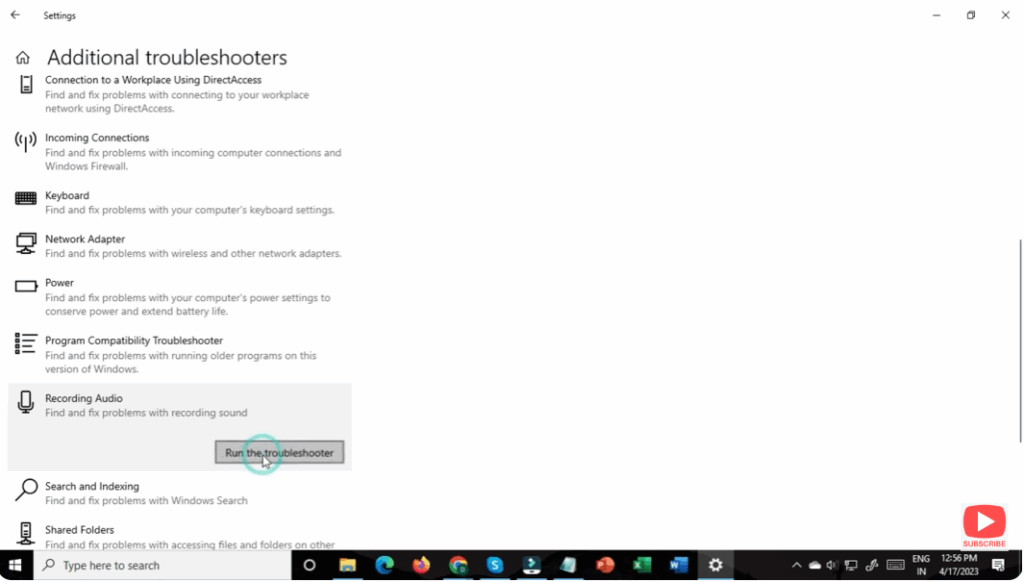
Often, this identifies misconfiguration or driver problems without manual effort.
6. Check for Hardware-Level Mute / Keyboard / BIOS Settings
Some laptops have physical mic-mute buttons, function keys, or BIOS settings that disable the internal mic.
- Check your keyboard — look for a mic icon or microphone mute key (often requires pressing Fn + a function key).
- Reboot and enter BIOS/UEFI settings — check if internal audio or mic is disabled at hardware level (rare, but possible).
- If mic was disabled at hardware or firmware level — re-enable it and save settings.
This ensures mic isn’t being blocked at the lowest level.
7. Test Using Another App or Online Mic Test
To rule out app-specific issues:
- Open a simple Voice Recorder app (or Windows “Sound Recorder”).
- Try to record a short clip — if it works, mic hardware and OS are fine.
- Alternatively, visit an online mic-test website via browser and check if browser detects mic input.
If mic works in other apps — the issue might be with the specific app’s permissions or settings.
✅ Conclusion
A non-working internal mic on a laptop can be caused by many different factors — but in most cases, it’s fixable without hardware repairs. By checking permissions, drivers, system settings, and external conflicts — you can restore microphone functionality on Windows 11 or 10.






