

Sorting and selecting files and folders in Windows 11 is easy and helps you find, organize, and manage your data much faster. Using File Explorer, you can sort items by name, date, type, or size with just a few clicks. You can also select one, many, or all files at once to move, copy, or delete them quickly. In this blog, you’ll learn simple ways to sort and select files and folders like a pro for a cleaner and more efficient Windows experience.
Step-by-Step Guide
1. Open File Explorer
Start by opening File Explorer (for example by clicking the folder icon on the taskbar or pressing Win + E). Navigate to the folder you want to work in (for example Documents, Downloads, or a project folder).
2. Sort Your Items
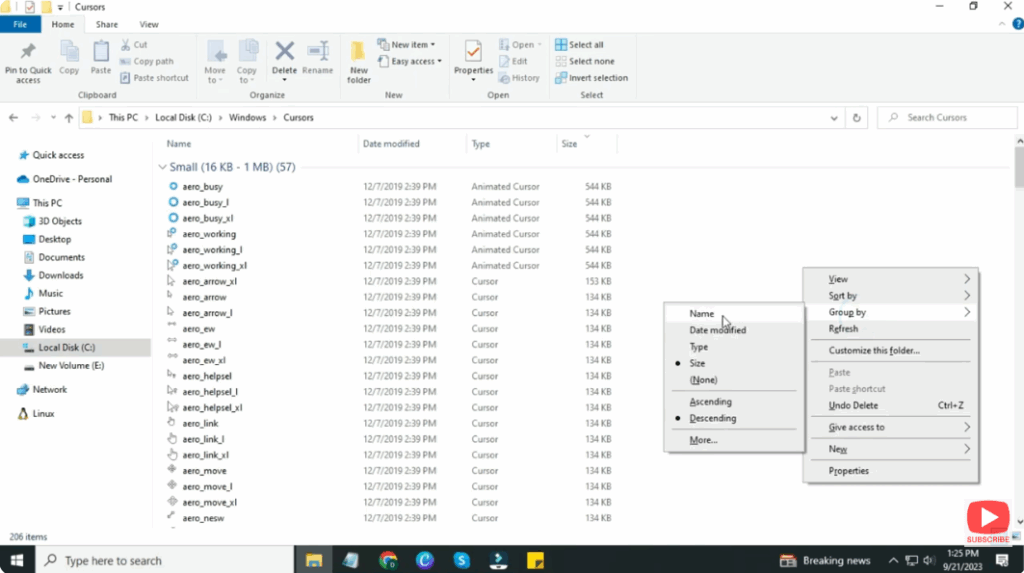
- In the folder view, click the View menu (or right-click in an empty space within the folder) and choose Sort by.
- Choose a criterion like Name, Date modified, Type, or Size.
- You can also click the headings in Details view (for example the Date modified column) to toggle between ascending and descending order.
- If you want more advanced sorting, you can use Group by under the View or right-click menu to group items by date, type or other attributes.
3. Choose the View That Helps
- Switching to Details view provides column headings and makes sorting easier.
- Use List, Small icons, or Tiles if you prefer simpler visuals, but for sorting it’s best to pick Details.
- Use the Layout option in the View menu to switch between these.
4. Select Multiple Files or Folders
- To select a contiguous block: click the first item, then hold Shift and click the last item in the block. All items between will be selected.
- To select non-adjacent items: hold Ctrl and click each file or folder you want.
- To select all items in the folder: press Ctrl + A.
- To deselect everything: click in an empty space of the folder or press Ctrl + D (or Esc on some systems).
5. Use Keyboard Shortcuts & Mouse for Efficiency
- Use Ctrl + A for select all.
- Use Ctrl + Click for individual selection/deselection.
- Use Shift + Click for range selection.
- After sorting, pressing Home will jump to the first item, and End will go to the last — helpful when dealing with long lists.
6. Perform Actions on Selected Items
Once you’ve sorted and selected your items:
- Right-click on one of the selected files and choose Move to, Copy to, Delete, or Cut depending on your action.
- You can drag and drop the selected block to a different folder.
- Use the Delete key to remove items.
- Use Ctrl + C / Ctrl + V to copy/paste into a new destination






