
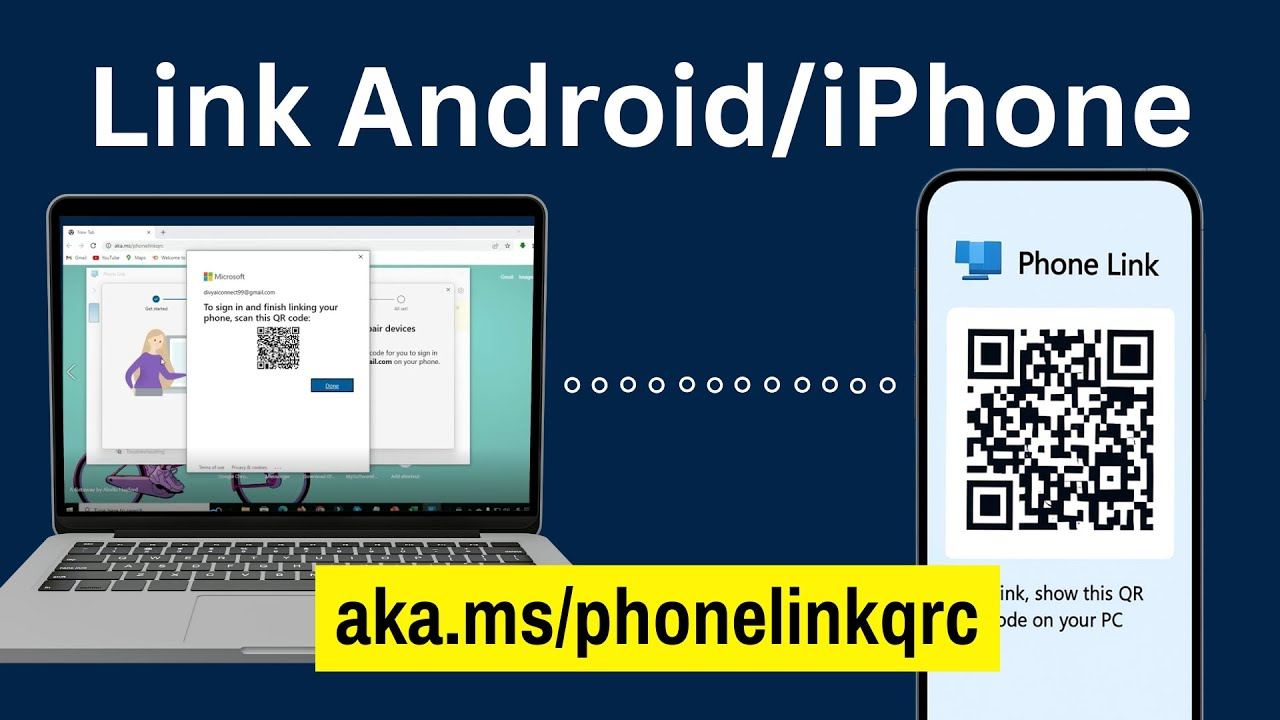
The aka.ms/phonelinkqrc link is a simple way to connect your Android or iPhone to your Windows PC using the Microsoft Phone Link app. By scanning a special QR code shown on your PC, you can easily link your phone and computer to share messages, calls, notifications, photos, and even run mobile apps from your PC. This connection works smoothly over Wi-Fi or Bluetooth and helps you stay connected without constantly switching devices. In this blog, you will learn the easy steps to link your phone to Windows using aka.ms/phonelinkqrc, making your digital life simpler and more connected.
Once your phone is linked to your PC, you unlock a whole new level of productivity. You can instantly read and reply to text messages, check all your phone notifications on your PC, transfer photos wirelessly, make and receive calls. All of this works seamlessly, securely, and without touching your phone every time.
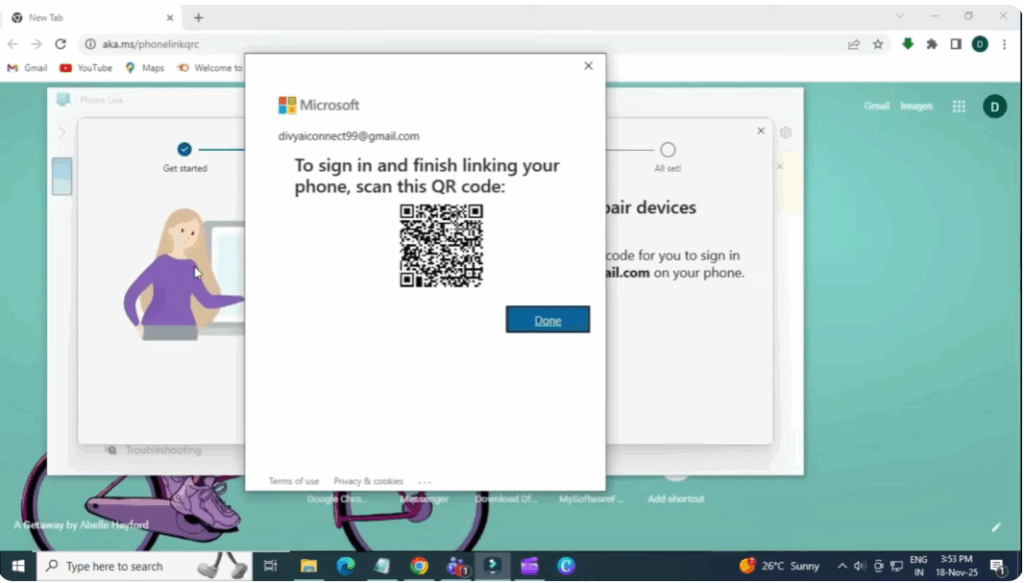
To connect your phone to your Windows PC, here’s the fastest and most reliable method. First, open Google Chrome on your computer and type ak.ms/phoneink kqrc. This instantly opens the official Microsoft phone link setup and displays a secure QR code on your screen.
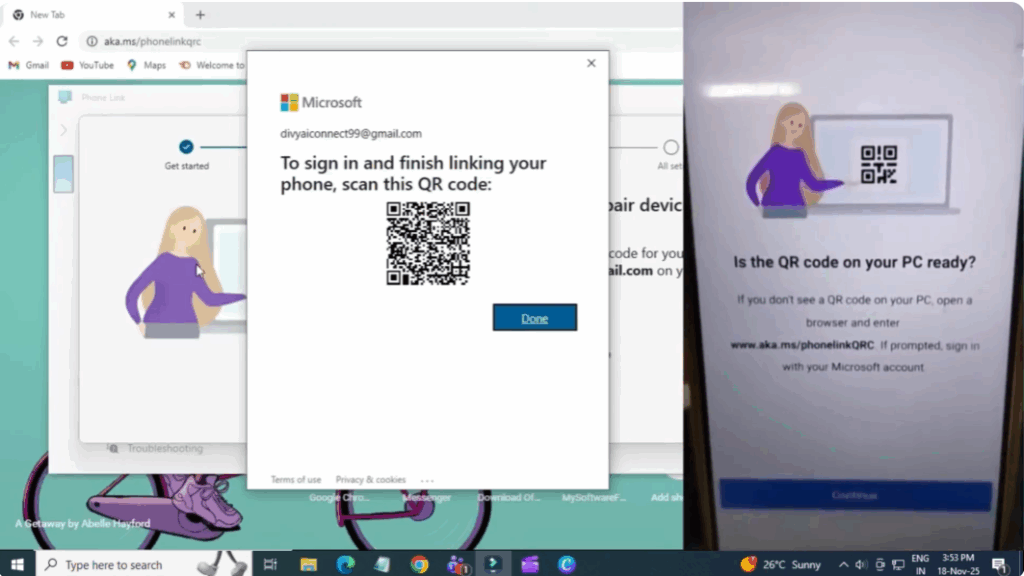
Now, grab your phone, open the Play Store, and search for link to Windows. Install the app and once it’s done, open it. Inside the app, tap link your phone and PC. Then, hit continue. Now, your phone will ask you to scan the QR code. Point your phone’s camera at the QR code on your PC, and within seconds, both devices will connect automatically. You’ll see a confirmation message saying, “You’re all set.” Tap let’s go, and your PC will instantly show the name of your connected device. Your phone and PC are now fully linked.
Once the connection is complete, you’ll notice several options appear inside the phone link app on your computer. Here you can instantly check your messages, view all your recent photos, and even drag and drop them directly into your folders or editing software without touching your phone. You can also manage your notifications in real time. Every message, app alert, or call that comes to your phone will pop up right on your PC screen. This helps you stay focused without continuously picking up your phone.
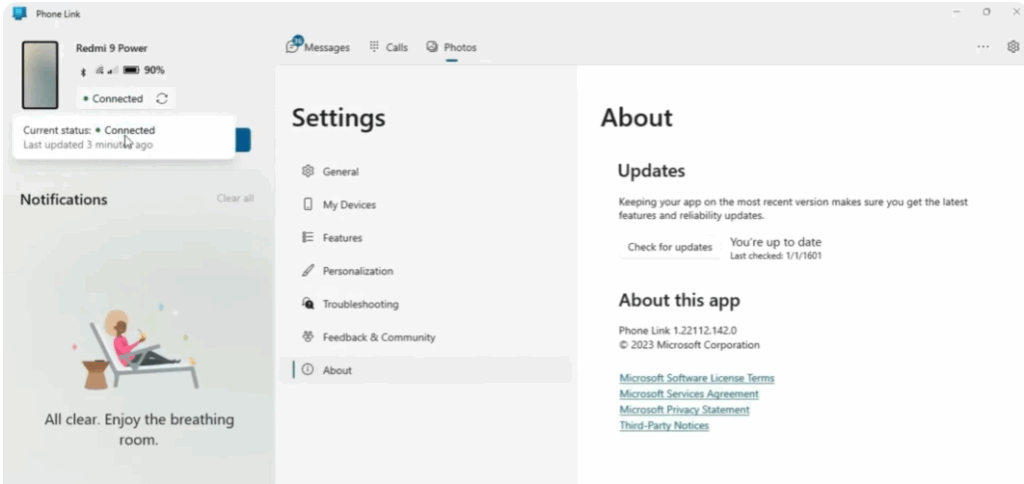
If you’re using an Android device, you get an extra feature. You can actually open and use your mobile apps directly on your PC, including WhatsApp, Instagram, and even games. Everything runs in a separate window just like any other PC software. You can also make and receive phone calls from your PC provided your phone is connected via Bluetooth. This is extremely useful during work, meetings, or online classes.
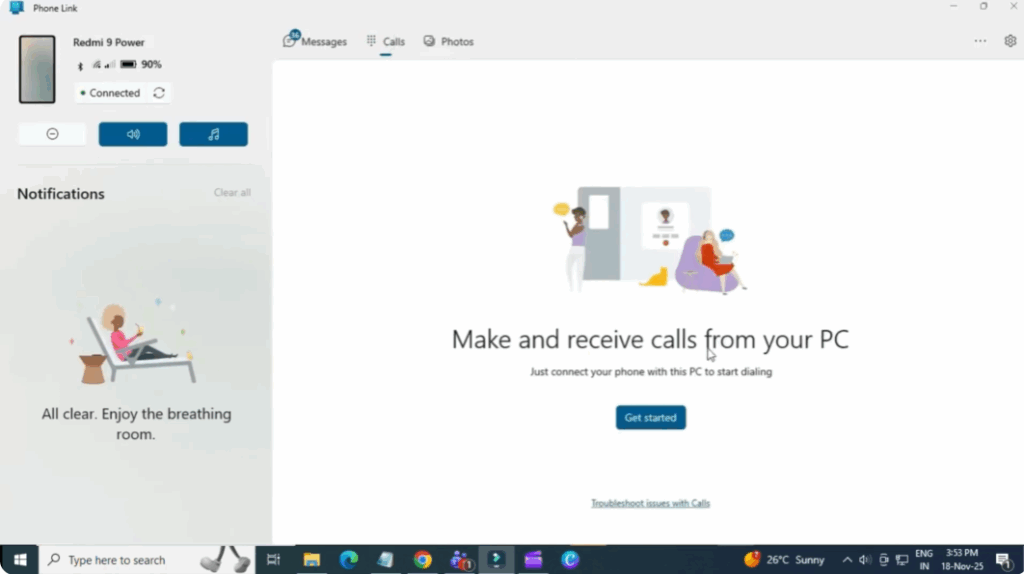
So basically once your phone is connected, your PC becomes a powerful control center for everything happening on your mobile. And that’s it friends. This is how you can easily link your Android or iPhone to your Windows PC and unlock all these amazing features.






