
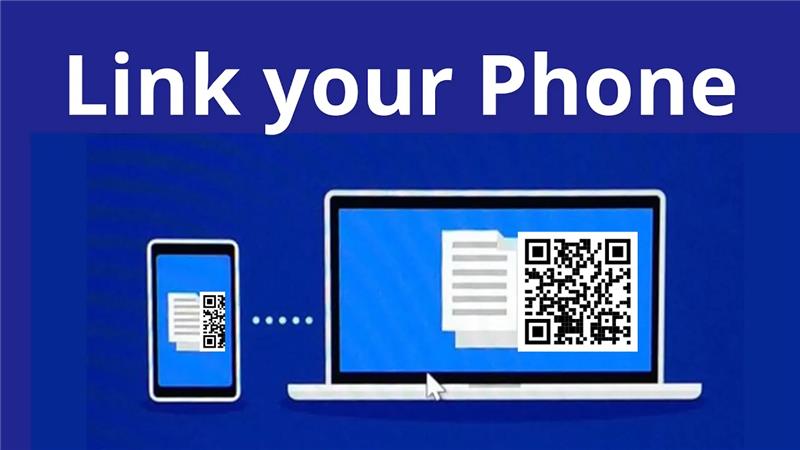
Want to manage your phone’s messages, calls, and notifications directly from your Windows computer? Microsoft’s Phone Link paired with Link to Windows (on Android) makes it possible—and it all starts with scanning a QR code.
What You’ll Need
- A Windows 10 (May 2019 Update or later) or Windows 11 PC
- An Android phone running Android 8.0 or higher (Android 10+ recommended for best performance)
- Both devices connected to the same Wi-Fi network
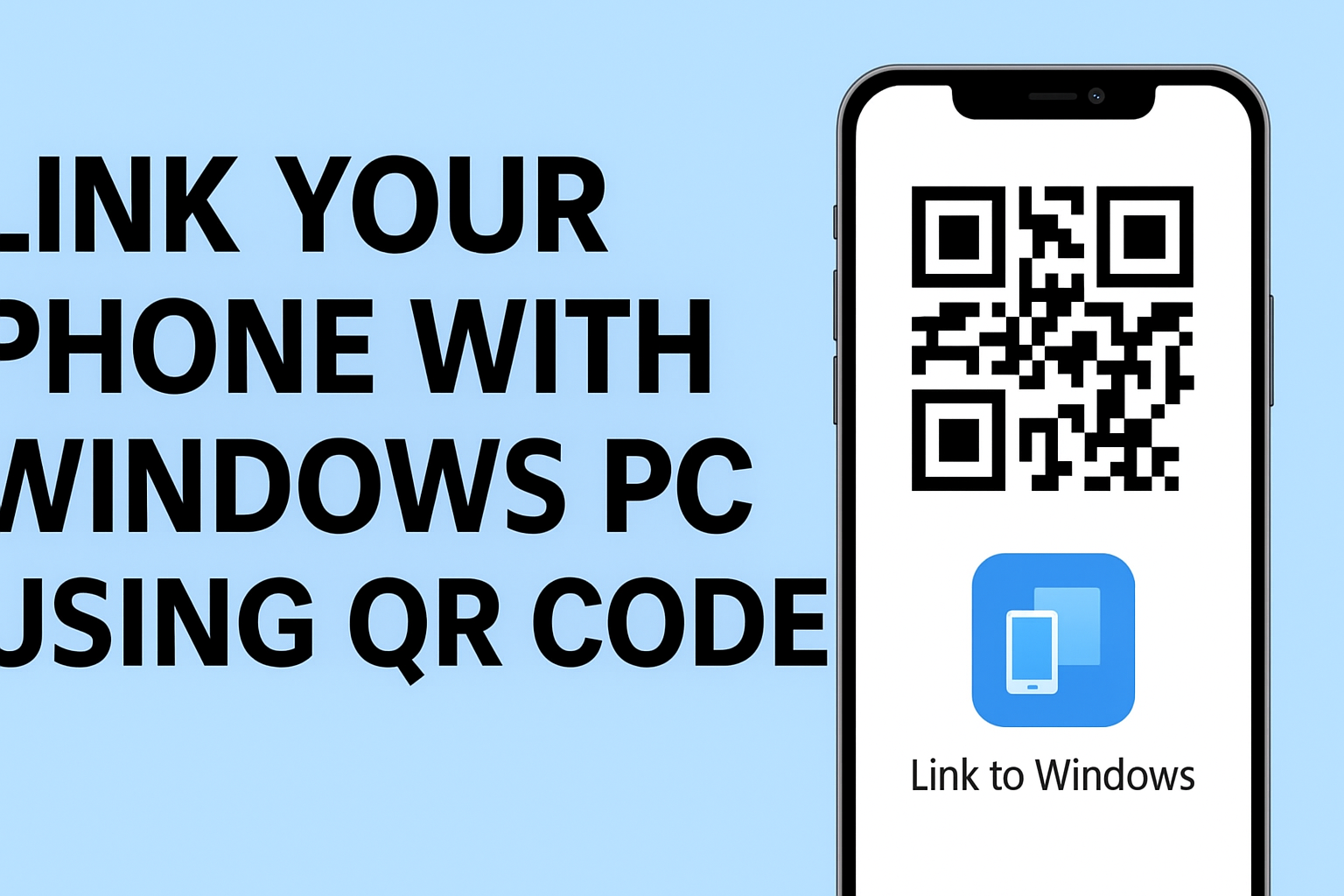
Step-by-Step Setup
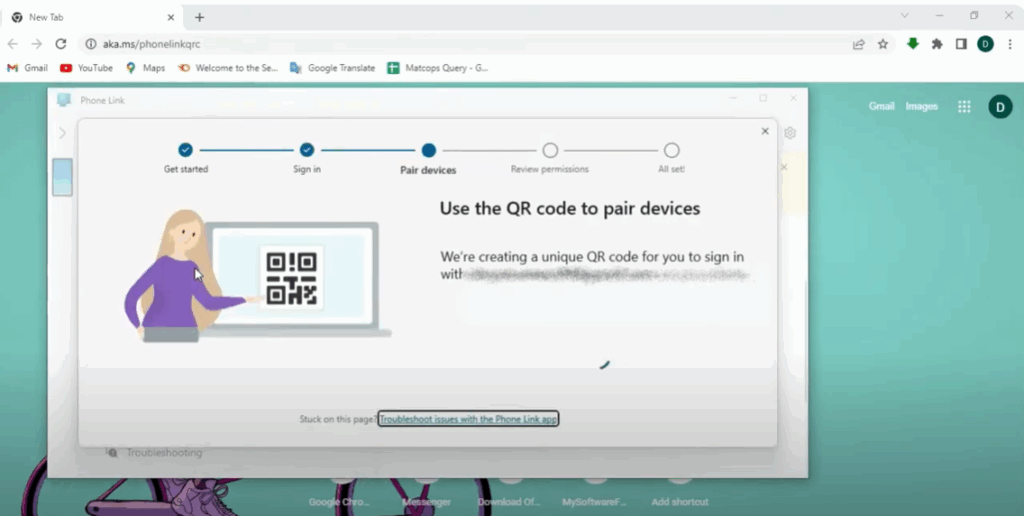
1. Open the Phone Link App on Your PC
- Search for Phone Link in the Start menu and open it.
- If prompted, sign in with your Microsoft account—be sure it’s the same account you’ll use on your phone.
2. Select Your Device Type
- Choose Android (or iPhone, if applicable).
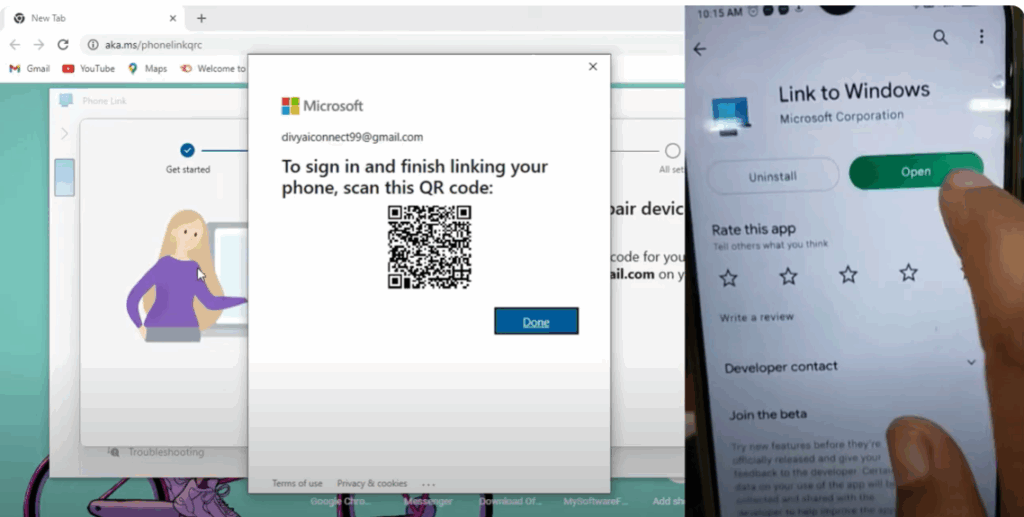
- A QR code will be generated on your PC screen.
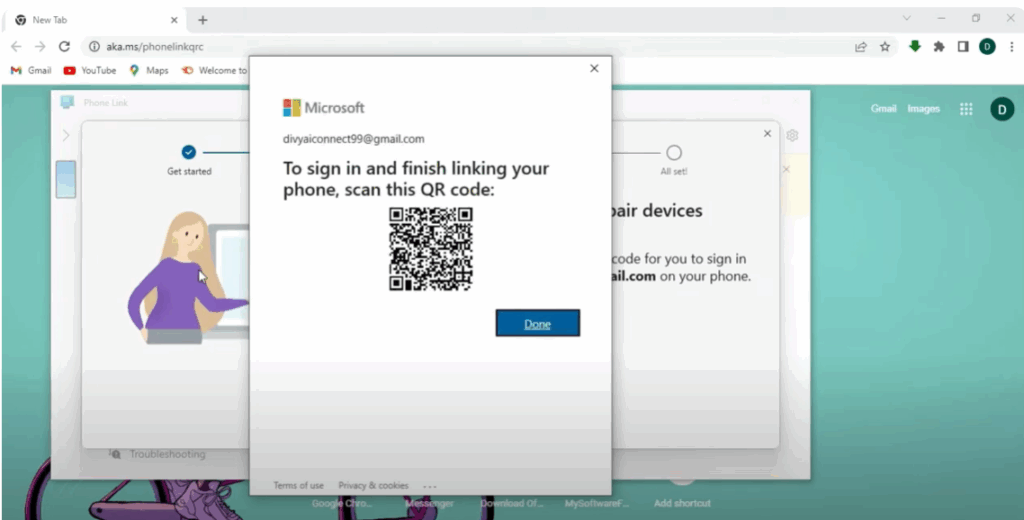
3. Use Your Phone to Scan the QR Code
- On your Android phone, open the Link to Windows app (download it from Google Play if needed).
- Scan the QR code displayed on your PC to begin pairing.
4. Allow Permissions
- After scanning, grant the requested permissions on your phone—these include access to notifications, messages, photos, and calls.
What You Can Do After Linking
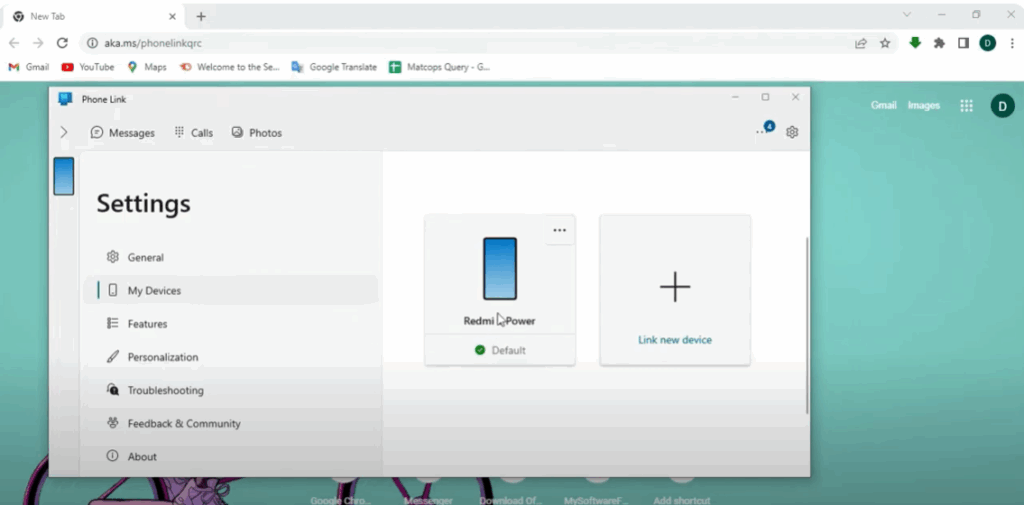
Once your phone is linked, here’s what’s possible:
- View and reply to text messages directly from your PC
- Make and receive phone calls through your PC
- Access recent photos (up to the last 2,000) and transfer them with drag-and-drop
- Manage notifications, including dismissing, pinning, or marking as read
- Control media playback (e.g., music playing on your phone) from your PC
- Copy and paste between devices seamlessly
Why This Works So Well
This integration turns your PC into a central hub for phone tasks, keeping distractions at bay and boosting productivity—especially useful during work or multitasking sessions.
For Galaxy users, Microsoft offers deeper integration with features like screen mirroring, seamless file transfers, and gallery access.






