

Welcome back to my channel Tech Gitter Official!
In today’s guide, we’ll cover a complete tutorial on how to use voice and video calls on WhatsApp Web. So, without wasting any time, let’s get started.
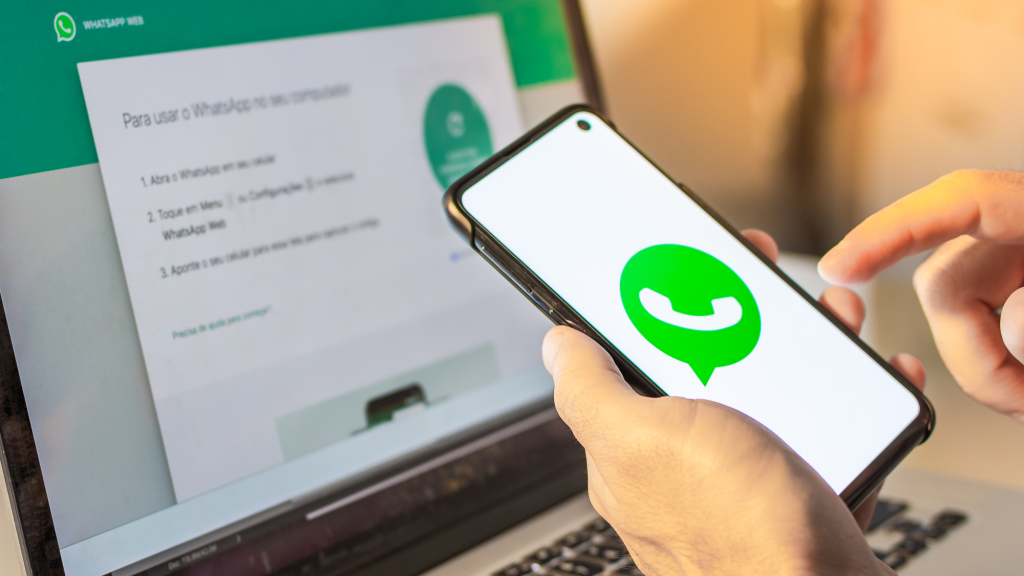
Step 1: Install WhatsApp Desktop App
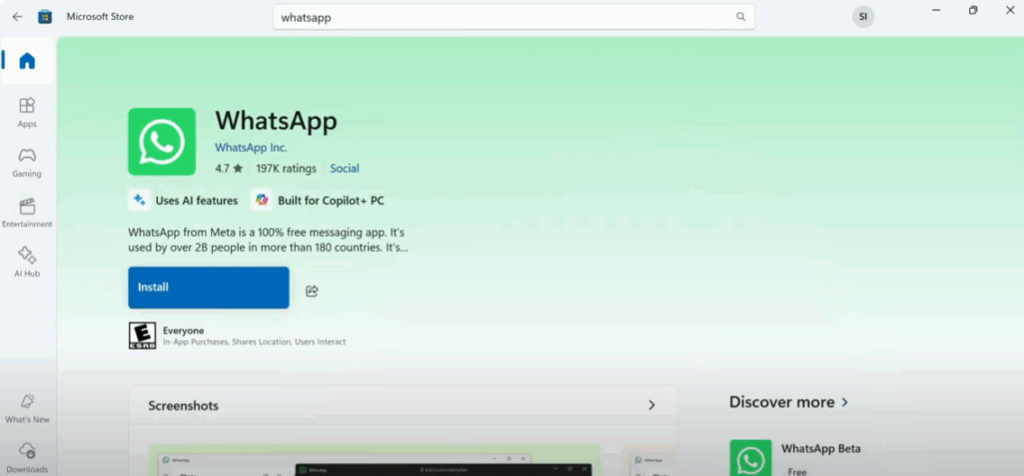
First, click on the Start button on your Windows laptop or PC and search for Microsoft Store.
Once you see it, click on it to open. Inside the Microsoft Store, you’ll see a search bar at the top. Click on it and type WhatsApp.
When WhatsApp appears in the search results, click on it and then hit the Install button.
Step 2: Link Your Mobile Device
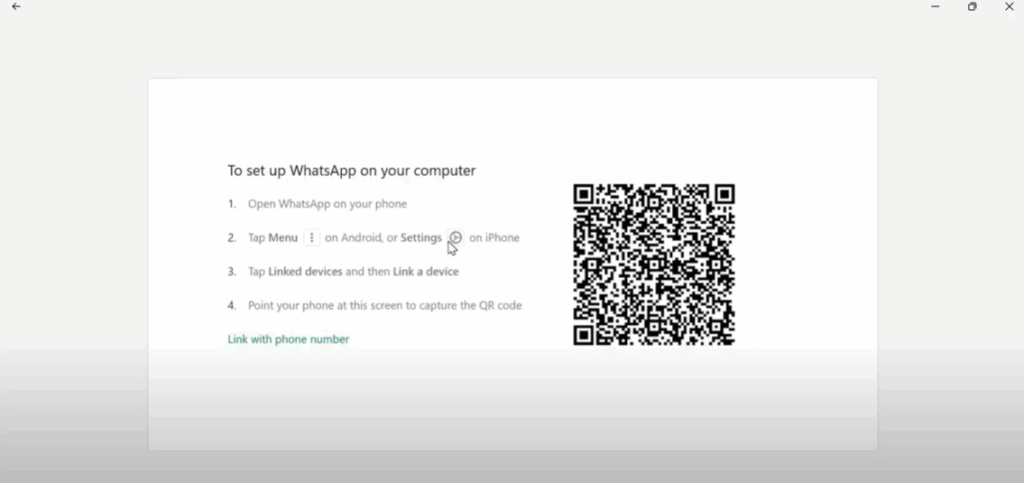
After the installation is complete, open the WhatsApp Desktop App. You’ll see a screen with a QR code — this will be used to link your phone.
Now, let’s move to the mobile phone. (In the video, you can follow along with my phone screen as well.)
- Open WhatsApp on your mobile.
- Tap the three vertical dots at the top right corner and select Linked Devices.
- Tap on Link a Device and scan the QR code shown on your laptop screen.
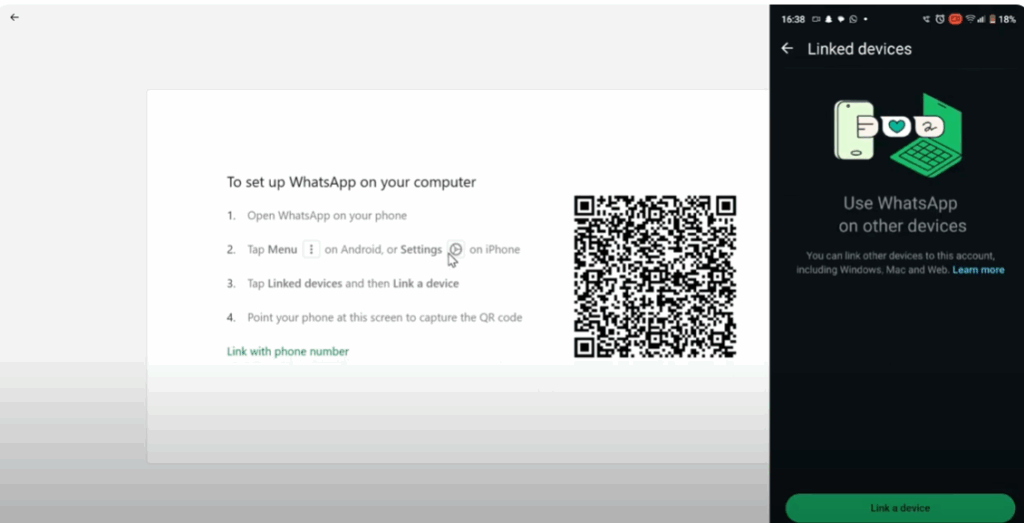
Once scanned, your WhatsApp will be connected to your laptop.
Step 3: Make Voice and Video Calls
Now you’re all set to make calls!
- Select any contact from the chat list on WhatsApp Desktop.
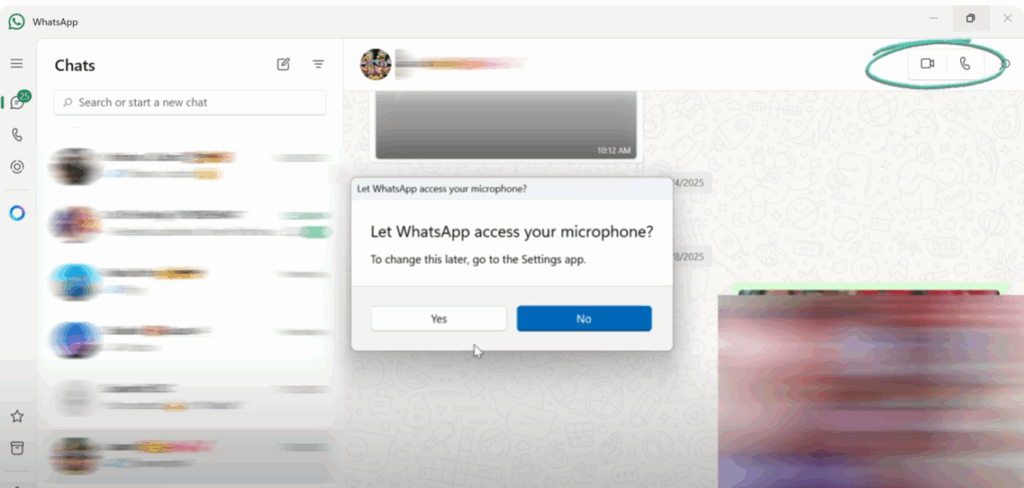
- You’ll now see the voice call and video call icons at the top right corner of the chat.
- When you click on either of them for the first time, WhatsApp will ask for permission to access your microphone and camera. Click Allow.
That’s it! Now you can make voice and video calls directly from your laptop using WhatsApp Desktop — super easy and convenient.
If this guide helped you, don’t forget to like and share.
Thanks for reading, and subscribe to Tech Gitter Official for more tech tips and tutorials!






