
Hello, welcome back to Tech Gitter Official.
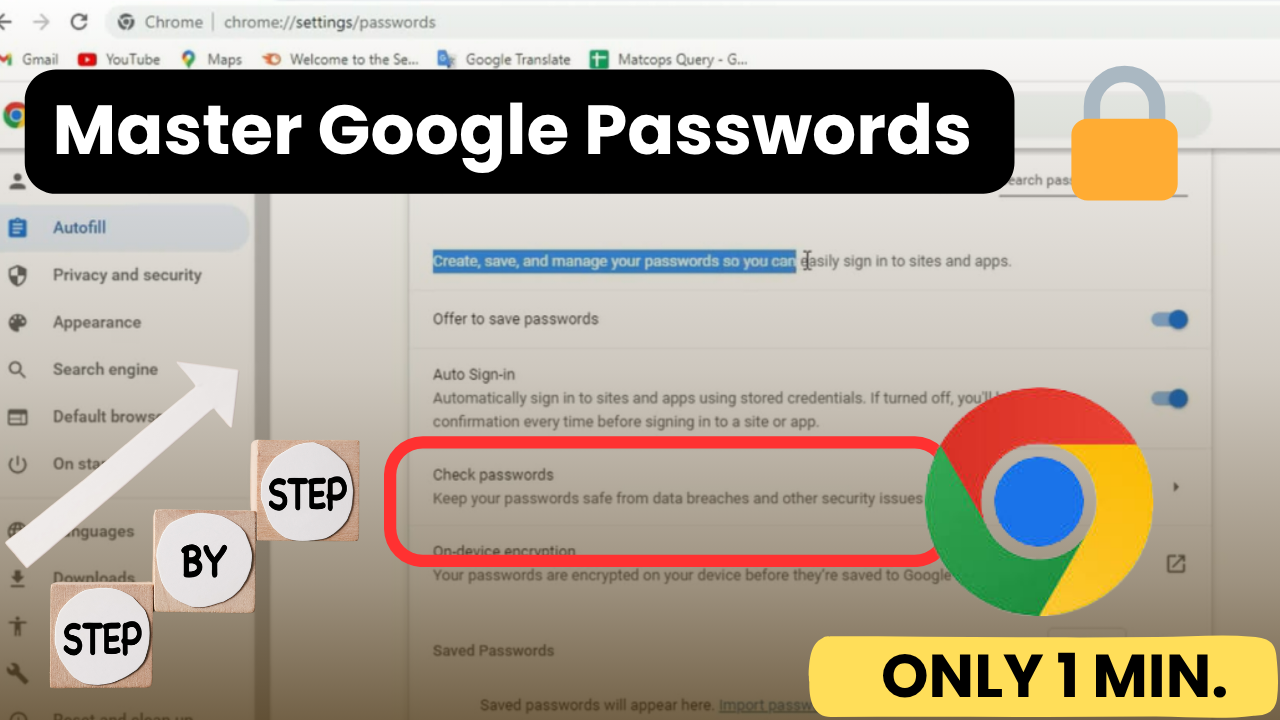
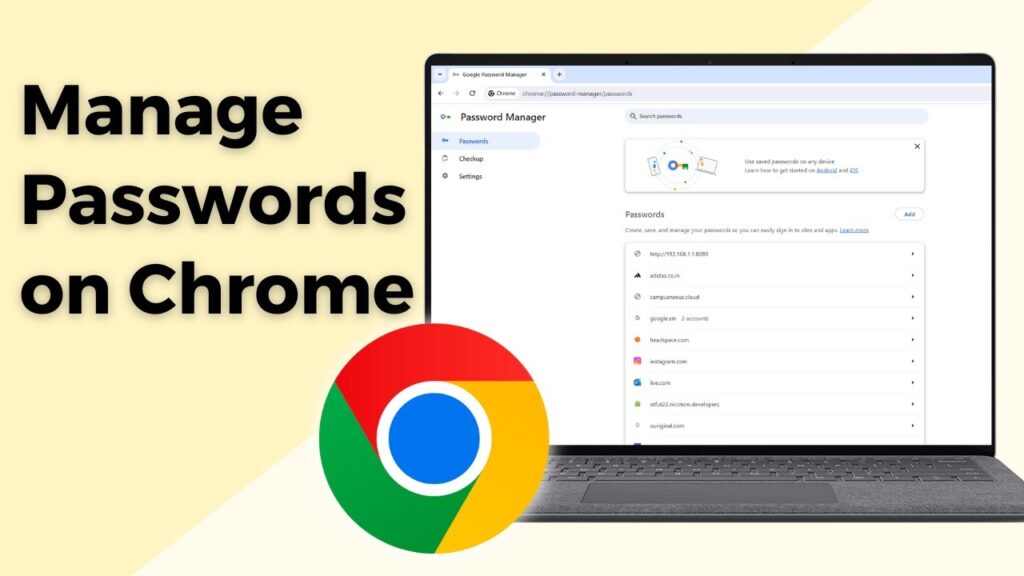
Today we will see how to manage Google passwords.
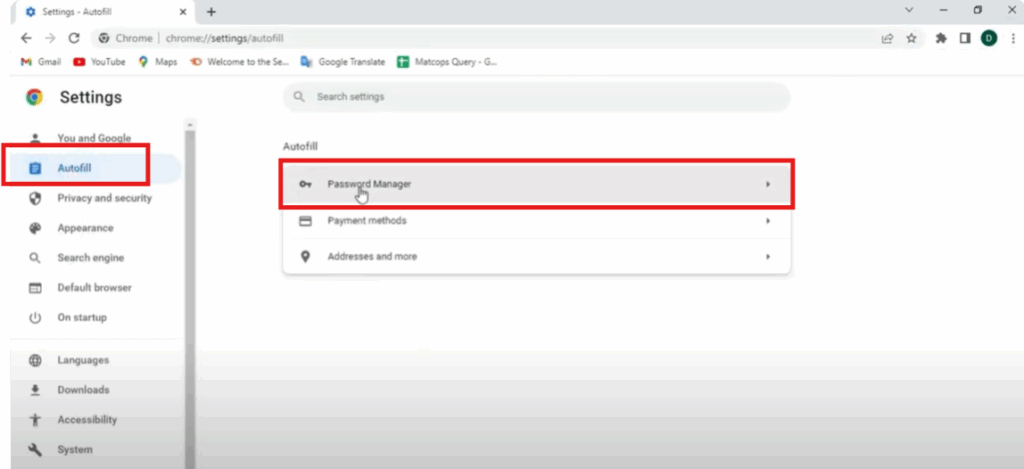
First, open Google Chrome. To open Chrome settings, just click on the three dots in the top right corner. Then click on Settings. After that, click on Autofill. Then go to Password Manager.
Here you’ll see options to create, view, and edit your passwords. You’ll also see a setting called Offer to save passwords. This allows Chrome to offer saving your login.
Below that, there’s an option for Autosign. If this is turned on, Chrome will log you in automatically without asking. From here, you can check all your saved passwords.
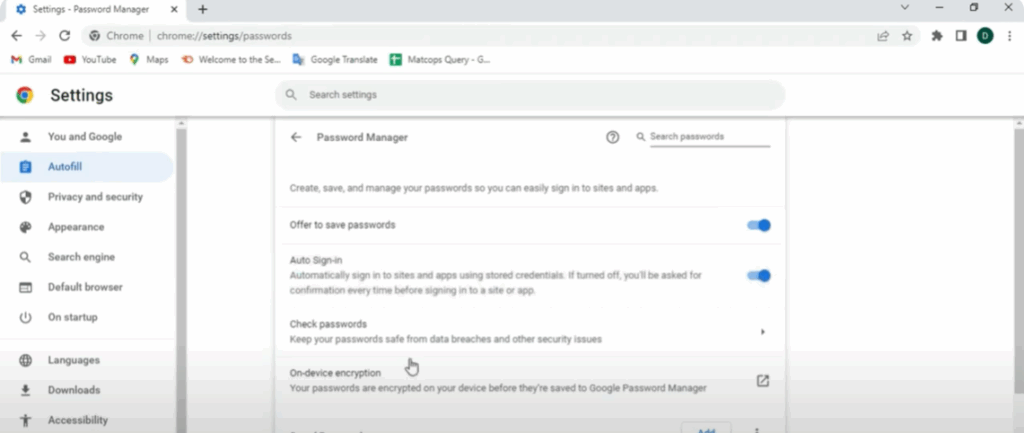
Now go back and click on On-device encryption. Here you’ll see the encryption settings. This ensures your passwords are protected and can only be accessed by you.
After that, you can also save a password manually. Just fill in the site name, username, and password. Make sure you’re entering the correct and current password, and then click Save.
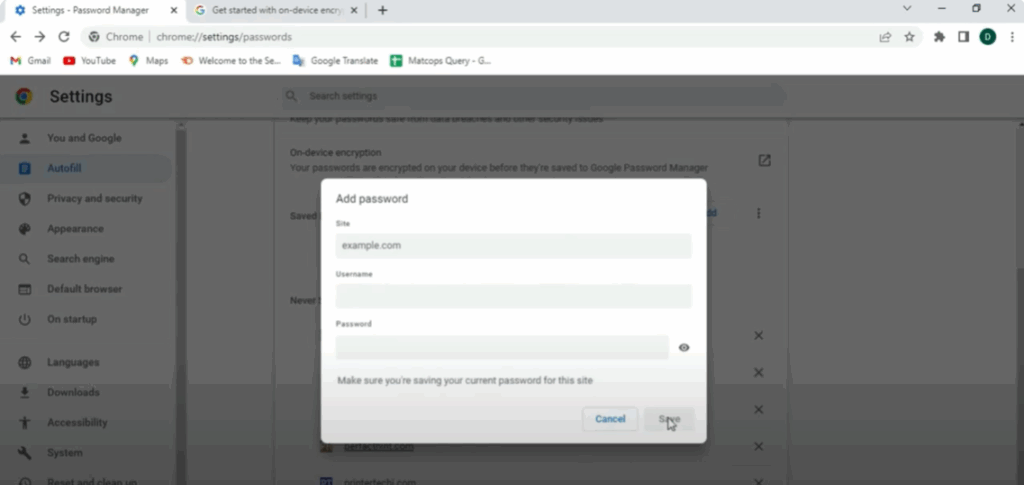
Below that, there’s a section for passwords that were never saved. You can also remove them from the list by clicking the cross icon.
So, that’s all about Google Password Manager. Don’t forget to like and subscribe to our channel for more updates.






