

Opening Microsoft Edge only to see a blank white screen can be baffling and frustrating. Whether it happens on startup or while browsing, this guide walks you through several effective fixes to get things back on track.
1. Repair or Reinstall Edge via Settings
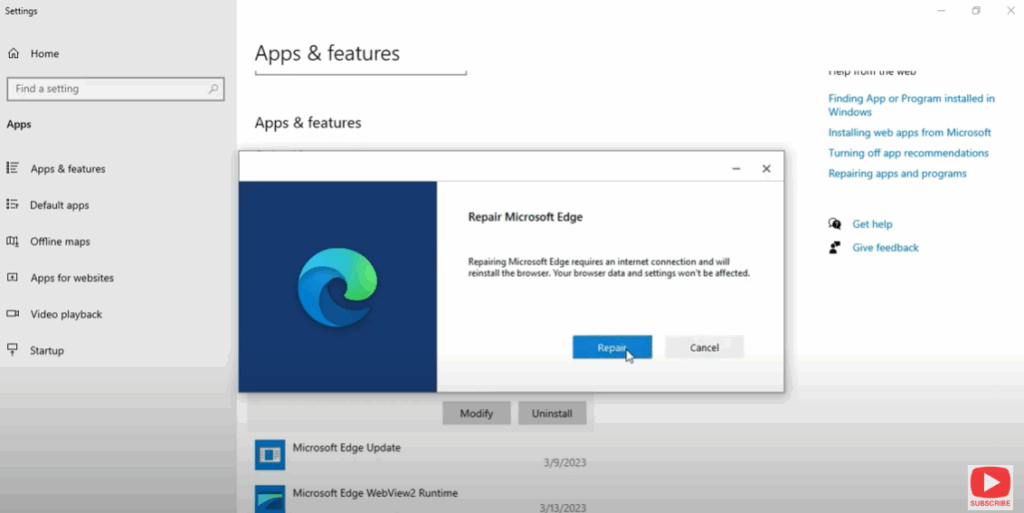
If you can’t access settings via Edge, you can repair it from the Windows Apps list:
- Go to Settings → Apps.
- Find Microsoft Edge in the list.
- Click Modify, then select Repair.
- If that fails, download the installer from Microsoft and reinstall.
2. Reset Edge to Default Settings
Custom configurations or browsing data might be causing display issues:
- Access Settings in Edge.
- Navigate to Reset settings.
- Select Restore settings to their default values and confirm.
3. Disable Hardware Acceleration
GPU acceleration can sometimes conflict with Edge’s rendering:
- In Edge settings, go to System and Performance.
- Turn off Use hardware acceleration when available.
- Restart Edge.
4. Clear Cache and Browsing Data
Corrupted cache or history might lead to display problems:
- Press Ctrl + Shift + Delete in Edge.
- Select all data types—cookies, history, cache.
- Click Clear now, then restart the browser.
Final Thoughts
If you can’t access Edge settings due to the blank screen, start with file deletion and SFC/DISM scans. If that doesn’t help, try repairing or reinstalling. Don’t forget to reset the browser and disable hardware features if needed. And for environment-specific cases like kiosk setups, version compatibility matters—rolling back or applying updates strategically can be the key.






