

If your Microsoft Edge screen goes black while scrolling, you’re not alone—many users on Windows 11 and 10 have faced this annoying issue. The problem usually happens because of hardware acceleration, outdated graphics drivers, or a temporary glitch in the browser’s performance settings. The good news is that this can be fixed easily with a few simple tweaks, such as turning off hardware acceleration or repairing Edge. In this blog, you’ll learn quick and effective methods to fix the black screen issue in Microsoft Edge so you can browse without interruptions.
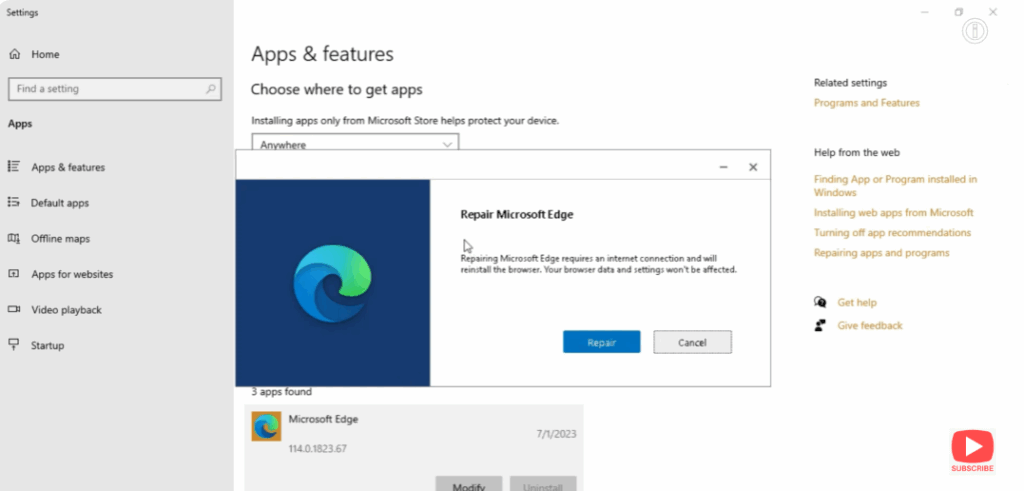
Go to your Windows Settings and open Apps & Features.
Search Edge in the search bar and click on Modify.
Here, we will see the option of Repair — click on it to repair the browser.
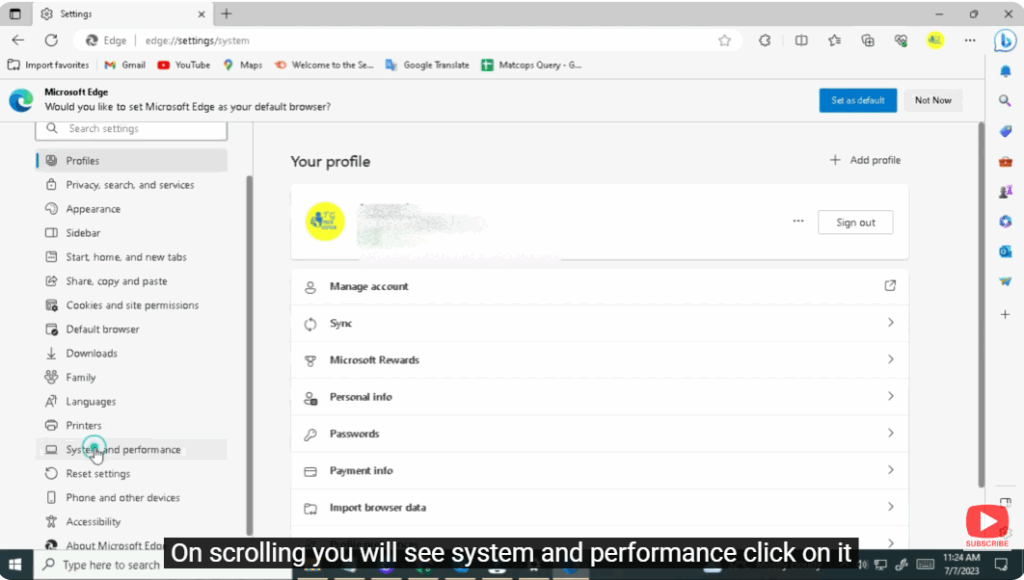
Next, click on the three dots appearing on the top right corner of Microsoft Edge and go to Settings.
While scrolling down, you will see System and Performance, click on it.
Here you will find the option Use hardware acceleration when available — turn it off.
Once you do that, it will give you the option to Restart.
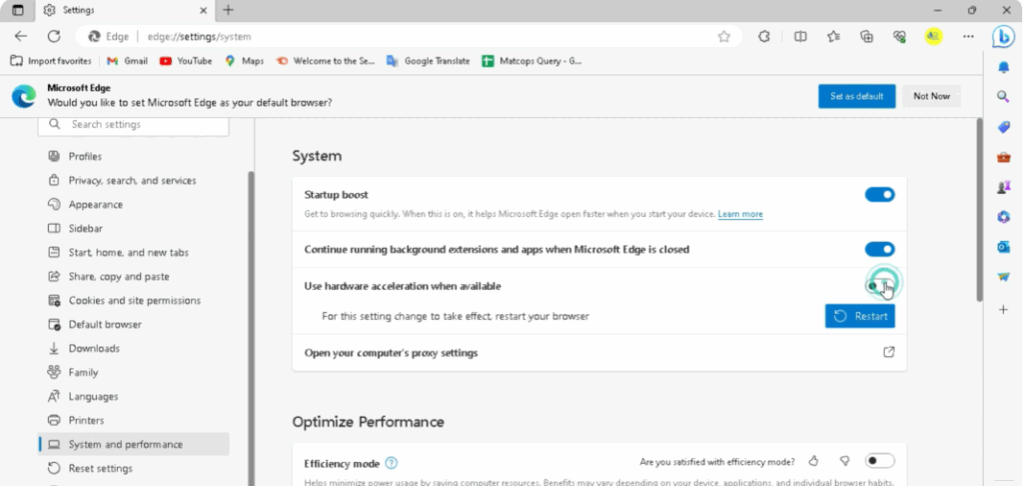
After restarting, your black screen problem will be solved.






