

Ever felt stuck while using Microsoft Excel and didn’t know where to find a feature? That’s where the “Tell me what you want to do” tab comes in! It’s a smart search box that helps you quickly find tools, commands, or help articles—just by typing what you need. No more digging through menus or guessing where things are. In this blog, we’ll explain how the “Tell Me” feature works in Excel, and how it can save you time and make your work easier. Let’s explore this handy shortcut!
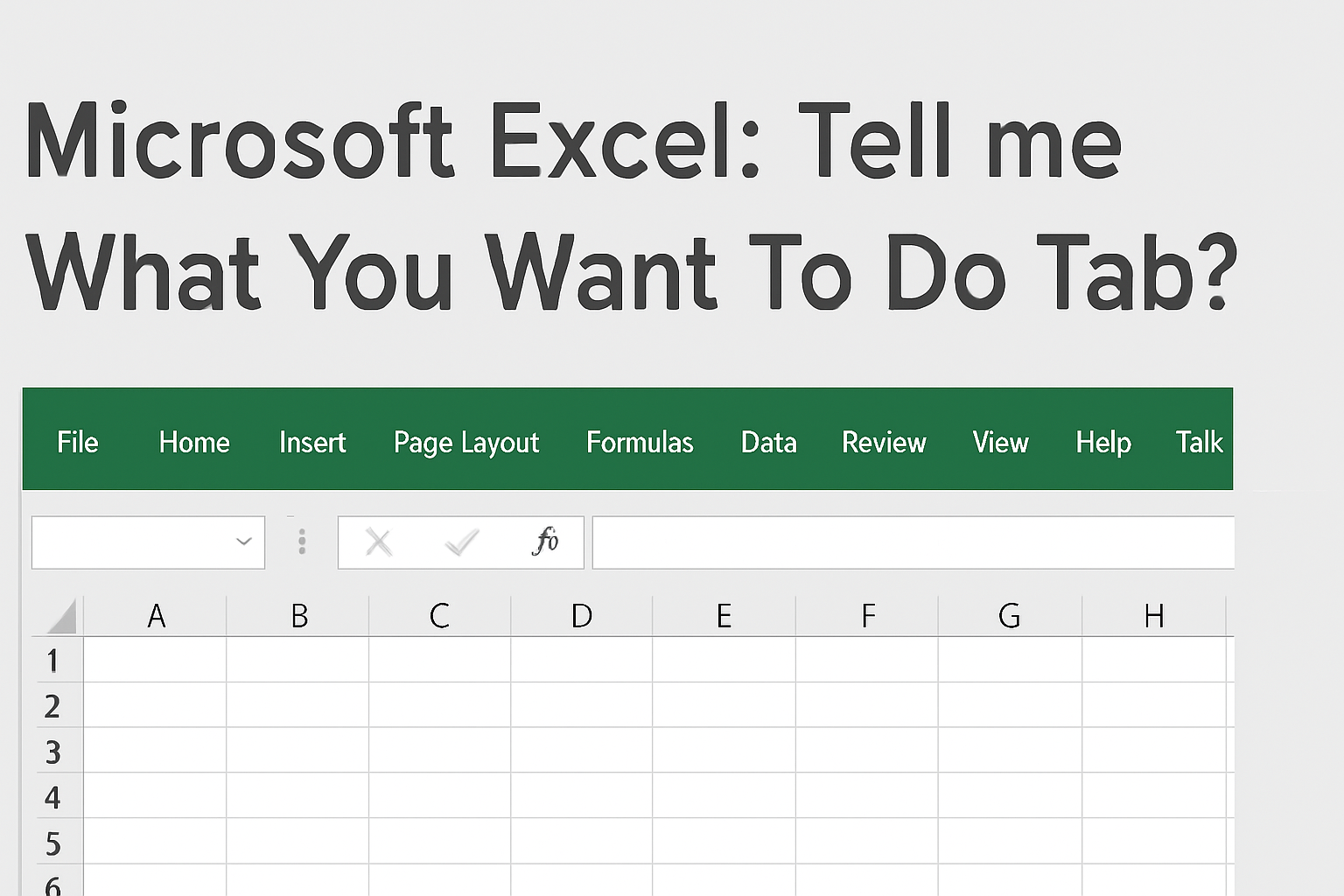
🚀 How to Use the “Tell Me” Tab
- Locate the Tell Me box
- It’s in the ribbon area, often with an icon like a light bulb or a text prompt.
- Click in the box or press Alt + Q (in many Excel versions) to activate it.
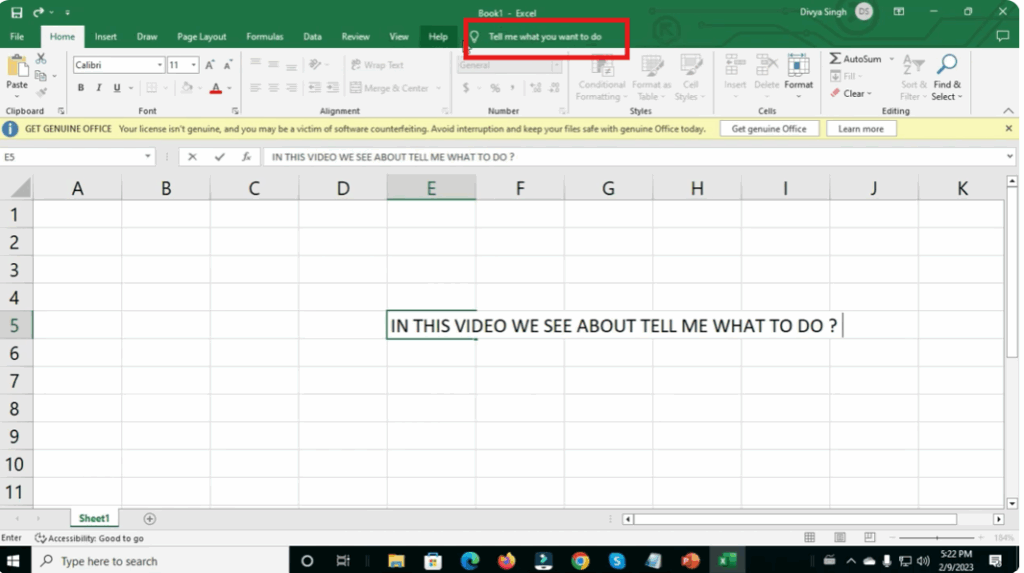
- Type in what you want to do
- Enter a task or command name — for example, “sort data”, “conditional formatting”, “freeze panes”.
- As you type, Excel shows suggestions or matches (a dropdown list) of possible actions and help topics.
- Select from the suggested commands
- Click on one of the suggestions, and Excel will either execute that command directly or take you to that feature/submenu.
- Sometimes it may open a dialog box for the task you selected.
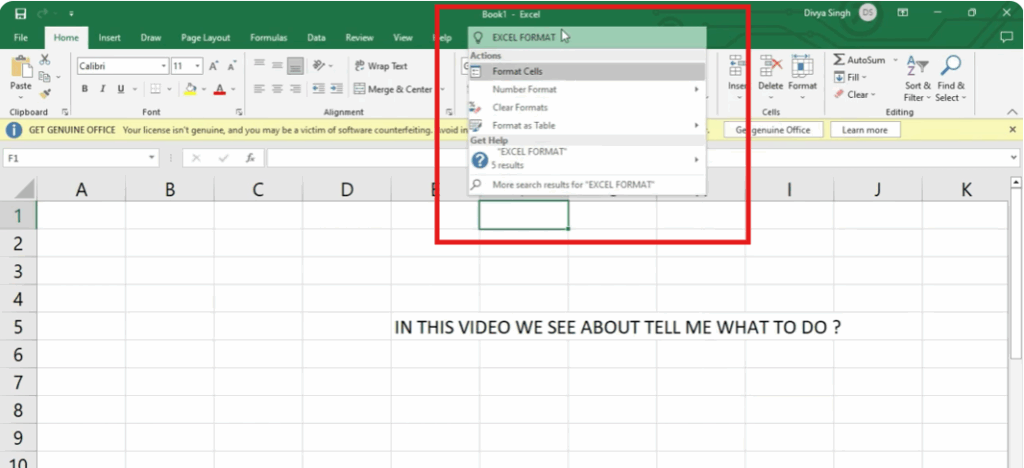
- Use it for help too
- Beyond commands, the Tell Me feature also shows help topics related to your search. So if you don’t know exactly how to phrase the command, you can type something descriptive (e.g. “how to split cells”) and get guidance or links to help.






