
The Microsoft Store not working on Windows 11 can be frustrating when you can’t download or update apps. Common issues include apps not opening, endless loading, or error messages after updates. In this blog, you’ll learn simple fixes like running the Store troubleshooter, resetting the app cache, re-registering Microsoft Store, and checking Windows services to get everything working smoothly again.
✅ Step-by-Step Fixes for Microsoft Store on Windows 11
Here are the most effective solution steps — start with the easiest and advance if needed.
1. Check Internet, Date/Time, and Microsoft Account
- Make sure you’re online and the connection is stable. A poor or unstable internet connection often prevents Store from loading.
- Ensure your system’s Date & Time and Region settings are correct — mismatched time/region can block Store access.
- Confirm you’re signed in with your Microsoft account — some Store functionality requires a valid account.
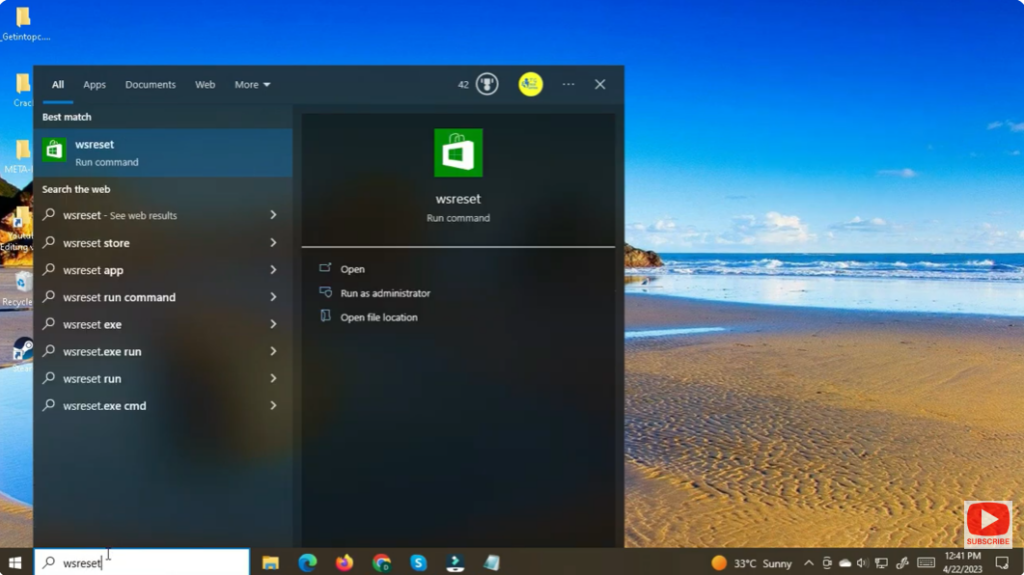
2. Clear Store Cache (with WSReset.exe)
Corrupted cache is a frequent cause of Store failure. Clearing it often fixes launching and loading issues:
- Press Win + R to open the Run dialog.
- Type
wsreset.exeand press Enter. - A blank command-window will open and automatically close after a few seconds. Then Microsoft Store should launch.
3. Repair or Reset Microsoft Store via Settings
If clearing cache doesn’t work:
- Open Settings → Apps → Installed apps (or Apps & features).
- Find Microsoft Store, click the three-dot menu (⋮), and open Advanced options.
- First try Repair — if that fails, then click Reset. This restores default app settings and clears data (but doesn’t remove installed apps).
- Reopen Store and test.
4. Run the Built-in Windows Troubleshooter for Store & Apps
Windows 11 includes a troubleshooter that can automatically detect and fix many Store issues:
- Go to Settings → System → Troubleshoot → Other troubleshooters.
- Find Windows Store Apps → click Run → follow on-screen prompts.
- After troubleshooting, restart your PC and open Microsoft Store again.
5. Re-register / Reinstall Microsoft Store via PowerShell
If the Store app itself is corrupted, re-registering or reinstalling can help:
- Open PowerShell (Admin) — right-click Start ➜ choose “Windows Terminal (Admin)” or “PowerShell (Admin)”
- Run this command to re-register Store:
Get-AppxPackage -AllUsers *WindowsStore* | ForEach { Add-AppxPackage -DisableDevelopmentMode -Register "$($_.InstallLocation)\AppXManifest.xml" }
- After execution, reboot your PC and try launching Microsoft Store.
⚠️ If that fails, you can fully reinstall Store — but backup any important data before doing so.
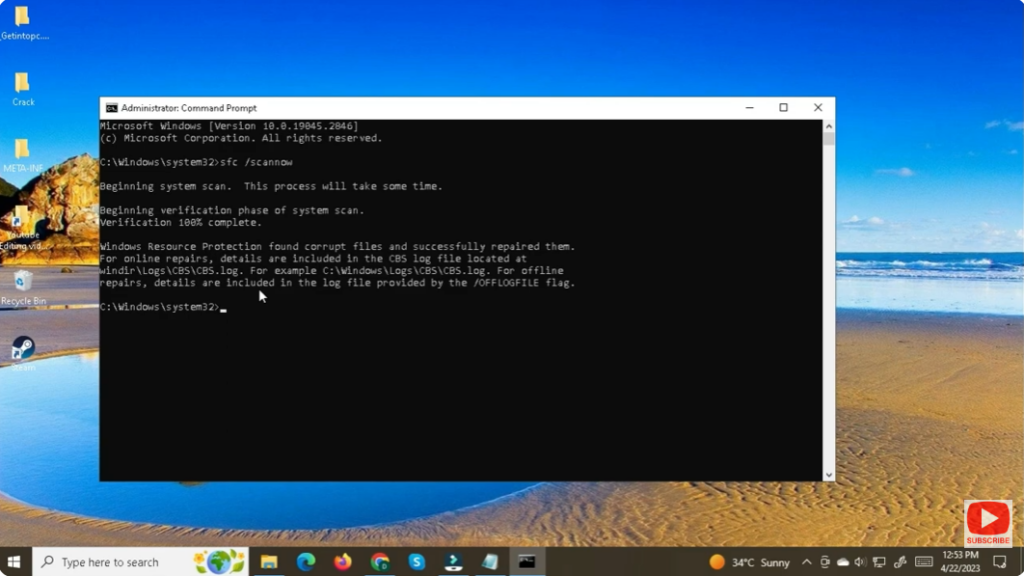
6. Run System File Checker (SFC) & DISM (If System Files Are Corrupted)
Corruption in Windows system files might also break Store functionality. Use Windows built-in tools to repair:
- Open PowerShell (Admin) or Command Prompt (Admin).
- Run:
sfc /scannow
- Then run:
DISM /Online /Cleanup-Image /RestoreHealth
- Once completed, restart your PC and check Microsoft Store again.
✅ Final Thoughts
Microsoft Store issues in Windows 11 are common — but in most cases, they can be resolved without drastic measures. Clearing cache, repairing or resetting the Store, and re-registering it usually fix the problem. For deeper issues, running system repair tools (SFC & DISM) can restore broken Windows components.






