
Creating presentations doesn’t have to be difficult—Microsoft PowerPoint makes it simple and fun. Whether you’re a student preparing a project, a professional making a business report, or just someone who wants to share ideas visually, PowerPoint is the go-to tool. It allows you to design slides with text, images, charts, and animations, all in a few easy steps. In this beginner-friendly blog, we’ll walk you through an MS PowerPoint tutorial for beginners, showing why everyone should learn it to create clear, engaging, and impressive presentations.
If you do not have Microsoft PowerPoint on your PC, you can get it from the Microsoft Store by going to Google Chrome.
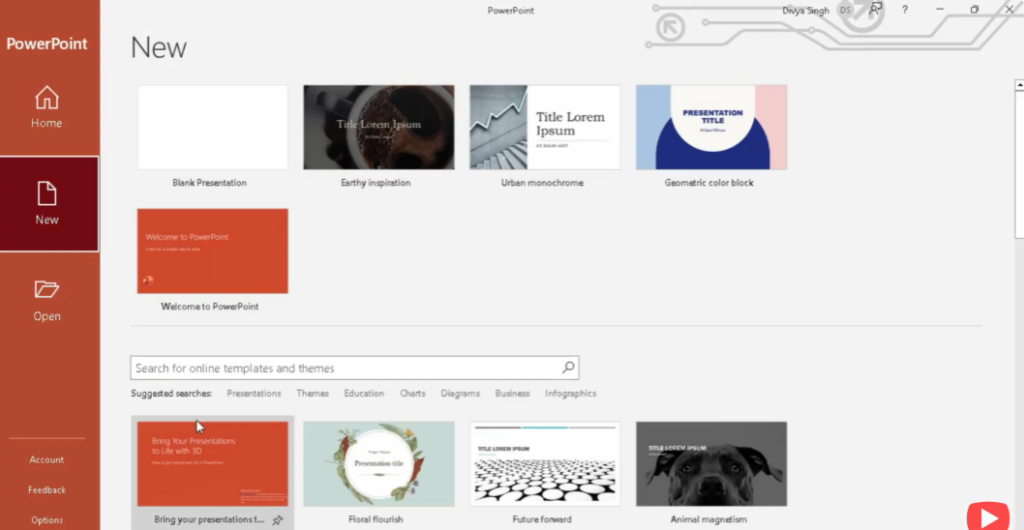
Open PowerPoint; here you will see New and Open options.
Here we will see some templates—click on More Themes.
You can also search for templates online.
This will help you with some instructions.
If you want to show PowerPoint on the taskbar, then right-click and Pin to Taskbar.
To save the presentation, click on the File and go to the Save option.
Here you can add your title and subtitle.
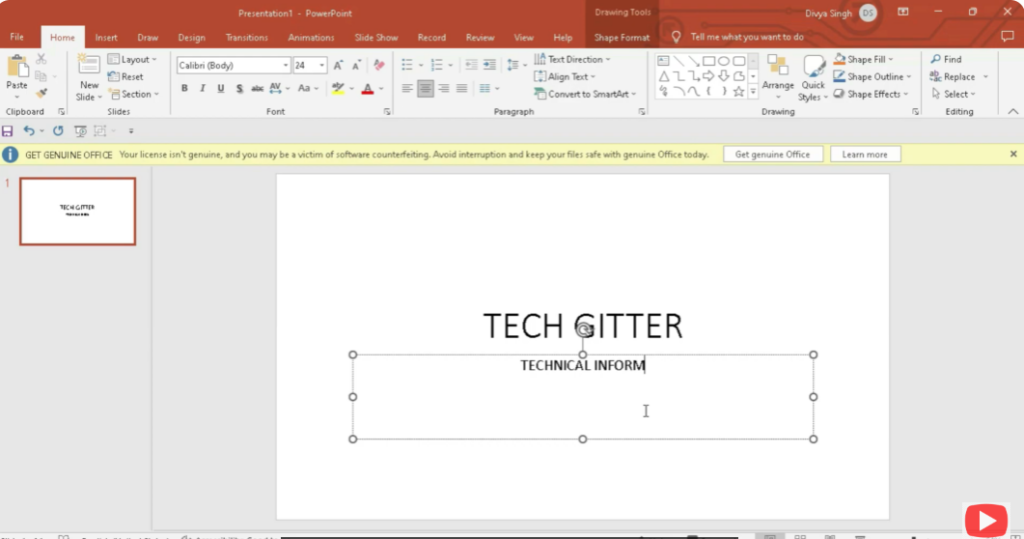
You can apply different types of themes by going to the Design Template.
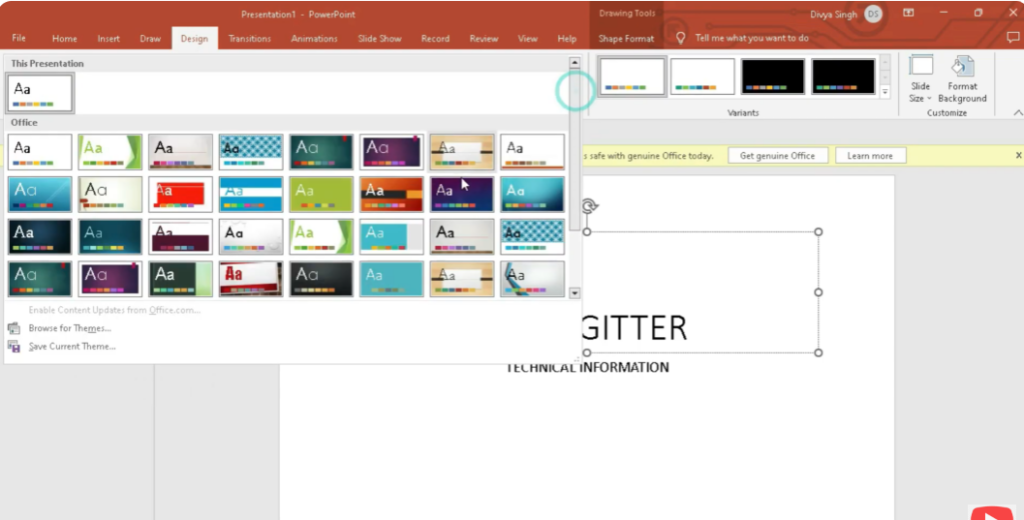
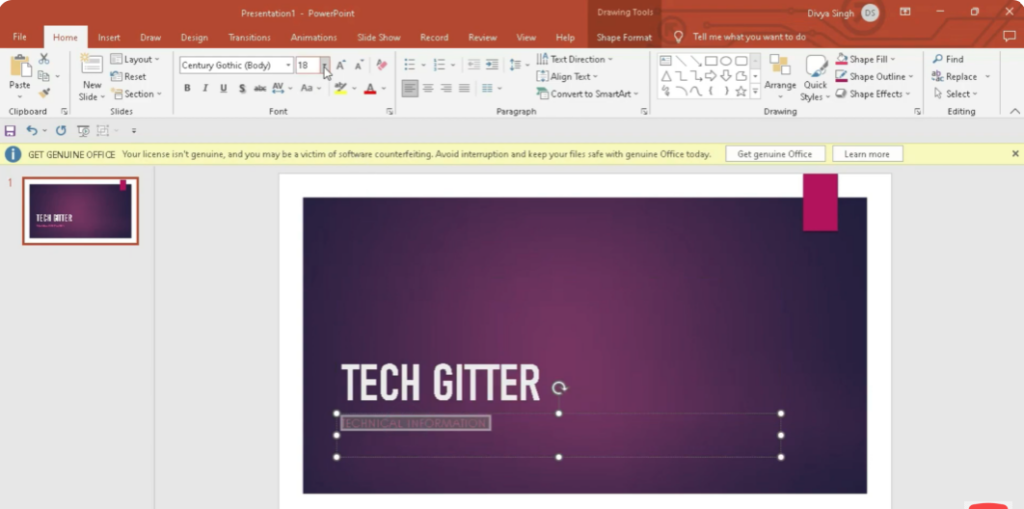
You can change the font of the text and the size of the text.
You can change the font to bold, italic, uppercase, and lowercase.
Here you can change the background of the font and resize it.
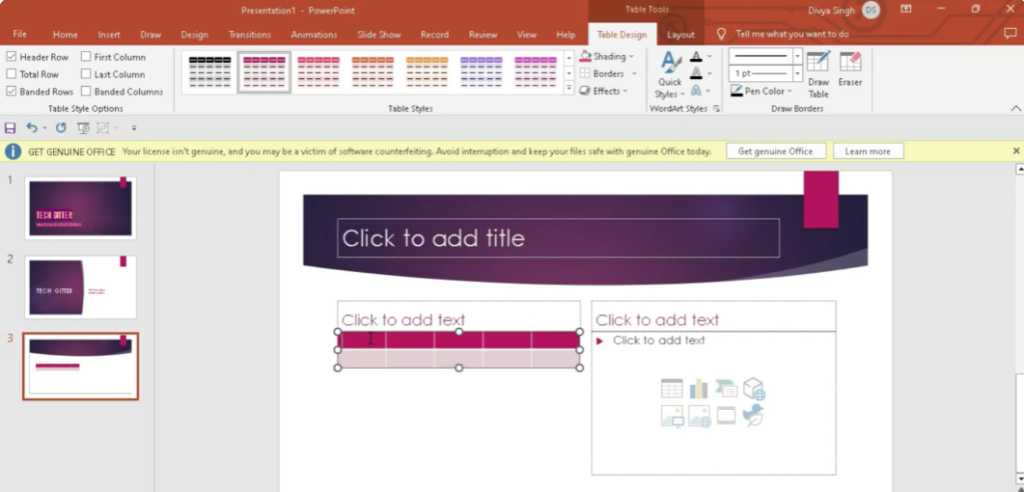
You can add a new sheet according to the topic.
You can add table charts and different types of text.
You can add shapes and 3D images related to the topic.
You can add and edit video from the device.
You can add and edit images.
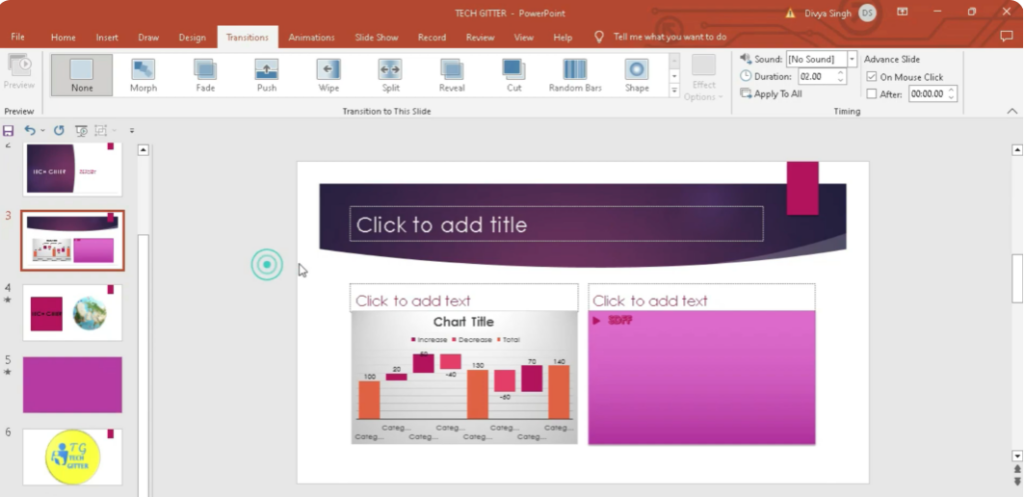
You can add transition to the slide according to the time duration.
You can add smart art chart according to Excel sheet.
You can insert the icon according to your need.
You can add these percentages to the desktop by going to the File option.
Below are some options, with the help of which you can convert the screen into full screen and slide.
And you can also write notes.
With the help of PowerPoint presentation, you can prepare a project related to your business.






