
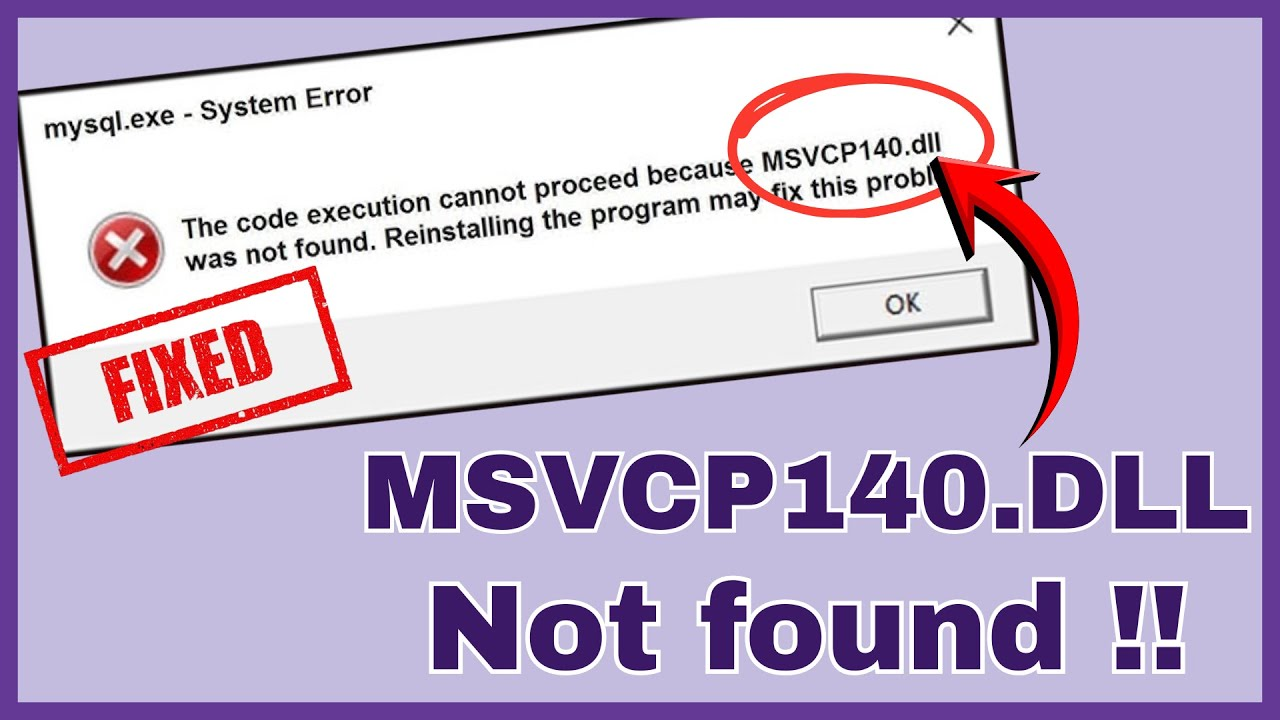
MSVCP140.dll missing error on Windows 10/11 prevents many apps and games from launching because this essential Microsoft Visual C++ runtime file is corrupted, deleted, or outdated. You’ll see messages like “The program can’t start because MSVCP140.dll is missing from your computer.” In this blog, you’ll learn easy fixes like reinstalling Visual C++ Redistributables to resolve the error quickly and safely.
Method One: Install Microsoft Visual C++ Packages
First, open any browser and go to the official Microsoft download page. The link will be in the video description. Once you’re there, scroll down until you see the x86 and x64 versions. Download the x86 version first. Open the file and you’ll see either install or repair. Click the button and wait until it completes.
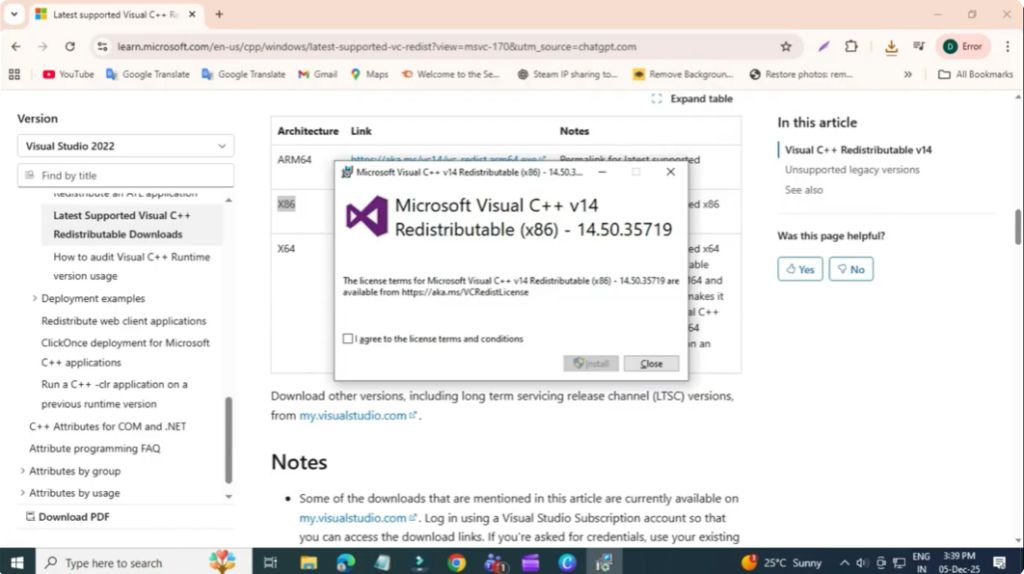
Next, repeat the same steps for the x64 version. Once both are completed, restart your PC and check if the error is fixed.
Method Two: Manually Replace the Missing DLL File
If the first method didn’t work, open your browser again and search for msvcp140.dll download. If your error shows a different DLL file name, search for that exact one. Click on the top result and scroll down to the download section.
Now, determine whether your system is 32bit or 64-bit by searching for system information in the start menu. If it shows x64, download the 64-bit file. Otherwise, download the 32-bit version.
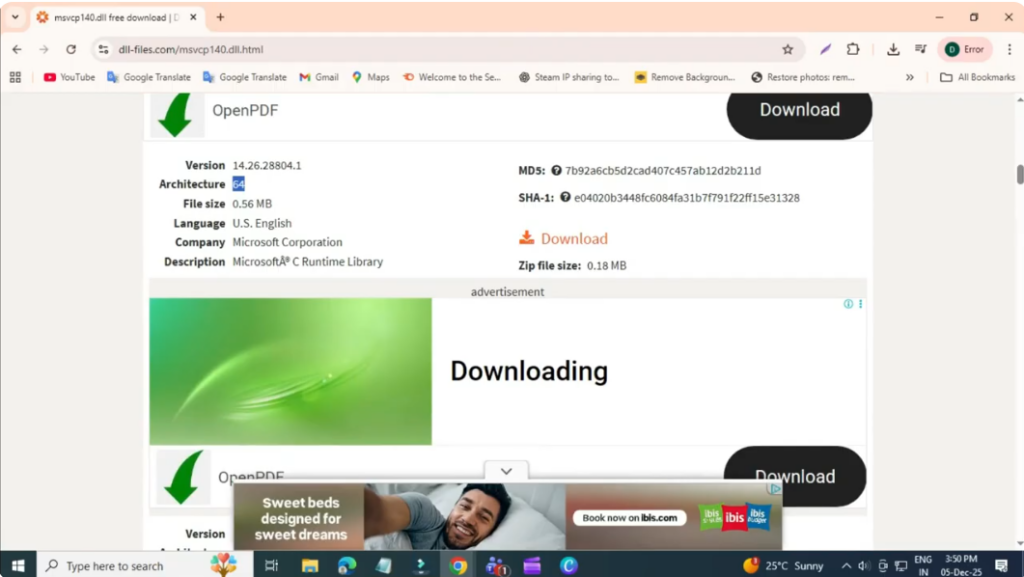
Once downloaded, extract the zip file, copy the DLL file, then go to C drive, then Windows and System 32. Right click and paste the file. If asked, choose replace file in destination.
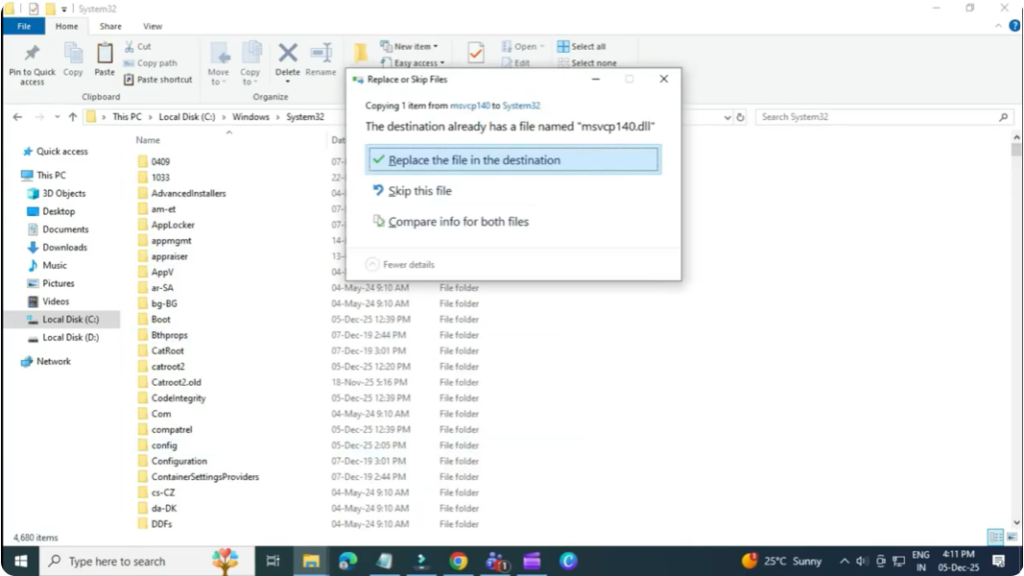
If you’re on a 64-bit system, you’ll also need to paste the same file into C drive, then Windows and SysWOW64.
After that, restart your PC and the error should now be fixed.






