
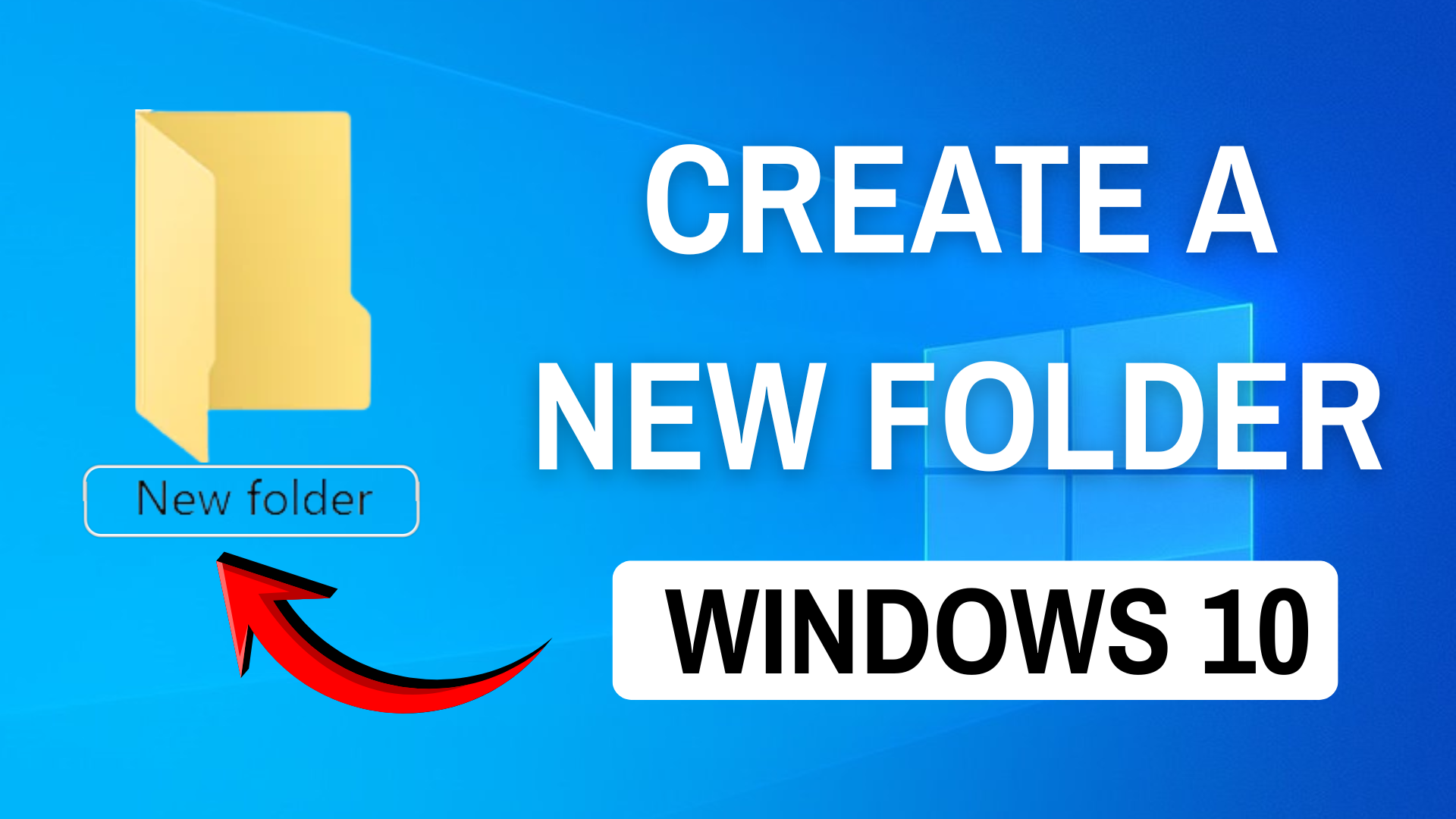
Sometimes when you try to make a new folder in Windows 10, it just doesn’t show up, and that can be really confusing. Folders are important because they help you organize files like documents, pictures, and videos, but if the option to create one is missing or not working, it feels frustrating. The good news is, this is usually caused by small system glitches or settings issues—and it’s easy to fix. In this beginner-friendly blog, we’ll explain in simple language how to create a new folder in Windows 10 step by step, so you can keep your files neat and organized.
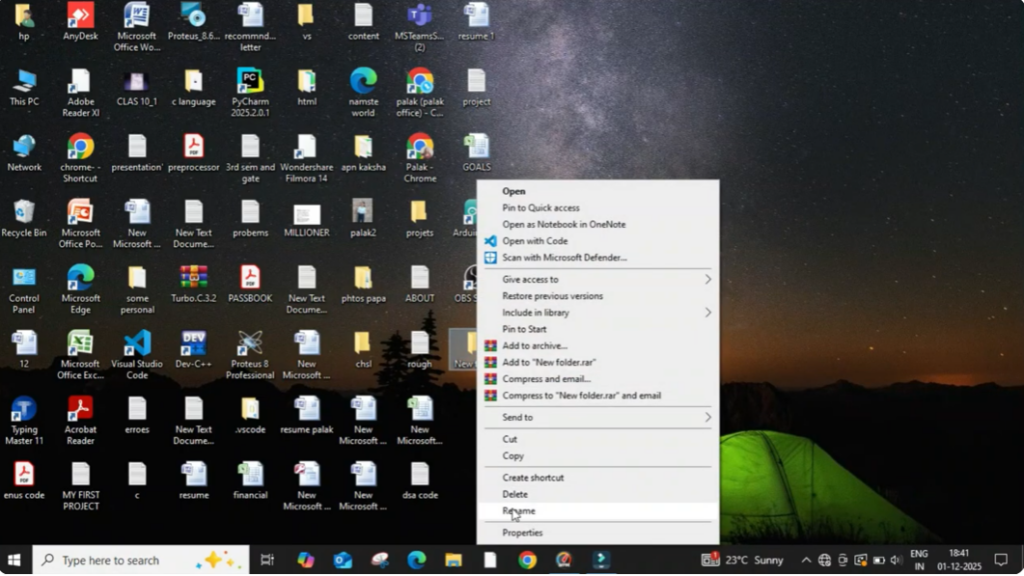
Firstly, right click on the computer screen. Then click on new and after that click on folder. Your new folder will be created instantly.
After this, we can rename the folder. For that, right click on the folder and then click on rename. Now, you can give any name to this folder. For example, I am naming this work.
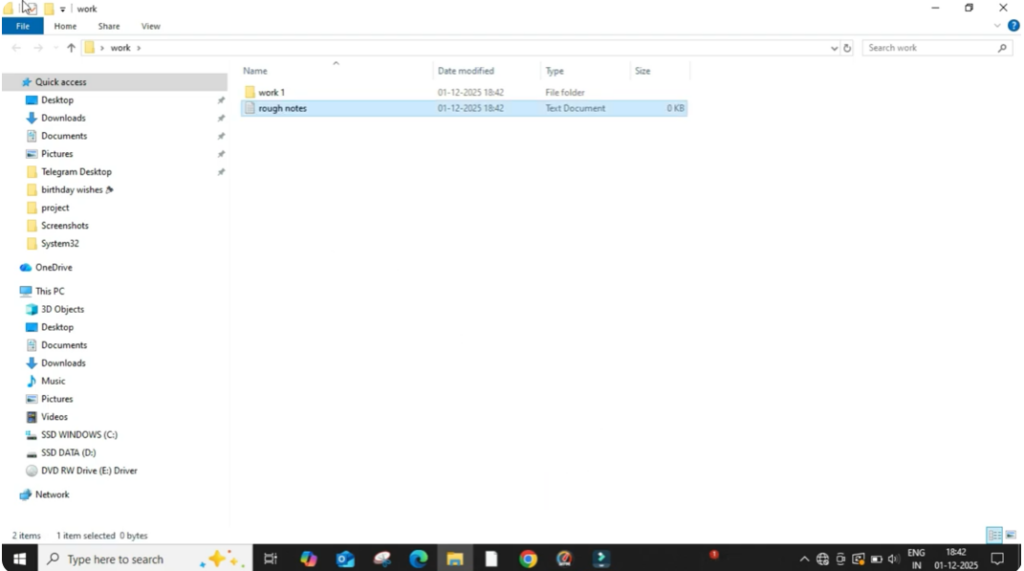
Now open this folder by clicking on it. You can see that it is empty. So let’s create another folder inside it. Right click on the empty space. Click on new and then click on folder. After this rename it as work one.
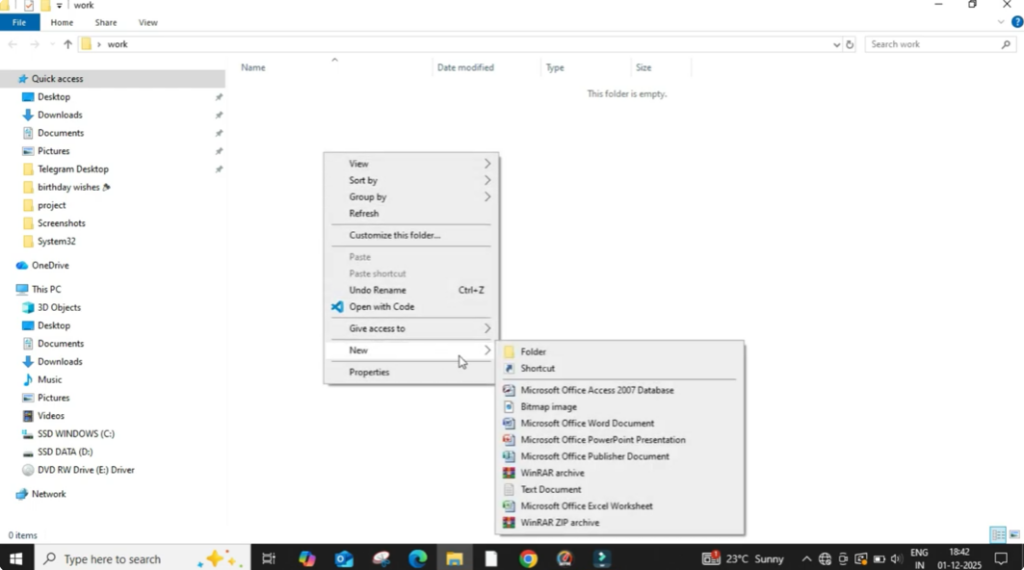
We can also add a text document inside this folder. Right click. Choose new. Select text document. After this rename it as rough notes. After this close the folder.
Now right click on the main folder again and click on properties. Here you can see details like file name, location, size and more. You can also hide this folder by clicking on hidden. Once selected, click on apply and then okay.






