

If you get the frustrating error message:
“Not Enough Memory in the System to Start the Virtual Machine” when using Hyper-V on Windows, here’s how to get past it.
Why This Happens
The issue arises when Hyper-V can’t allocate sufficient physical memory to a virtual machine, even if Task Manager reports enough available RAM. This can occur due to:
- Excessive memory reserved or “committed” by other processes
- Startup memory requirements too high
- Host system overhead not accounted for
How to Fix It
1. Reduce the VM’s Assigned Memory
Cut down on fixed memory allocation in the VM’s settings:
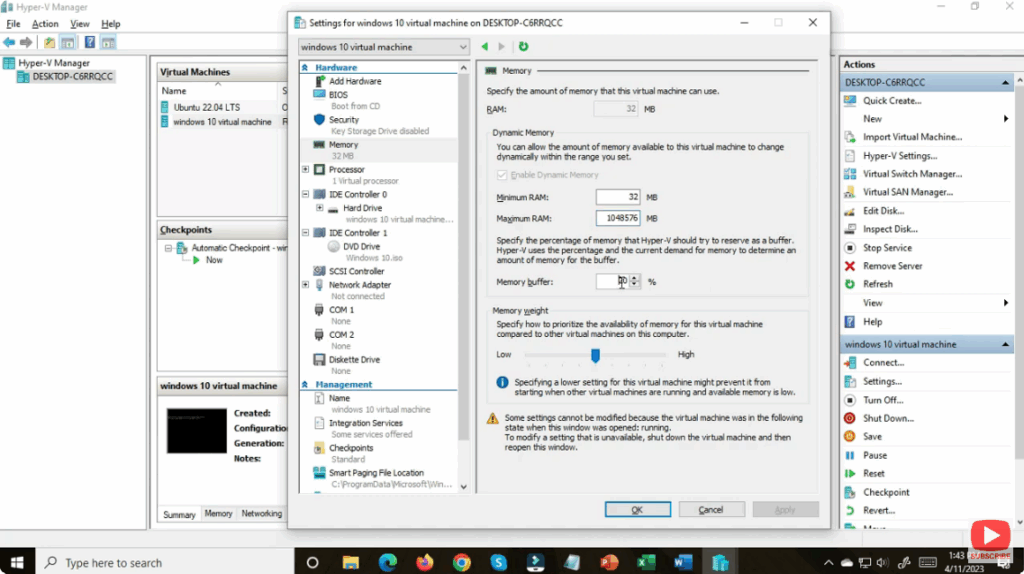
- Open Hyper-V Manager → Right-click your VM → Settings → Memory
- Lower the Startup RAM to a safer number (e.g. 512 MB)
- Enable Dynamic Memory, setting a suitable minimum and maximum
2. Free Up Host Memory
Close non-essential applications or background processes using Task Manager:
- Press Ctrl + Shift + Esc to open Task Manager → terminate high-memory tasks
3. Use Dynamic Memory
With dynamic memory enabled, Hyper-V adjusts VM usage based on demand. This allows starting with minimal resources and scaling up as needed.
4. Delete the VM’s Saved State
Sometimes, a lingering saved state consumes hidden memory. Clearing it can free resources:
- Open Hyper-V Manager → Right-click the VM → Delete Saved State
5. Start VM Automatically at Boot
Allow the host OS to allocate memory before other load:
- In Hyper-V settings, go to Automatic Start Action → choose Always start this virtual machine automatically → restart host
6. Clear Standby Memory (Advanced)
Use tools like Sysinternals RamMap to free page cache and standby memory without reboot:
- Open RamMap, go to Empty → click Empty Standby List
Insights from Other Users
On Reddit, one Hyper-V user noted:
“With only 2.2 GB available and trying to allocate 1 GB to a VM, the host is left with too little to operate.”
They advised shutting down another VM or ensuring memory settings are dynamic and balanced.
Final Thoughts
Even if it appears you have enough RAM, Windows reserves resources for various processes. By adjusting startup memory, enabling dynamic allocations, freeing host memory, and clearing saved states, you can reliably launch Hyper-V virtual machines without needing to reboot.






